Example Smart Filters
View an example smart filters page.
While a smart filters page behaves similarly to faceted search, it features a more space efficient layout. Smart filter pages include a single search field at the top of the page with filters that display as suggestion chips with counts that show how often a specific value occurs.
The following example shows a smart filters page built on the EMP table. Note the filter suggestion chips that display beneath the Search field.
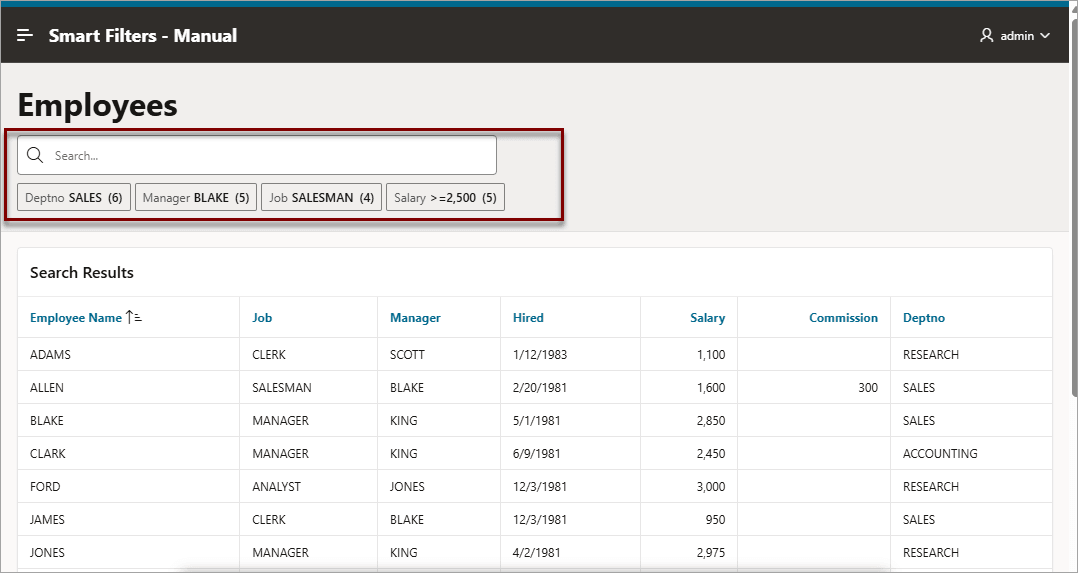
Description of the illustration smart_filters_example.png
Clicking a the filter name displays a list of values. In this example the department, Sales, is selected and displays three values: SALES, RESEARCH, and ACCOUNTING.
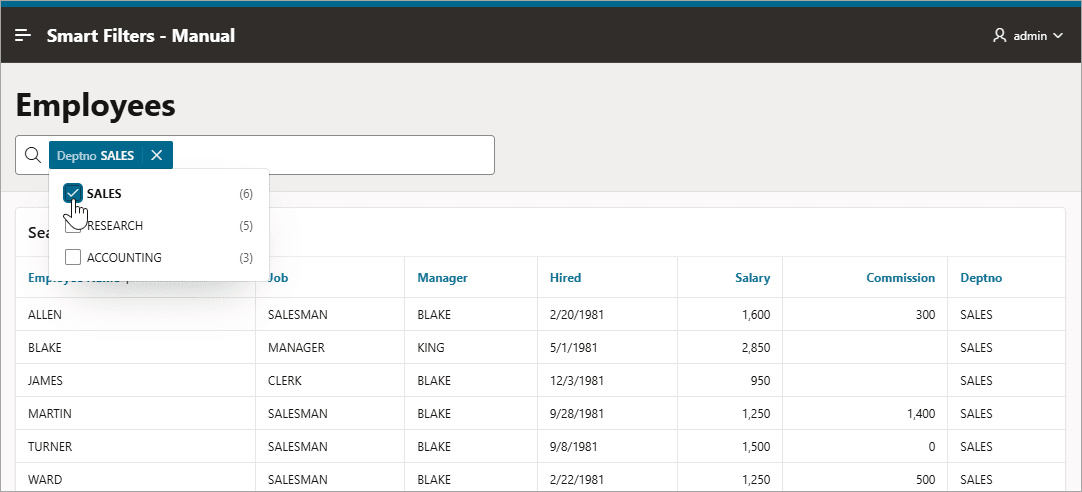
Description of the illustration smart_filter_filter_selected.png
If you click any place to right of the name, the suggestion chip becomes an applied filter chip and moves to the Applied Filters Area. Clicking the applied filter chip again displays the list. In this example, the Manager applied filter chip displays six managers.
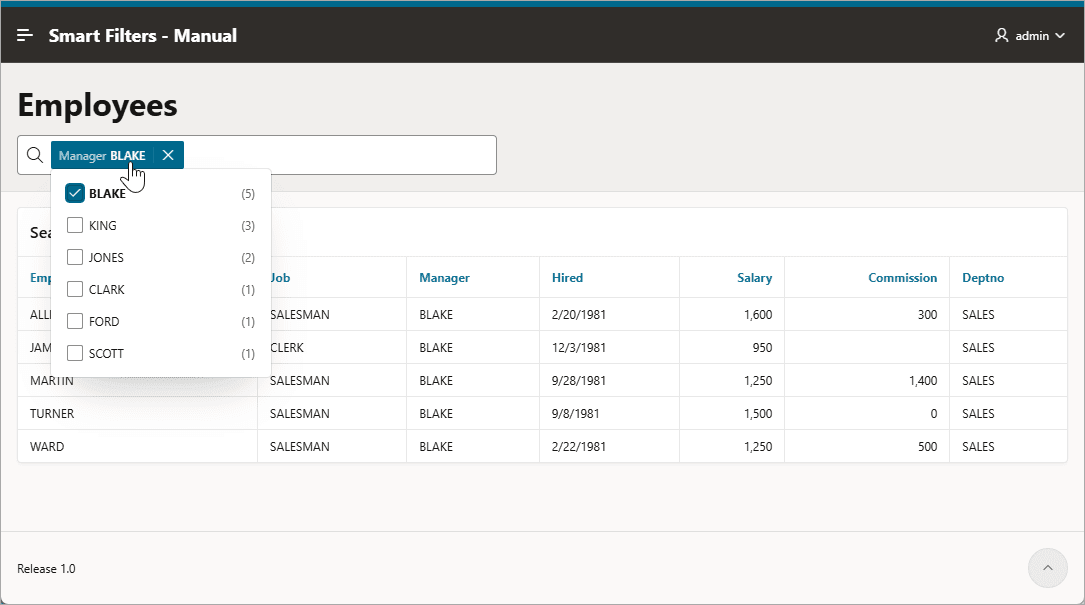
Description of the illustration smart_filter_applied_filter_chip.png
To see other filters, click the Search field again. The other filters display.
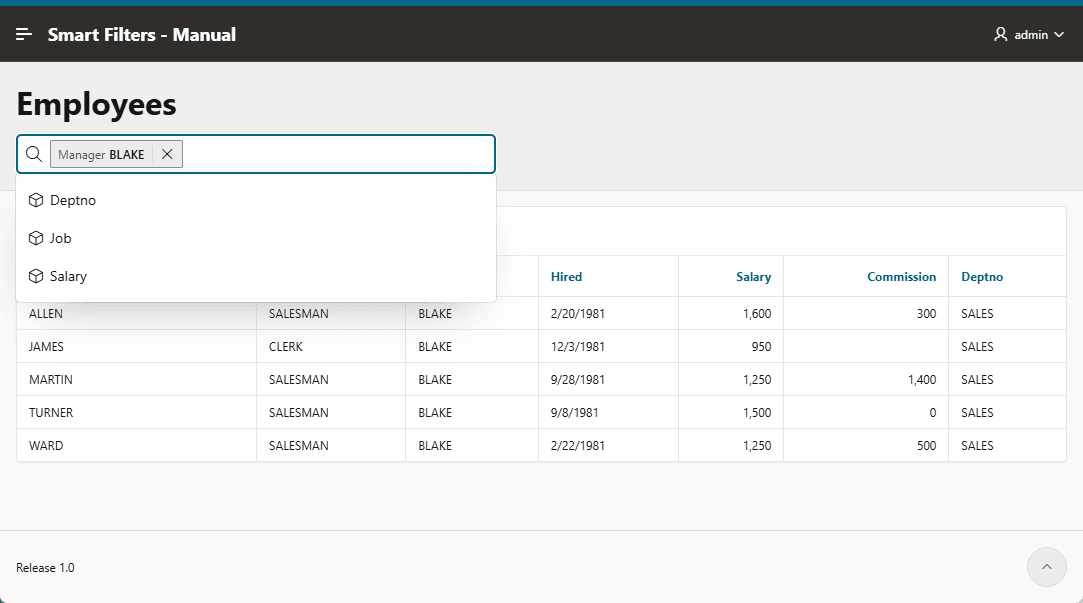
Description of the illustration smart_filter_add_filters.png
To remove a filter, the click the X after the filter name.
Tip: To view an example, install the sample app, Sample Reporting. To learn more, see Installing Apps from the Gallery.