Managing Interactive Grid Region Attributes
Edit region attributes to alter the SQL source, change the region layout and appearance, define a region displays selector, and create region conditions.
See Also: Editing Pages in Page Designer
Editing Interactive Grid Region Attributes
Edit interactive grid region attributes in Page Designer.
To edit interactive grid region attributes:
-
View the page in Page Designer:
-
On the Workspace home page, click the App Builder icon.
-
Select an application.
-
Select a page.
Page Designer appears.
-
-
In the Rendering tab, select the region.
In the Property Editor, the Region tab displays the attributes. Attributes are organized in groups.
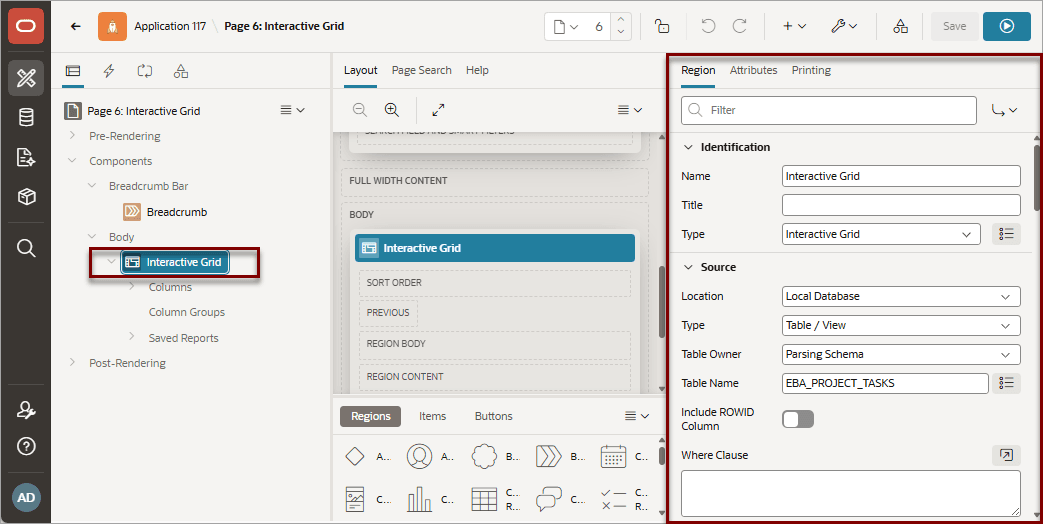
Description of the illustration ig_region_attributes.png
Use region attributes to alter the SQL source, change the region layout and appearance, create a master detail, define a region displays selector, or create conditions.
-
To find a group or attribute:
-
Search for the group or attribute - Enter keywords in the Filter Properties field. The Property Editor displays the group or attributes. To return to the default display, delete the keywords.
-
Use Go to Group - Click Go to Group and select the group. To return the default display, click Go to Group again and select Expand All.
-
-
Edit the appropriate attributes.
Tip: To view help for an attribute, select the attribute in the Property Editor and click the Help tab in the central pane.
-
To save your changes click Save. To save and run the page, click Save and Run Page.
See Also: Right Pane of Page Designer (Property Editor)
Displaying Interactive Grids Conditionally
Dispay interactive grids conditionally by editing region attributes.
To display an interactive grid conditionally:
-
View the page in Page Designer:
-
On the Workspace home page, click the App Builder icon.
-
Select an application.
-
Select a page.
Page Designer appears.
-
-
In the Rendering tab, select the region.
The Property Editor displays the Region tab. Attributes are organized in groups.
-
Edit Server-side Condition:
-
Find the Server-side Condition group.
-
Type - Select a condition type and follow the on-screen instructions.
The UI changes based on the Type you select.
Tip: To view help for an attribute, select the attribute in the Property Editor and click the Help tab in the central pane.
-
-
To save your changes click Save. To save and run the page, click Save and Run Page.