Specifying a REST Enabled SQL Reference in an Existing Component
Configure existing components to point to a remote database using a REST Enabled SQL service reference.
Note: Before configuring a component to use a REST Enabled SQL service reference, , you must complete the tasks described in Before You Begin: REST Enabled SQL Service Requirements and create the reference as described in Creating a REST Enabled SQL Service Reference.
The following examples demonstrate how to configure the Source attributes for an existing Classic report and chart to point to a remote database using a REST Enabled SQL service reference named My REST Enabled SQL.
To configure existing components to point to a remote database using a REST Enabled SQL service reference:
-
View the page containing the components to be reconfigured in Page Designer:
-
On the Workspace home page, click the App Builder icon.
-
Select an application.
-
Select a page.
Page Designer appears.
-
-
In Page Designer, select the region containing the component (if not already selected) and edit the Source attributes.
-
To specify a remote database for a report:
-
In the Rendering tab (left pane), select the region (for example,Classic Report).
-
In the Property Editor, edit the following:
-
Source, Location - Select REST Enabled SQL.
-
Source, Remote Server - Select the defined REST Enabled SQL Service reference (for example, My REST Enabled SQL.
-
Source, Type - Select how the data is queried. Select Table/View or SQL Query.
-
Configure the table or provide a SQL Query.
-
Configure the remaining attributes as needed.
In the following example, Classic Report is selected and the Source points to a Remote Server named My REST Enabled SQL.
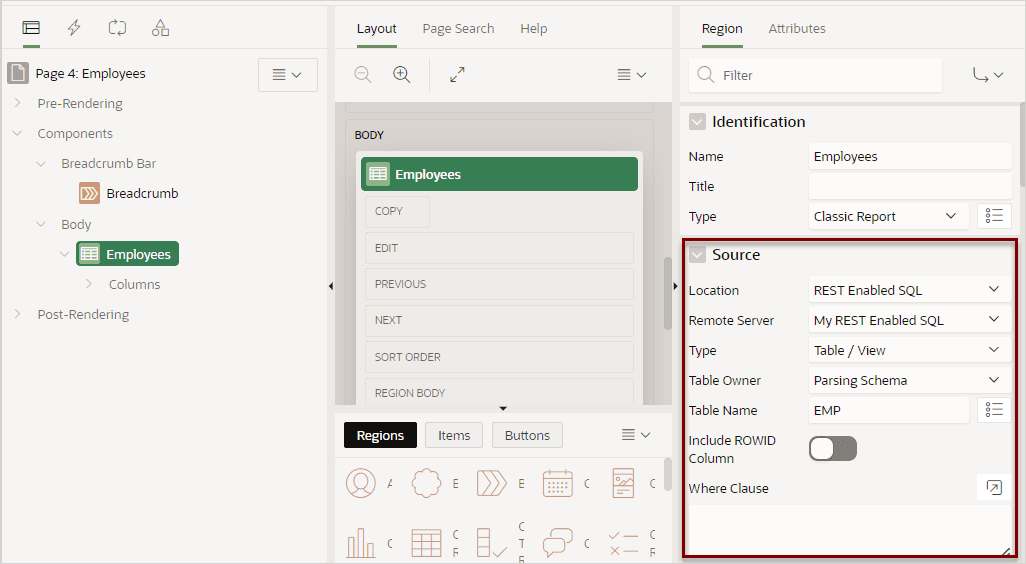
Description of the illustration rest_enabled_report_source.png
-
-
-
To specify a remote database for chart:
-
In the Rendering tab (left pane), find and expand the region containing the chart.
-
Expand Series and select the Series that defines the chart.
-
In the Property Editor under Source, edit the following:
-
Location - Select REST Enabled SQL.
-
Remote Server - Select the defined REST Enabled SQL Service reference (for example, My REST Enabled SQL.
-
Type - Select how the data is queried. Select Table/View or SQL Query.
-
Configure the table or provide a SQL Query.
-
Configure the remaining attributes as needed.
In the following example, Series 1 is selected and the Source points to a Remote Server named My REST Enabled SQL.
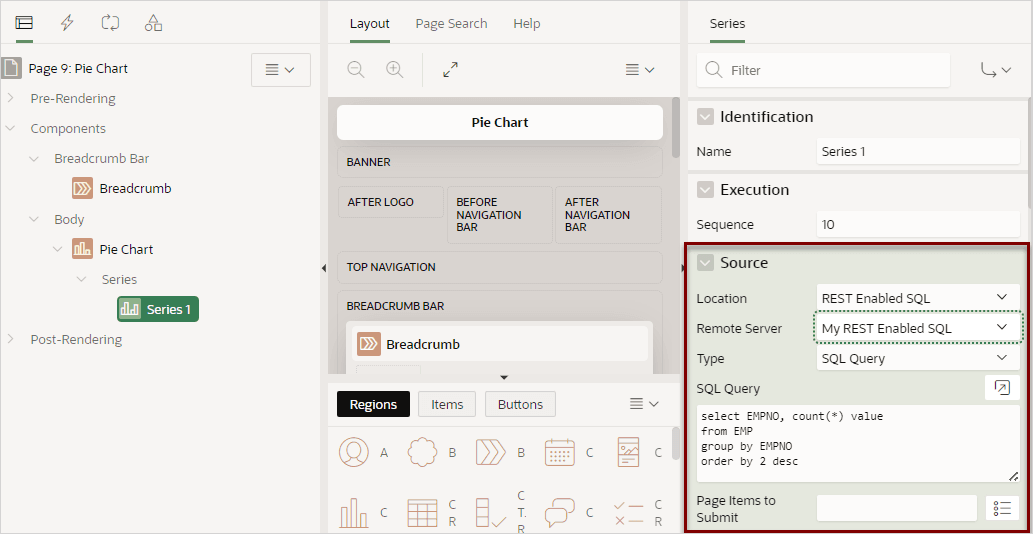
Description of the illustration rest_enabled_chart_source.png
-
-
-
Click Save or Save and Run Page.