Working with Execution Engine
This topic provides an overview of the execution engine and its configurations.
Oracle® Database Navigator enables you to run and compile PL/SQL queries, SQL scripts, methods and Java programs with its execution engine that runs in the background and displays the results in the respective results tab of the DB Execution Console window. Based on whether you are executing a statement, a script or a method, you can configure various settings that define the execution parameters such as the execution time, debug timeout duration, default size of result block, storing history of execution parameters, and more.
To configure the execution engine parameters, from the Main menu of Oracle® Database Navigator toolbar, select DB Navigator > Settings > Execution Engine tab.
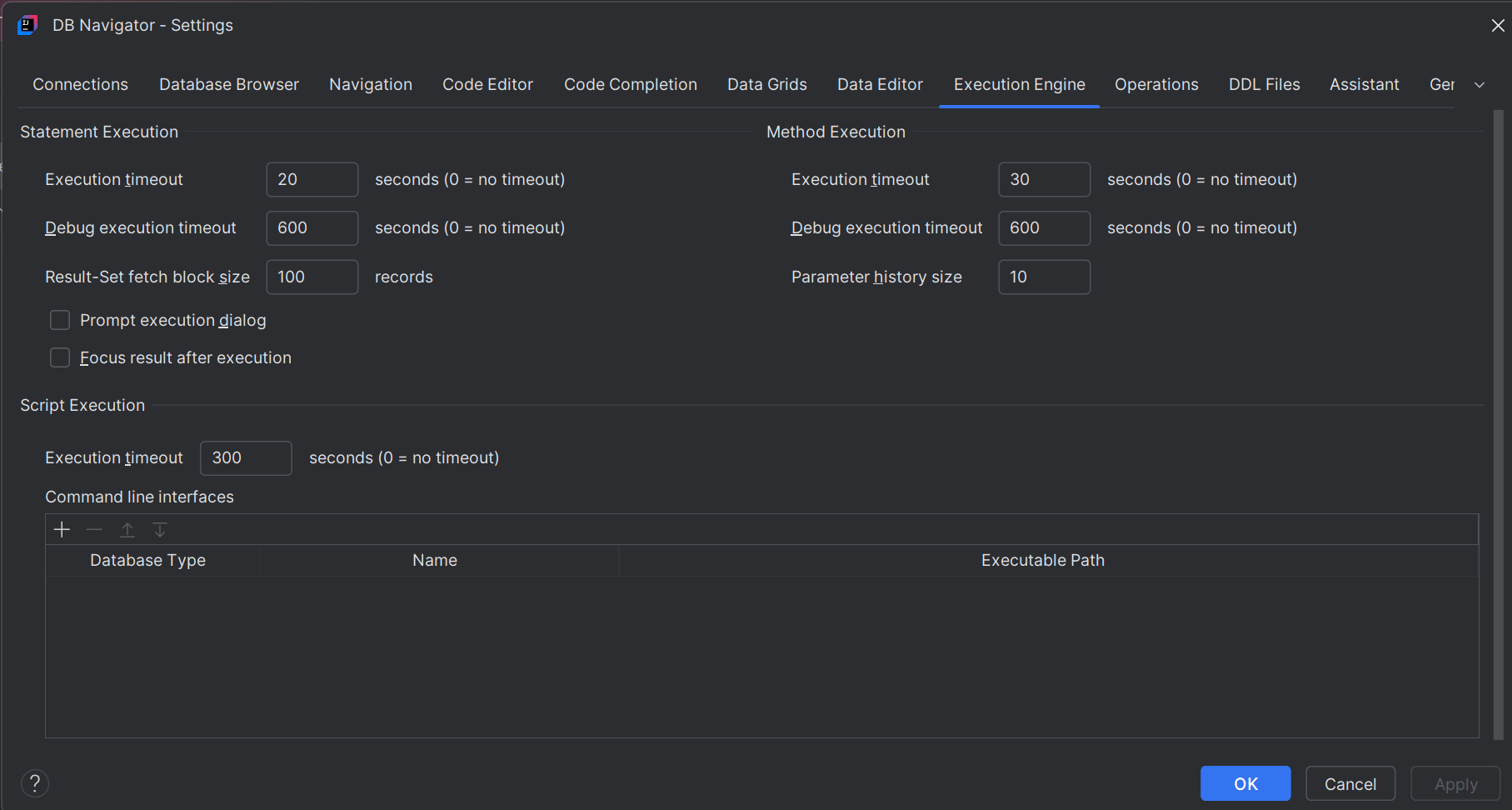
| Settings | Configurations |
|---|---|
| Execution Timeout | Set the maximum time duration (in seconds) for the program or script to run before it automatically stops to prevent stalled operations or over-consuming/blocking background resources. You can execution timeout duration for individual SQL statements, SQL scripts and methods. |
| Result set fetch block size | Set the maximum number of records that will be display in the execution results block at a time when a SQL statement or script is run. If the result exceeds the number of set records, you can fetch the remaining records in sets of the block size configured in this field. |
| Prompt Execution Dialog | Enable to open an execution dialog box when you run a script with multiple SQL statements. The dialog box provides target context where you can verify and modify (if required) the execution parameters such as database connection, target schema and session, and statement(s) to run. |
| Focus result after execution | Moves the default focus on the output of the results tab in the DB execution console window instead of having the cursor on the editor window. |
| Parameter History Size | Set the maximum number of input parameter values that can be saved for execution of an SQL or a Java method. The saved values populate as 'possible values' for the input parameter if you try to run the method for which the parameter history is saved. |
| Command Line Interfaces | Add a new command line interface client terminal for a database type to directly execute the SQL and PL/SQL scripts, bypassing the plug-in connection. Oracle® Database Navigator currently supports SQL*Plus tool for Oracle databases. |
Parent topic: Execution Engine