Managing Diagnostics
You can generate diagnostic reports to find the source of errors, warnings, and other issues in Oracle Database Security Central.
About Managing Diagnostics
You can run diagnostic tools to help you debug problems that may arise.
You can adjust the amount of diagnostics information gathered by setting the LOGLEVEL for different server components using the AVCLI ALTER SYSTEM SET command. When you perform the download operation, the process captures the log and trace file information, along with configuration information that is available at that time. Be aware that a change in the log level only affects those trace or log files that are generated after the change is made. For example, if you encounter a problem after you set the log level to DEBUG, then you must reproduce the issue before you run the procedure in this section to download the diagnostic report. Otherwise, the debug or trace is not captured in the report.
Be aware, however, that the DEBUG setting will generate many files, which can affect the performance of your system. Therefore, only use this setting on a temporary basis, when you are trying to diagnose problems. After you find and correct the problem, then set DEBUG to the original setting, such as ERROR.
Logging Levels
The logging levels determine the amount of information to record in the log files. The following logging levels are listed in the order of amount of information written to log files, with Debug providing the most information:
-
Error: Reports only critical information. This generates the least amount of log messages.
-
Warning: (Default) Reports warning and error messages (not supported for Web Console UI).
-
Info: Writes informational, warning, and error messages. This level is appropriate for testing environments but not for production.
-
Debug: Writes detailed messages for debugging purposes. This generates the most amount of log messages. Debug logs may contain sensitive information about the state of your system. Add the debug log level only when necessary, and remove it once debugging is complete.
System Components
You can set different logging levels for these system components:
Table 1 Components with Variable Logging Levels
| Agent | Alert |
|---|---|
| Archive and Retrieve | Background Server Process |
| Data Repository | Database Firewall |
| Notification | Plug-in Management |
| Policy Management | Report Generation |
| SAN Storage | Transaction Log Trail |
| Web Console UI (has three logging levels only) | N/A |
Running Diagnostics Checks for the Audit Vault Server
Follow this procedure to run diagnostics checks for Oracle Audit Vault Server.
You can run a diagnostics check for the Audit Vault Server that tracks activities such as whether necessary files exist, whether the HTTP server is running, whether the Oracle listener and other processes are running.
-
Log in to the Oracle Database Security Central console as a super administrator.
-
Select Settings.
-
In the left navigation menu, select System.
-
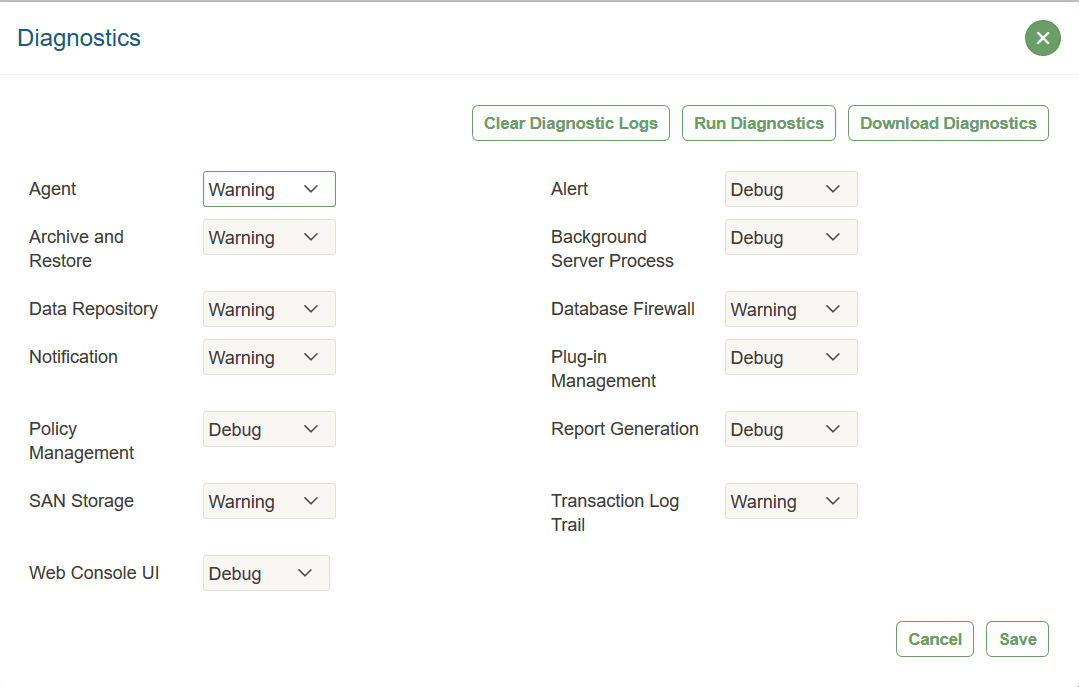
Under Monitoring section, select Diagnostics link. The Diagnostics dialog is displayed as follows:
 \
\Description of the illustration diagnostics.png
- In the Diagnostics dialog, do one of the following:
-
Set the diagnostic category that you want to use for diagnostic (for example, for Agent, selecting Warning), and then select Save.
-
Set the diagnostic categories that you want, and then select Run Diagnostics. A second window Test Diagnostics appears listing the diagnostics as they are being captured.
-
To download the diagnostics report, select Download Diagnostics. A diagnostics log file (
.zip) is downloaded to the location that you select. Be aware that the diagnostics zip file may contain sensitive data from your appliance. Take appropriate precautions when you transfer and store this file. -
Select Clear Diagnostic Logs to clear the current set of diagnostic logs on the Audit Vault Server.
Downloading Detailed Diagnostics Reports for Oracle Audit Vault Server
You can download diagnostics reports for Oracle Audit Vault Server to review activity and to assess other operations.
To download zip file for Audit Vault Server diagnostics:
-
Log in to the Oracle Database Security Central console as a super Administrator.
-
Select Settings, and in the System menu, select Diagnostics.
-
Select Download Diagnostics button.
A download window appears for the diagnostics zip file.
-
Select a file location and then select Save.
See Also:
- ALTER SYSTEM SET for details about setting the
LOGLEVELparameter.
- ALTER SYSTEM SET for details about setting the
Clearing Diagnostic Logs
Follow this process to empty your Oracle Database Security Central diagnostic logs.
-
Log in to the Oracle Database Security Central console as a super administrator.
-
Select Settings.
-
In the left navigation menu, select System.
-
Under Monitoring, select Diagnostics.
-
In the Diagnostics window, select Clear Diagnostic Logs, then in the confirmation window, select OK.