Using Oracle Database Security Central Console
Learn how to log in and use Oracle Database Security Central console.
Log in to Oracle Database Security Central Console
Learn how to log in to Oracle Database Security Central console.
When you first log in after installing Audit Vault Server:
-
you must set up a password for root user
-
create a super administrator or super auditor
See Also: Oracle Database Security Central Installation Guide for information on post-installation tasks.
To log in to Oracle Database Security Central console:
-
From a browser, enter the following URL:
https://host/where
hostis the server on which you installed Oracle Audit Vault Server.For example:
https://192.0.2.1/If a message appears indicating that there is a problem with the Web site security certificate, then this could be due to a self-signed certificate. Select Continue to this website (or similar) link.
See Also: Changing the UI (Console) Certificate for Audit Vault Server for more information on providing a new UI Certificate to avoid the certificate message in future
-
In the Login page, enter your user name and password, and then select Login.
The Dashboard page appears.
Note: The Oracle Database Security Central console has a maximum idle time of 30 minutes. Upon launching the console, it can be used up to a maximum of 8 hours actively. The session times out if the idle time reaches 30 minutes or 8 hours after the initial launch.
Log in to Database Firewall Console
Learn how to log in to Database Firewall Console.
You can perform Database Firewall related tasks on the Oracle Database Security Central console.
-
Log in to Oracle Database Security Central console.
-
Select Database Firewalls on the main page.
As administrator, use the Database Firewalls in the Oracle Database Security Central console to configure the network, services, and system settings for Database Firewall. You can also use the console to identify the Audit Vault Server that manages each firewall instance, to configure network traffic sources, monitor, and block threats to your target databases.
See Also: Configuring Database Firewall for detailed information on configuring the Database Firewall using the Oracle Database Security Central console.
Understanding the Tabs and Menus in Oracle Database Security Central Console
Oracle Database Security Central console tabs and menus enable you to see statuses for Agents, audit trails, targets, and more.
Oracle Oracle Database Security Central console includes the following six tabs:
-
Home - Displays a dashboard showing high-level information and status for:
-
System Alerts
-
Targets
-
Audit Collection
-
Database Firewall Monitoring
-
Collection summary
-
Jobs summary
-
Data Retention summary
-
System overview
-
-
Targets - Provides menus for registering targets, managing target groups, database discovery, and monitoring audit trails.
-
Agents - Provides menus for registering, deploying, activating, and managing Audit Vault Agents.
-
Database Firewalls - Provides menus for registering Database Firewalls in Audit Vault Server, for creating resilient firewall pairs for high availability, managing, and monitoring.
-
Data Retention - Provides menus for viewing details of online and archived data, viewing and creating archiving policies, assigning archive policies to targets, and viewing and creating remote archiving locations.
-
Settings - Provides menus for managing security, storage, archiving, users, certificates, password, and system settings. From here, you can also download the AVCLI command line utility.
Working with Lists of Objects in the Oracle Database Security Central Console
Learn how to work with lists of objects in the Oracle Database Security Central console.
In the Oracle Database Security Central console, you can view lists of objects such as users, monitoring points, and so on. You can also filter and customize the lists of objects using the Actions menu and other filters. This section provides a summary of how you can create custom views of lists of objects. For more detailed information, see the Reports chapter of Oracle Database Security Central Auditor’s Guide.
To filter and control the display of lists of objects in the Oracle Database Security Central console:
-
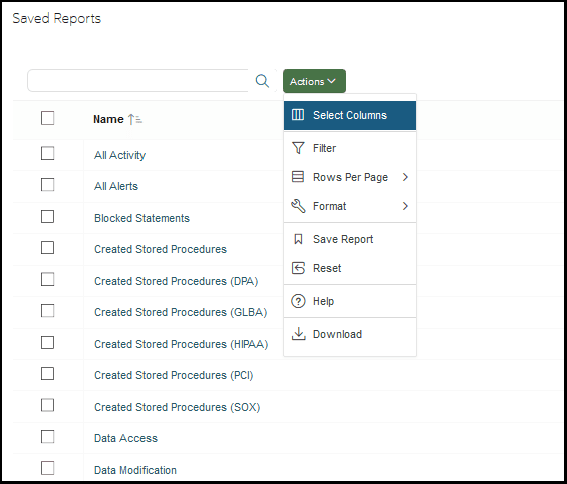
For any list (or report) in the UI, there is a search box and Actions menu:
-
To find an item in the list, enter the name in the search box.
-
To customize the list, from the Actions menu, select any of the following:
-
Select Columns: Select the columns to display.
-
Filter: Filter the list by column or by row using regular expressions with the available operators. Rows provide more control and operators. When done, select Apply.
-
Rows Per Page: Select the number of rows to display per page.
-
Format: Format the list by selecting from the following options:
-
Sort
-
Control Break
-
Highlight
-
Compute
-
Aggregate
-
Chart
-
Group By
Enter the criteria for each option as needed and select Apply.
-
-
Save Report: Save the current view of the list. Enter a name, description, and select Apply.
-
Reset: Reset the list to the default view.
-
Help: Display the online help.
-
Download: Download the list. Select the download format (CSV or HTML) to download.
-