Logging Settings
Logging is enabled via the Logging Settings. After modifying the Logging Settings you can reproduce the problem and close Visual Studio and then retrieve the log files.
Note:
Logging can impact the performance of Visual Studio. Disable logging as soon as you have captured the log files.
Accessing the Logging Settings
To access the Logging Settings Page, select Options... from the Tools menu. From the Options menu, select Oracle Developer Tools. Then select Logging Settings.
Using the Logging Settings
The Logging Settings dialog appears similar to the following:
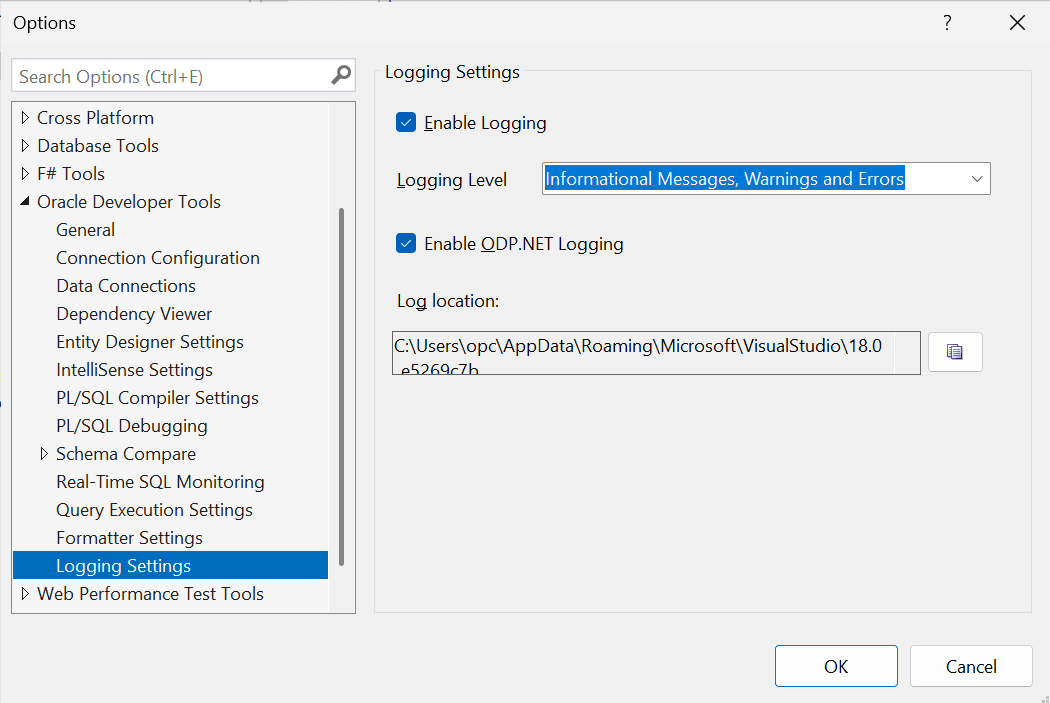
The Logging Settings dialog has the following controls:
| Control | Description |
|---|---|
|
Enable logging |
When this is checked logging will be enabled. |
|
Logging Level |
This controls the level of detail included in the extension's logs. Oracle Support will tell you what setting to use. |
|
Enable ODP.NET Logging |
This check box enables additional database driver level logging. Check this if requested by Oracle Support. |
|
Log Location |
This box contains the location where the log files will be created. |
|
Copy log location to clipboard icon |
Clicking this icon copies the path to the log files to the clipboard |
|
Ok |
Enables the changes and closes the dialog |
|
Cancel |
Cancels the changes and closes the dialog |