Schema Compare Options
You can choose the default settings for filtering comparison results by object type and results type in the Schema Compare Source and Target Dialog in the Schema Compare Options page, shown in this section.
The selections that you make determine what options are checked by default when you click the Advanced button in Schema Compare Source and Target Dialog.
Accessing the Schema Compare Options
To access the Schema Compare Filters Options Page, select Options... from the Tools menu. From the Options menu, select Oracle Developer Tools. Then select Schema Compare..
Using the Schema Compare Filter Options Settings
The Schema Compare Filter Options page appears similar to the following:
Options for Schema Compare Filters
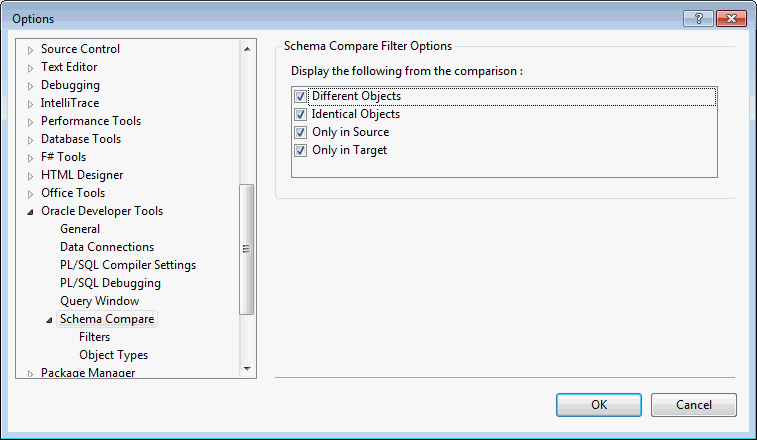
Items selected in the Schema Compare Filter Options page become the defaults for the Schema Compare Source and Target Dialog, Filter Types.
The controls of the Schema Compare Filter Options page are as follows:
| Control | Description |
|---|---|
|
Display the following from the comparison |
Lists the types of results that will be displayed, with check boxes to enable them. |
|
OK |
Saves and closes the tab. |
|
Cancel |
Cancels any changes and closes the tab. |
Options for Schema Compare General Settings
The Schema Compare General Settings dialog appears similar to the following:
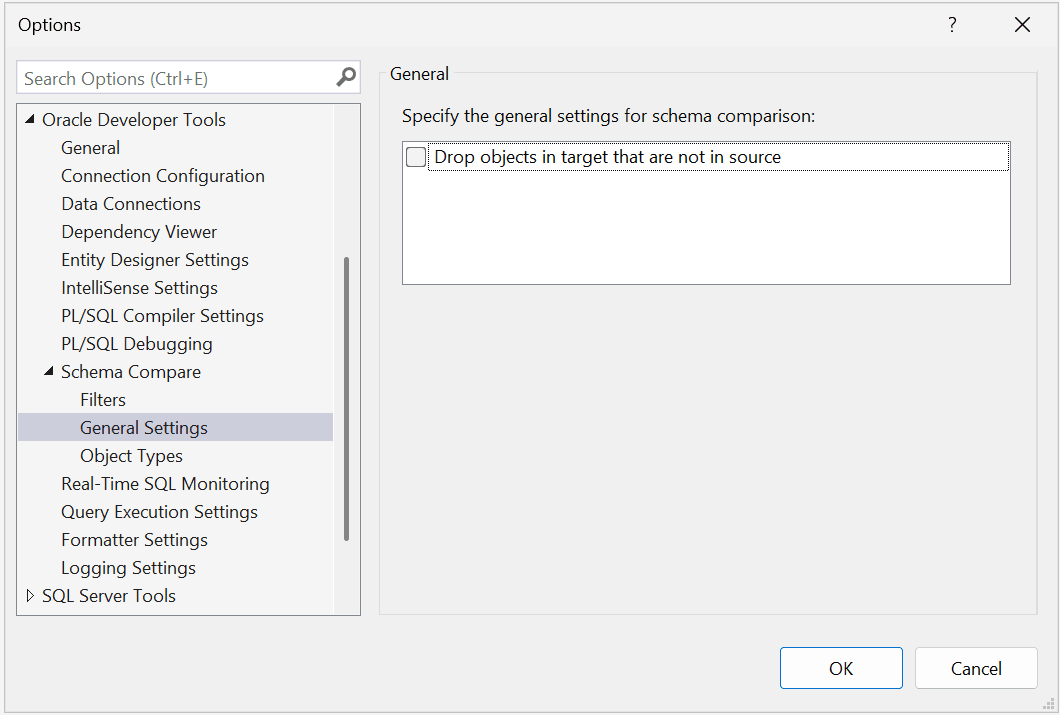
The Schema Compare General Settings dialog has the following controls:
| Control | Description |
|---|---|
|
Drop Objects in Target that are not in Source |
Objects that are not in the source but that exist in the target will be dropped (deleted) from the target database. |
Using the Schema Compare Object Types Options Settings
The Schema Compare Object Types Options page appear similar to the following:
Options for Schema Compare Object Types
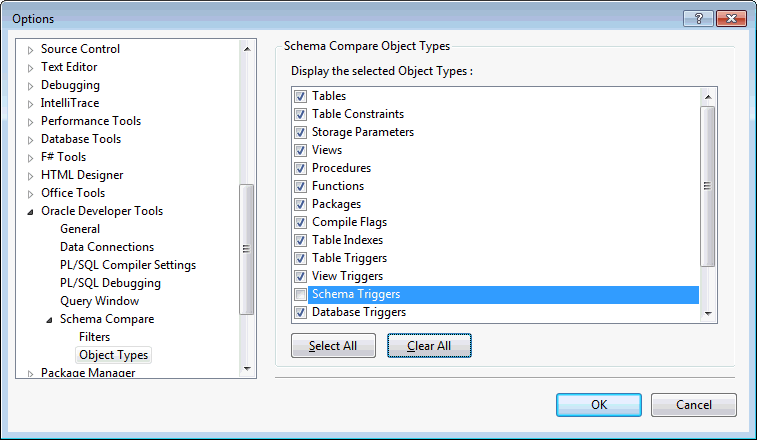
Items selected in the Schema Compare Object Types Options page become the defaults for the Schema Compare Source and Target Dialog, Object Types.
The controls of the Schema Compare Object Types Options are as follows:
| Control | Description |
|---|---|
|
Display the selected Object Types |
Lists the types of objects that will be compared, with check boxes to enable them. |
|
Select All |
Enables you to select all of the available Object Types. |
|
Clear All |
Enables you to clear any checked selections. |
|
OK |
Saves and closes the tab. |
|
Cancel |
Cancels any changes and closes the tab. |