Scale Up/Down Dialog
The Scale Up/Down Dialog allows users to modify resource settings for a Autonomous Transaction Processing Database or an Autonomous Data Warehouse.
Opening the Scale Up/Down Dialog
You can open the Scale Up/Down Dialog from an Transaction Processing/Lakehouse/JSON Node, Scale Up/Down menu item.
Using the Scale Up/Down Dialog
The Scale Up/Down Dialog appears as follows:
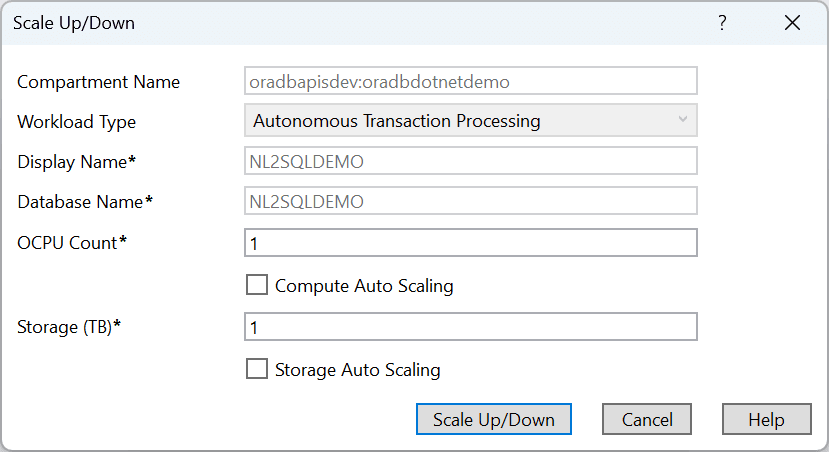
The Scale Up/Down Dialog has the following controls:
| Control | Description |
|---|---|
| Compartment Name | Displays the compartment that the database is located in |
| Workload Type | Displays the workload type of this instance: Automatic Transaction Processing, Automatic Data Warehouse, or Automatic JSON Database |
| Display Name | The name used in Server Explorer to represent this database |
| Database Name | The name of the database |
| OCPU Count | The number of CPU Cores allocated for this database |
| Compute Auto Scaling | Enables Compute Auto Scaling for this instance |
| Storage | The storage (in TB) allocated for this database |
| Storage Auto Scaling | Enables Storage Auto Scaling on this instance |
| Scale Up/Down | Modifies the database and closes the dialog if successful |
| Cancel | Cancels the operation and closes the dialog |
| Help | Opens this help page |