
 Creating a Sentiment Classifier Preference with Oracle Text
 Before You Begin
This 15-minute tutorial shows you how to create a sentiment classifier preference and define its attributes with Oracle Text.
Background
A sentiment classifier is a type of document classifier that you use to extract sentiment metadata about a topic or document. To perform sentiment analysis by using a sentiment classifier, you must associate a sentiment classifier preference with the sentiment classifier.
What Do You Need?
- Oracle Database 18c
- Oracle SQL Developer 17.3.2
 Create a Database Connection
- Run
sqldeveloper.exein Windows orsqldeveloper.shin Linux. - On the Connections tab, right-click Connections and select New Connection.
- In the New / Select Database Connection window, enter or select the values for your database connection. This example uses the following values:
- Connection Name:
sys_conn - Username:
sys - Password:
your SYS user password - Role: SYSDBA
- Hostname:
localhost - Port:
1521 - SID:
orcl - Click Test and verify the status of the connection. In this example, the status displays Success above the Help button.
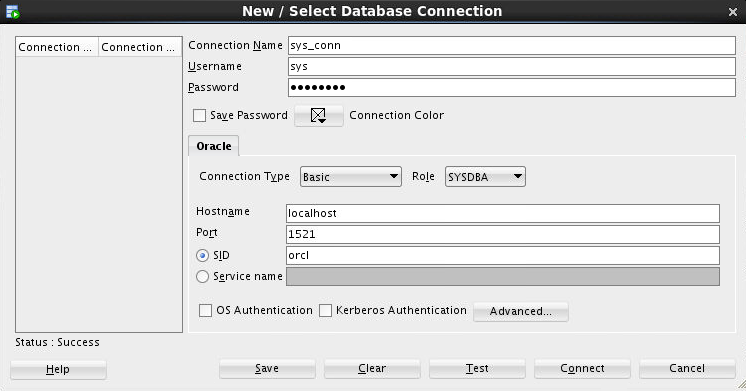
Description of the illustration sys_conn.png - Click Save, click Connect, and close the window.
When the connection is established, a SQL worksheet opens and you use it to run SQL commands.
 Connect to an Oracle Text User
- Create the user.
CREATE USER myuser IDENTIFIED BY your_password; - Grant roles to the user.
- Grant myuser an unlimited quota in the
USERStablespace.ALTER USER myuser QUOTA UNLIMITED ON USERS; - To create a connection to myuser, click the Connections tab, right-click Connections, and select New Connection.
- In the New / Select Database Connection window, enter or select the values for your database connection. This example uses the following values:
- Connection Name:
myuser_conn - Username:
myuser - Password:
your user password - Role: default
- Hostname:
localhost - Port:
1521 - SID:
orcl - Click Test and verify the status of the connection. In this example, the status displays Success above the Help button.
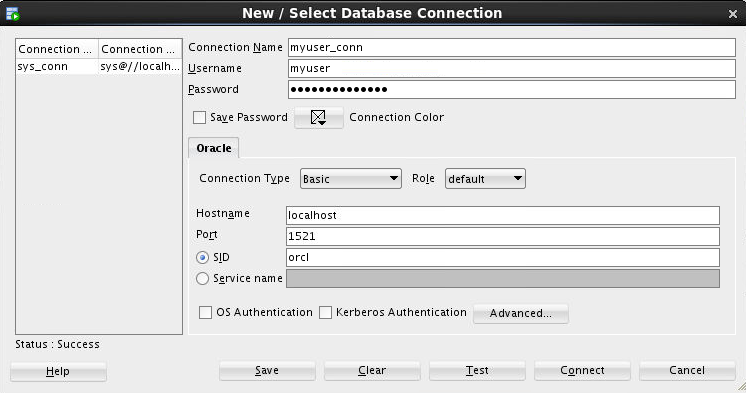
Description of the illustration myuser_conn.png - Click Save, click Connect, and close the window.
GRANT RESOURCE, CONNECT, CTXAPP TO myuser;The CTXAPP role enables you to create Oracle Text indexes and index preferences and to use PL/SQL packages.
When the connection is established, a SQL worksheet opens and you use it to run SQL commands.
 Create a Sentiment Classifier Preference
- Create a sentiment classifier preference of
SENTIMENT_CLASSIFIERtype.EXEC CTX_DDL.CREATE_PREFERENCE('clsfier_camera','SENTIMENT_CLASSIFIER') - Define the attributes of the sentiment classifier preference.
EXEC CTX_DDL.SET_ATTRIBUTE('clsfier_camera','MAX_FEATURES','1000')
EXEC CTX_DDL.SET_ATTRIBUTE('clsfier_camera','NUM_ITERATIONS','600')
MAX_FEATURES enables you to specify the maximum number of distinct features (words, stems, and themes) to be extracted to build a sentiment classifier. NUM_ITERATIONS enables you to specify the number of iterations for which the sentiment classifier runs.