Creating and Managing Privilege Analysis Policies
You can create and manage privilege analysis policies by using tools such as SQL*Plus, SQLcl, SQL Developer, or Enterprise Manager Cloud Control.
-
About Creating and Managing Privilege Analysis Policies
You can use theDBMS_PRIVILEGE_CAPTUREPL/SQL package or Oracle Enterprise Manager Cloud Control to analyze privileges. -
General Steps for Managing Privilege Analysis
You must follow a general set of steps to analyze privileges. -
Creating a Privilege Analysis Policy
You can use theDBMS_PRIVILEGE_CAPTURE.CREATE_CAPTUREprocedure to create a privilege analysis policy. -
Examples of Creating Privilege Analysis Policies
You can create a variety of privilege analysis policies. -
Enabling a Privilege Analysis Policy
After you create a privilege analysis policy, you must enable it to capture privilege use. -
Disabling a Privilege Analysis Policy
You must disable the privilege analysis policy before you can generate a privilege analysis report. -
Generating a Privilege Analysis Report
You can generate a privilege analysis policy report using either Enterprise Manager Cloud Control or from SQL*Plus, using theDBMS_PRIVILEGE_CAPTUREPL/SQL package. -
Dropping a Privilege Analysis Policy
Before you can drop a privilege analysis policy, you must first disable it.
About Creating and Managing Privilege Analysis Policies
You can use the DBMS_PRIVILEGE_CAPTURE PL/SQL package or Oracle Enterprise Manager Cloud Control to analyze privileges.
Before you can do so, you must be granted the CAPTURE_ADMIN role. The DBMS_PRIVILEGE_CAPTURE package enables you to create, enable, disable, and drop privilege analysis policies. It also generates reports that show the privilege usage, which you can view in DBA_* views.
General Steps for Managing Privilege Analysis
You must follow a general set of steps to analyze privileges.
-
Define the privilege analysis policy.
-
Enable the privilege analysis policy.
This step begins recording the privilege use that the policy defined. Optionally, specify a name for this capture run. Each time you enable a privilege analysis policy, you can create a different capture run for it. In this way, you can create multiple named capture runs for comparison analysis later on.
-
Optionally, enable the policy to capture dependency privileges if you want to capture the privileges that are used by definer’s rights and invoker’s rights program units.
-
After a sufficient period of time to gather data, disable the privilege analysis policy’s recording of privilege use.
This step stops capturing the privilege use for the policy.
-
Generate privilege analysis results.
This step writes the results to the privilege analysis policy and report data dictionary views.
-
Optionally, disable and then drop the privilege analysis policy and capture run.
Dropping a privilege analysis policy deletes the data captured by the policy.
Creating a Privilege Analysis Policy
You can use the DBMS_PRIVILEGE_CAPTURE.CREATE_CAPTURE procedure to create a privilege analysis policy.
After you create the privilege analysis policy, you can find it listed in the DBA_PRIV_CAPTURES data dictionary view. When a policy is created, it resides in the Oracle data dictionary and the SYS schema. However, both SYS and the user who created the policy can drop it. After you create the policy, you must manually enable it so that it can begin to analyze privilege use.
-
Log in to the database instance as a user who has the
CAPTURE_ADMINrole. -
Use the following syntax for the
DBMS_PRIVILEGE_CAPTURE.CREATE_CAPTUREprocedure:
DBMS_PRIVILEGE_CAPTURE.CREATE_CAPTURE(
   name              VARCHAR2,
   description       VARCHAR2 DEFAULT NULL,
   type              NUMBER DEFAULT DBMS_PRIVILEGE_CAPTURE.G_DATABASE,
   roles             ROLE_NAME_LIST DEFAULT ROLE_NAME_LIST(),
   condition         VARCHAR2 DEFAULT NULL);
In this specification:
- `name`: Specifies the name of the privilege analysis policy to be created. Ensure that this name is unique and no more than 128 characters. You can include spaces in the name, but you must enclose the name in single quotation marks whenever you refer to it. To find the names of existing policies, query the `NAME` column of the `DBA_PRIV_CAPTURES` view.
- `description`: Describes the purpose of the privilege analysis policy, up to 1024 characters in mixed-case letters. Optional.
- `type`: Specifies the type of capture condition. If you omit the `type` parameter, then the default is `DBMS_PRIVILEGE_CAPTURE.G_DATABASE`. Optional.
Enter one of the following types:
- `DBMS_PRIVILEGE_CAPTURE.G_DATABASE`: Captures all privileges used in the entire database, except privileges from user `SYS`.
- `DBMS_PRIVILEGE_CAPTURE.G_ROLE`: Captures privileges for the sessions that have the roles enabled. If you enter `DBMS_PRIVILEGE_CAPTURE.G_ROLE` for the `type` parameter, then you must also specify the `roles` parameter. For multiple roles, separate each role name with a comma.
- `DBMS_PRIVILEGE_CAPTURE.G_CONTEXT`: Captures privileges for the sessions that have the condition specified by the `condition` parameter evaluating to `TRUE`. If you enter `DBMS_PRIVILEGE_CAPTURE.G_CONTEXT` for the `type` parameter, then you must also specify the `condition` parameter.
- `DBMS_PRIVILEGE_CAPTURE.G_ROLE_AND_CONTEXT`: Captures privileges for the sessions that have the role enabled and the context condition evaluating to `TRUE`. If you enter `DBMS_PRIVILEGE_CAPTURE.G_ROLE_AND_CONTEXT` for the `type` parameter, then you must also specify both the `roles` and `condition` parameters.
- `roles`: Specifies the roles whose used privileges will be analyzed. That is, if a privilege from one of the given roles is used, then the privilege will be analyzed. You must specify this argument if you specify `DBMS_PRIVILEGE_CAPTURE.G_ROLE` or `DBMS_PRIVILEGE_CAPTURE.G_ROLE_AND_CONTEXT` for the `type` argument. Each role you enter must exist in the database. (You can find existing roles by querying the `DBA_ROLES` data dictionary view.) For multiple roles, use varray type `role_name_list` to enter the role names. You can specify up to 10 roles.
For example, to specify two roles:
roles => role_name_list('role1', 'role2'),- `condition`: Specifies a Boolean expression up to 4000 characters. You must specify this argument if you specify `DBMS_PRIVILEGE_CAPTURE.G_CONTEXT` or `DBMS_PRIVILEGE_CAPTURE.G_ROLE_AND_CONTEXT` for the `type` argument. Only `SYS_CONTEXT` expressions with relational operators(`==`, `>`, `>=`, `<`, `<=`, `<>`, `BETWEEN`, and `IN`) are permitted in this Boolean expression.
The `condition` expression syntax is as follows:
predicate::= SYS_CONTEXT(namespace, attribute) relop constant_value |
             SYS_CONTEXT(namespace, attribute)
             BETWEEN
             constant_value
             AND constant_value | SYS_CONTEXT(namespace, attribute)
             IN {constant_value (,constant_value)* }

relop::= = | < | <= | > | >= | <>

context_expression::= predicate | (context_expression)
             AND (context_expression) | (context_expression)
             OR (context_expression )
For example, to use a condition to specify the IP address `192.0.2.1`:
condition => 'SYS_CONTEXT(''USERENV'', ''IP_ADDRESS'')=''192.0.2.1''';After you create the privilege analysis policy, you must enable the policy to begin capturing privilege and role use.
- You can add as many constant values as you need (for example,
IN {constant_value1}, orIN {constant_value1,constant_value2,constant_value3}).
Examples of Creating Privilege Analysis Policies
You can create a variety of privilege analysis policies.
-
Example: Privilege Analysis of Database-Wide Privileges
TheDBMS_PRIVILEGE_CAPTURE.CREATE_CAPTUREcan be used to analyze database-wide privileges. -
Example: Privilege Analysis of Privilege Usage of Two Roles
TheDBMS_PRIVILEGE_CAPTURE.CREATE_CAPTUREprocedure can be used to analyze the privilege usage of multiple roles. -
Example: Privilege Analysis of Privileges During SQL*Plus Use
TheDBMS_PRIVILEGE_CAPTURE.CREATE_CAPTUREprocedure can be used to capture privileges for analysis. -
[Example: Privilege Analysis of PSMITH Privileges During SQLPlus Access](#GUID-6D534AD9-E7A9-4BDE-843B-C3A3B1C14B3B)
TheDBMS_PRIVILEGE_CAPTURE.CREATE_CAPTUREcan be used to analyze user access when the user is running SQLPlus.
Example: Privilege Analysis of Database-Wide Privileges
The DBMS_PRIVILEGE_CAPTURE.CREATE_CAPTURE can be used to analyze database-wide privileges.
Example 5-1 shows how to use the DBMS_PRIVILEGE_CAPTURE package to create a privilege analysis policy to record all privilege use in the database.
Example 5-1 Privilege Analysis of Database-Wide Privileges
BEGIN
 DBMS_PRIVILEGE_CAPTURE.CREATE_CAPTURE(
  name          => 'db_wide_capture_pol',
  description   => 'Captures database-wide privileges',
  type          => DBMS_PRIVILEGE_CAPTURE.G_DATABASE);
END;
/
Example: Privilege Analysis of Privilege Usage of Two Roles
The DBMS_PRIVILEGE_CAPTURE.CREATE_CAPTURE procedure can be used to analyze the privilege usage of multiple roles.
Example 5-2 shows how to analyze the privilege usage of two roles.
Example 5-2 Privilege Analysis of Privilege Usage of Two Roles
BEGIN
 DBMS_PRIVILEGE_CAPTURE.CREATE_CAPTURE(
  name          => 'dba_roles_capture_pol',
  description   => 'Captures DBA and LBAC_DBA role use',
  type          => DBMS_PRIVILEGE_CAPTURE.G_ROLE,
  roles         => role_name_list('dba', 'lbac_dba'));
END;
/
Example: Privilege Analysis of Privileges During SQL*Plus Use
The DBMS_PRIVILEGE_CAPTURE.CREATE_CAPTURE procedure can be used to capture privileges for analysis.
Example 5-3 shows how to analyze privileges used to run SQL*Plus.
Example 5-3 Privilege Analysis of Privileges During SQL*Plus Use
BEGIN
 DBMS_PRIVILEGE_CAPTURE.CREATE_CAPTURE(
  name             => 'sqlplus_capture_pol',
  description      => 'Captures privilege use during SQL*Plus use',
  type             => DBMS_PRIVILEGE_CAPTURE.G_CONTEXT,
  condition        => 'SYS_CONTEXT(''USERENV'', ''MODULE'')=''sqlplus''');
END;
/
Example: Privilege Analysis of PSMITH Privileges During SQL*Plus Access
The DBMS_PRIVILEGE_CAPTURE.CREATE_CAPTURE can be used to analyze user access when the user is running SQLPlus.
Example 5-4 shows how to analyze the privileges used by session user PSMITH when running SQLPlus.
Example 5-4 Privilege Analysis of PSMITH Privileges During SQL*Plus Access
BEGIN
 DBMS_PRIVILEGE_CAPTURE.CREATE_CAPTURE(
  name         => 'psmith_sqlplus_analysis_pol',
  description  => 'Analyzes PSMITH role priv use for SQL*Plus module',
  type         => DBMS_PRIVILEGE_CAPTURE.G_CONTEXT,
  condition    => 'SYS_CONTEXT(''USERENV'', ''MODULE'')=''sqlplus''
                  AND SYS_CONTEXT(''USERENV'', ''SESSION_USER'')=''PSMITH''');
END;
/
Enabling a Privilege Analysis Policy
After you create a privilege analysis policy, you must enable it to capture privilege use.
The DBMS_PRIVILEGE_CAPTURE.ENABLE_CAPTURE procedure enables a privilege policy and creates a capture run name for it. The run name defines the period of time that the capture took place.
-
Log in to the database instance as a user who has the
CAPTURE_ADMINrole. -
Query the
NAMEandENABLEDcolumns of theDBA_PRIV_CAPTURESdata dictionary view to find the existing privilege analysis policies and whether they are currently enabled. -
Run the
DBMS_PRIVILEGE_CAPTURE.ENABLE_CAPTUREprocedure to enable the policy and optionally create a name for a capture run.For example, to enable the privilege analysis policy
logon_users_analysis:
BEGIN
  DBMS_PRIVILEGE_CAPTURE.ENABLE_CAPTURE (
    name     => 'logon_users_analysis_pol',
    run_name => 'logon_users_04092016');
END;
/
If you do not need to specify the `run_name` parameter, then you can enable the policy by only specifying its name, as follows:
EXEC DBMS_PRIVILEGE_CAPTURE.ENABLE_CAPTURE ('logon_users_analysis_pol');Disabling a Privilege Analysis Policy
You must disable the privilege analysis policy before you can generate a privilege analysis report.
After you disable the policy, then the privileges are no longer recorded. Disabling a privilege analysis policy takes effect immediately for user sessions logged on both before and after the privilege analysis policy is disabled. You can use the DBMS_PRIVILEGE_CAPTURE.DISABLE_CAPTURE procedure to disable a privilege analysis policy.
-
Log in to the database instance as a user who has the
CAPTURE_ADMINrole. -
Query the
NAMEandENABLEDcolumns of theDBA_PRIV_CAPTURESdata dictionary view to find the existing privilege analysis policies and whether they are currently disabled. -
Run the
DBMS_PRIVILEGE_CAPTURE.DISBLE_CAPTUREprocedure to enable the policy.For example, to disable the privilege analysis policy
logon_users_analysis:
EXEC DBMS_PRIVILEGE_CAPTURE.DISABLE_CAPTURE ('logon_users_analysis_pol');Generating a Privilege Analysis Report
You can generate a privilege analysis policy report using either Enterprise Manager Cloud Control or from SQL*Plus, using the DBMS_PRIVILEGE_CAPTURE PL/SQL package.
-
About Generating a Privilege Analysis Report
After the privilege analysis policy has been disabled, you can generate a report based on the capture run that you created for the privilege analysis policy. -
General Process for Managing Multiple Named Capture Runs
When you enable a privilege analysis policy, you can create a named capture run for the policy’s findings. -
Generating a Privilege Analysis Report Using DBMS_PRIVILEGE_CAPTURE
TheDBMS_PRIVILEGE_CAPTURE.GENERATE_RESULTprocedure generates a report showing the results of a privilege capture. -
Generating a Privilege Analysis Report Using Cloud Control
You can generate a privilege analysis report using Cloud Control. -
Accessing Privilege Analysis Reports Using Cloud Control
A privilege analysis report provides information about both used and unused privileges.
About Generating a Privilege Analysis Report
After the privilege analysis policy has been disabled, you can generate a report based on the capture run that you created for the privilege analysis policy.
To view the report results in SQL*Plus, query the privilege analysis-specific data dictionary views. In Enterprise Manager Cloud Control, you can view the reports from the Privilege Analysis page Actions menu. If a privilege is used during the privilege analysis process and then revoked before you generate the report, then the privilege is still reported as a used privilege, but without the privilege grant path.
General Process for Managing Multiple Named Capture Runs
When you enable a privilege analysis policy, you can create a named capture run for the policy’s findings.
The capture run defines a period of time from when the capture is enabled (begun) and when it is disabled (stopped). This way, you can create multiple runs and then compare them when you generate the privilege capture results.
The general process for managing multiple named capture runs is as follows:
-
Create the policy.
-
Enable the policy for the first run.
-
After a period time to collect user behavior data, disable this policy and its run.
-
Generate the results and then query the privilege analysis data dictionary views for information about this capture run.
If you omit the
run_nameparameter from theDBMS_PRIVILEGE_CAPTURE.GENERATE_RESULTprocedure, then this procedure looks at all records as a whole and then analyzes them. -
Re-enable the policy for the second run. You cannot create a new capture run if the policy has not been disabled first.
-
After you have collected the user data, disable the policy and the second run.
-
Generate the results.
-
Query the privilege analysis data dictionary views. The results from both capture runs are available in the views. If you only want to show the results of one of the capture runs, then you can regenerate the results and requery the privilege analysis views. You can also filter the results on the run name.
Once enabled, the privilege analysis policy will begin to record the privilege usage when the condition is satisfied. At any given time, only one privilege analysis policy in the database can be enabled. The only exception is that a privilege analysis policy of type DBMS_PRIVILEGE_CAPTURE.G_DATABASE can be enabled at the same time with a privilege analysis of a different type.
When you drop a privilege analysis policy, its associated capture runs are dropped as well and are not reflected in the privilege analysis data dictionary views.
Restarting a database does not change the status of a privilege analysis. For example, if a privilege analysis policy is enabled before a database shutdown, then the policy is still enabled after the database shutdown and restart.
Generating a Privilege Analysis Report Using DBMS_PRIVILEGE_CAPTURE
The DBMS_PRIVILEGE_CAPTURE.GENERATE_RESULT procedure generates a report showing the results of a privilege capture.
-
Log in to the database instance as a user who has the
CAPTURE_ADMINrole. -
Query the
NAMEandENABLEDcolumns of theDBA_PRIV_CAPTURESdata dictionary view to find the existing privilege analysis policies and whether they are currently disabled.The privilege analysis policy must be disabled before you can generate a privilege analysis report on it.
-
Run the
DBMS_PRIVILEGE_CAPTURE.GENERATE_RESULTprocedure using the following syntax:DBMS_PRIVILEGE_CAPTURE.GENERATE_RESULT( name VARCHAR2, run_name VARCHAR2 DEFAULT NULL, dependency BOOLEAN DEFAULT NULL);In this specification:
-
name: Specifies the name of the privilege analysis policy. TheDBA_PRIV_CAPTURESdata dictionary view lists the names of existing policies. -
run_name: Specifies the name for the run name for the privilege capture that must be computed. If you omit this setting, then all runs for the given privilege capture are computed. -
dependency: EnterY(yes) orN(no) to specify whether the PL/SQL computation privilege usage should be included in the report.
For example, to generate a report for the privilege analysis policy
logon_users_analysis:EXEC DBMS_PRIVILEGE_CAPTURE.GENERATE_RESULT ('logon_users_analysis'); -
-
Query the used privileges from
DBA_USED_*data dictionary views with privilege grant paths.
Generating a Privilege Analysis Report Using Cloud Control
You can generate a privilege analysis report using Cloud Control.
-
Log in to Cloud Control as a user who has been granted the
CAPTURE_ADMINrole and theSELECT ANY DICTIONARYprivilege. Oracle Database 2 Day DBA explains how to log in. -
From the Security menu, select Privilege Analysis.
-
Under Policies, select the policy whose report you want to generate.
-
Select Generate Report.
-
In the Privilege Analysis: Generate Report dialog box, specify a time to generate the report.
To generate the report now, select Immediate. To generate the report later, select Later, and then specify the hour, minute, second, and the time zone for the report to generate.
-
Click OK.
In the Privilege Analysis page, a Confirmation message notifies you that a report has been submitted. You can refresh the page until the job is complete. To view the report, select the policy name and then click View Reports.
Accessing Privilege Analysis Reports Using Cloud Control
A privilege analysis report provides information about both used and unused privileges.
-
See Generating a Privilege Analysis Report Using Cloud Control for more information.
-
In the Privilege Analysis page, select the policy on which you generated a report.
-
Select View Reports.
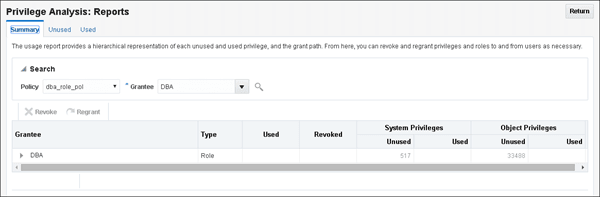
The Privilege Analysis Reports page appears.
-
To view the report, do the following:
-
By default, the selected report will appear, but to search for a report for another policy, use the Search region to find a different report, or to select a different grantee for the currently selected policy.
-
To view unused privileges, select the Unused tab; to view the used privileges, select Used. To view a summary of both, select Summary.
From here, you can select roles to revoke or regrant to users as necessary. To do so, under Grantee, select the role and then click Revoke or Regrant.
-
Dropping a Privilege Analysis Policy
Before you can drop a privilege analysis policy, you must first disable it.
Dropping a privilege analysis policy also drops all the used and unused privilege records associated with this privilege analysis. If you created capture runs for the policy, then they are dropped when you drop the policy.
-
Log in to the database instance as a user who has the
CAPTURE_ADMINrole. -
Query the
NAMEandENABLEcolumns of theDBA_PRIV_CAPTURESdata dictionary view to find the policy and to check if it is enabled or disabled. -
If the policy is enabled, then disable it.
For example:
EXEC DBMS_PRIVILEGE_CAPTURE.DISABLE_CAPTURE ('logon_users_analysis_pol');-
Run the
DBMS_PRIVILEGE_CAPTURE.DROP_CAPTUREprocedure to drop the policy.For example:
EXEC DBMS_PRIVILEGE_CAPTURE.DROP_CAPTURE ('logon_users_analysis_pol');If you had enabled the policy with a capture run, then the capture run is dropped as well. To individually drop a capture run, you can run the `DBMS_PRIVILEGE_CAPTURE.DELETE_RUN` procedure, but the policy must exist before you can run this statement.