Creating a Network Proxy for the Database to Connect with the Internet
This network proxy will enable the Oracle database to reach the Azure AD endpoint.
-
About Creating a Network Proxy for the Database to Connect with the Internet
The Oracle database must connect to Azure AD endpoints and it may require network configuration and default trust store access. -
Testing the Accessibility of the Azure Endpoint
You must ensure that your Oracle Database instance can access the Azure AD endpoint. -
Creating the Network Proxy for the Default Oracle Database Environment
To create the network proxy, you must set environment variables and then restart the listener. -
Creating the Network Proxy for an Oracle Real Application Clusters Environment
To create the network proxy, you must set an environment variable and then restart the database. -
Creating the Network Proxy in the Windows Registry Editor
To create the network proxy in a Windows environment, you must update the Registry Editor (regedit).
About Creating a Network Proxy for the Database to Connect with the Internet
The Oracle database must connect to Azure AD endpoints and it may require network configuration and default trust store access.
You can configure the database when HTTP network proxy is in place in an enterprise, for a default Oracle Database environment and for an Oracle Real Applications Clusters environment. The database establishes a Transport Layer Security (TLS) link to Azure AD, so it also needs access to the default trust store on the database server. To enable this, ensure that the database server has access to the system default certificate store.
Testing the Accessibility of the Azure Endpoint
You must ensure that your Oracle Database instance can access the Azure AD endpoint.
For an Oracle database to accept Azure AD OAuth2 tokens, the database must request the public key from the Azure AD endpoint.
-
Run the following test to determine if the database can connect with the Azure AD endpoint:
SET SERVEROUTPUT ON SIZE 40000
DECLARE
  req UTL_HTTP.REQ;
  resp UTL_HTTP.RESP;
BEGIN
  UTL_HTTP.SET_WALLET(path => 'system:');
  req := UTL_HTTP.BEGIN_REQUEST('https://login.windows.net/common/discovery/keys');
  resp := UTL_HTTP.GET_RESPONSE(req);
  DBMS_OUTPUT.PUT_LINE('HTTP response status code: ' || resp.status_code);
  UTL_HTTP.END_RESPONSE(resp);
END;
/
If this test is successful, then a
PL/SQL procedure successfully completedmessage appears.If the following messages appear, then it means that a database network access control list (ACL) policy blocked your test and you will need to temporarily set an access control list policy to allow you to test this:
ORA-29273: HTTP request failed ORA-24247: network access denied by access control list (ACL)-
Set the ACL as follows:
BEGIN
DBMS_NETWORK_ACL_ADMIN.APPEND_HOST_ACE(
  host => '*',
  ace  =>  xs$ace_type(privilege_list => xs$name_list('connect'),
                       principal_name => 'username_placeholder',
                       principal_type => xs_acl.ptype_db));
END;
/
Replace
username_placeholderwith the user name of the database user who is running the test. For example:BEGIN DBMS_NETWORK_ACL_ADMIN.APPEND_HOST_ACE( host => '*', ace => xs$ace_type(privilege_list => xs$name_list('connect'), principal_name => 'DBA_DEBRA', principal_type => xs_acl.ptype_db)); END; / -
Try running the test again.
-
Remove the ACL, because you now no longer need it. For example, assuming your user name is
dba_debra:BEGIN DBMS_NETWORK_ACL_ADMIN.REMOVE_HOST_ACE( host => '*', ace => xs$ace_type(privilege_list => xs$name_list('connect'), principal_name => 'DBA_DEBRA', principal_type => xs_acl.ptype_db)); END; /
-
If the database cannot connect with the Azure AD endpoint, even after you set the ACL policy, you will most likely need to set the HTTP_PROXY package for your database. Review the topics listed in Related Topics, depending if you are using a default Oracle Database environment or an Oracle Real Application Clusters RAC environment. Your network administrator should be able to tell you what the correct HTTP_PROXY setting should be.
Creating the Network Proxy for the Default Oracle Database Environment
To create the network proxy, you must set environment variables and then restart the listener.
You do not need to restart the database.
-
In the server where the Oracle database is installed, set the
http_proxyenvironment variable.For example:
export http_proxy=http://www-proxy-example.com:80/ -
Restart the listener.
lsnrctl stop
lsnrctl start
Creating the Network Proxy for an Oracle Real Application Clusters Environment
To create the network proxy, you must set an environment variable and then restart the database.
-
In the server where the Oracle database is installed, set the
http_proxyenvironment variable.Use this syntax to set the network proxies. the proxy command that you enter must have
http://preceding the proxy name and must have the port number at the end of the proxy:http_proxy=http://....:80/For example:
srvctl setenv database -db db_name -env "http_proxy=http://www-proxy.example.com:80/" -
Stop the database.
$srvctl stop database -db db_name -
Display the environment variable values to ensure that they are correctly set.
$ srvctl getenv database -db db_nameOutput similar to the following should appear:
db_name: http_proxy=http://www-proxy.example.com:80/ https_proxy=http://www-proxy.example.com:80/ -
Restart the database.
$ srvctl start database -db db_name
Creating the Network Proxy in the Windows Registry Editor
To create the network proxy in a Windows environment, you must update the Registry Editor (regedit).
-
Start the Registry Editor (
regedit). -
Locate the
\HKEY_LOCAL_MACHINE\SYSTEM\CurrentControlSet\Services\OracleServicerversionkey. -
Select this key, and then in the right panel, locate Environment.
-
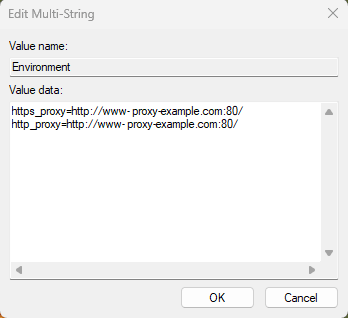
Edit Environment to add a new multi-string value to it.
The following example uses the domain of
example.com:
-
Click OK.
-
Restart the database server.
For example:
net start Oracle_service_name sqlplus "/as sysdba" startup; -
Open the PDBs.
ALTER PLUGGABLE DATABASE ALL OPEN;