Logging into a Multitenant Environment in Enterprise Manager
In a multitenant environment, you can log in to a CDB or a PDB, and switch from a PDB to a different PDB or to the root.
This section contains the following topics:
-
Logging into a CDB or a PDB
Different variations of the Enterprise Manager Database login page appear automatically based on the feature that you requested while logging in. -
Switching to a Different PDB or to the Root
From Oracle Enterprise Manager, you can switch from one PDB to a different PDB, or to the root.
Logging into a CDB or a PDB
Different variations of the Enterprise Manager Database login page appear automatically based on the feature that you requested while logging in.
To log into a multitenant environment as a CDB administrator (an Enterprise Manager user who has the CONNECT privilege on the CDB target) to use a CDB-scoped feature:
-
Log into Oracle Enterprise Manager Cloud Control as either user
SYSTEMorSYSMAN.The URL is as follows:
https://host:port/em -
Navigate to the Databases page.
-
Select the database that you want to access.
The database home page appears.
-
Select the menu item for the action that you want to perform, such as selecting Administration, then Security, and then Users to authenticate a user.
The Database Login page appears. The following example shows the Database Login page for the CDB (because the database name is shown as
CDB$ROOT). Because of this name, this page is colloquially referred to as the database login page for therootof the multitenant environment. The Database field refers to the current database; had you selected a PDB, then the name of the PDB would appear in this field.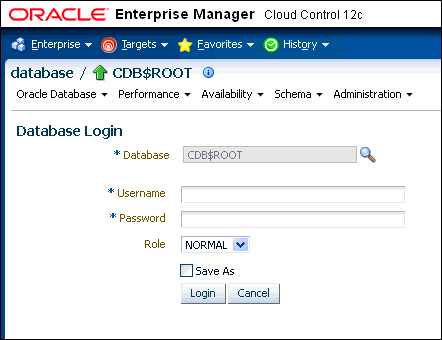
-
Log in using the appropriate credentials.
Remember that only common users can log into the root, and that the names of common users begin with
C##orc##. Both common and local users can log into a PDB, depending on their privileges.
Switching to a Different PDB or to the Root
From Oracle Enterprise Manager, you can switch from one PDB to a different PDB, or to the root.
-
At the top left side of the page, find the database link.
In the database link, the current container name appears. The following example shows that the current database is the CDB itself (
CDB$ROOT), colloquially known as the root.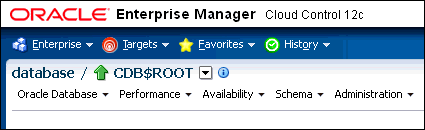
-
Select the menu icon to the right of the container, and from this menu, select the database that you want to access.
If the menu item does not appear, then navigate to a page where it does appear, such as the Database home page.
-
When you decide which activity you want to perform (such as creating users), log in with the appropriate privileges.
If you attempt to perform an activity without first having authenticated with the appropriate privileges, then you will be prompted to log in with the appropriate privilege.