Using a Password Management Policy
A password management policy can create and enforce a set of restrictions that can better secure user passwords.
-
About Managing Passwords
Database security systems that depend on passwords require that passwords be kept secret at all times. -
Finding User Accounts That Have Default Passwords
TheDBA_USERS_WITH_DEFPWDdata dictionary view can find user accounts that use default passwords. -
Password Settings in the Default Profile
A profile is a collection of parameters that sets limits on database resources. -
Using the ALTER PROFILE Statement to Set Profile Limits
You can modify profile limits such as failed login attempts, password lock times, password reuse, and several other settings. -
Disabling and Enabling the Default Password Security Settings
Oracle provides scripts that you can use to disable and enable the default password security settings. -
Automatically Locking Inactive Database User Accounts
TheINACTIVE_ACCOUNT_TIMEprofile parameter locks a user account that has not logged in to the database instance in a specified number of days. -
Automatically Locking User Accounts After a Specified Number of Failed Log-in Attempts
Oracle Database can lock a user’s account after a specified number of consecutive failed log-in attempts. -
Example: Locking an Account with the CREATE PROFILE Statement
TheCREATE PROFILEstatement can lock user accounts if a user’s attempt to log in violates the CREATE PROFILE settings. -
Explicitly Locking a User Account
When you explicitly lock a user account, the account cannot be unlocked automatically. Only a security administrator can unlock the account. -
Controlling the User Ability to Reuse Previous Passwords
You can ensure that users do not reuse previous passwords for an amount of time or for a number of password changes. -
About Controlling Password Aging and Expiration
You can specify a password lifetime, after which the password expires. -
Using the CREATE PROFILE or ALTER PROFILE Statement to Set a Password Lifetime
When you set a lifetime for a password, the user must create a new password when this lifetime ends. -
Checking the Status of a User Account
You can check the status of any account, whether it is open, in grace, or expired. -
Password Change Life Cycle
After a password is created, it follows a life cycle and grace period in four phases. -
PASSWORD_LIFE_TIME Profile Parameter Low Value
Be careful if you set thePASSWORD_LIFE_TIMEparameter ofCREATE PROFILEorALTER PROFILEto a low value (for example, 1 day).
About Managing Passwords
Database security systems that depend on passwords require that passwords be kept secret at all times.
Because passwords are vulnerable to theft and misuse, Oracle Database uses a password management policy. Database administrators and security officers control this policy through user profiles, enabling greater control of database security.
You can use the CREATE PROFILE statement to create a user profile. The profile is assigned to a user with the CREATE USER or ALTER USER statement.
Finding User Accounts That Have Default Passwords
The DBA_USERS_WITH_DEFPWD data dictionary view can find user accounts that use default passwords.
When you create a database, most of the default accounts are locked with the passwords expired. If you have upgraded from an earlier release of Oracle Database, then you may have user accounts that have default passwords. These are default accounts that are created when you create a database, such as the HR, OE, and SCOTT accounts.
For greater security, you should change the passwords for these accounts. Using a default password that is commonly known can make your database vulnerable to attacks by intruders.
-
Log in to the database instance using SQL*Plus with the
SYSDBAadministrative privilege.For example:
sqlplus sys as sysdba
Enter password: password-
Query the
DBA_USERS_WITH_DEFPWDdata dictionary view.For example, to find both the names of accounts that have default passwords and the status of the account:
SELECT d.username, u.account_status
FROM DBA_USERS_WITH_DEFPWD d, DBA_USERS u
WHERE d.username = u.username
ORDER BY 2,1;

USERNAME  ACCOUNT_STATUS

--------- ---------------------------
SCOTT EXPIRED & LOCKED-
Change the passwords for any accounts that the
DBA_USERS_WITH_DEFPWDview lists.Oracle recommends that you do not assign these accounts passwords that they may have had in previous releases of Oracle Database.
For example:
ALTER USER SCOTT ACCOUNT UNLOCK IDENTIFIED BY password;Follow the guidelines in [Minimum Requirements for Passwords](minimum-requirements-passwords.html#GUID-AA1AA635-1CD5-422E-B8CA-681ED7C253CA) to replace *password* with a password that is secure.
Password Settings in the Default Profile
A profile is a collection of parameters that sets limits on database resources.
If you assign the profile to a user, then that user cannot exceed these limits. You can use profiles to configure database settings such as sessions per user, logging and tracing features, and so on. Profiles can also control user passwords. To find information about the current password settings in the profile, you can query the DBA_PROFILES data dictionary view.
The following table lists the password-specific parameter settings in the default profile.
| Parameter | Default Setting | Description |
|---|---|---|
INACTIVE_ACCOUNT_TIME |
UNLIMITED |
Locks the account of a database user who has not logged in to the database instance in a specified number of days. |
FAILED_LOGIN_ATTEMPTS |
10 |
Sets the maximum times a user try to log in and to fail before locking the account. Notes: When you set this parameter, take into consideration users who may log in using the CONNECT THROUGH privilege. You can set limits on the number of times an unauthorized user (possibly an intruder) attempts to log in to Oracle Call Interface (OCI) applications by using the SEC_MAX_FAILED_LOGIN_ATTEMPTS initialization parameter. |
PASSWORD_GRACE_TIME |
7 |
Sets the number of days that a user has to change their password before it expires. |
PASSWORD_LIFE_TIME |
180 |
Sets the number of days the user can use their current password. |
PASSWORD_LOCK_TIME |
1 |
Sets the number of days an account will be locked after the specified number of consecutive failed login attempts. After the time passes, then the account becomes unlocked. This user’s profile parameter is useful to help prevent brute force attacks on user passwords but not to increase the maintenance burden on administrators. Even after the value set by PASSWORD_LOCK_TIME shows that the password has expired, the DBA_USERS data dictionary view will show that the account is locked. However, after the user connects, the information in DBA_USERS is updated with the correct OPEN status. |
PASSWORD_REUSE_MAX |
UNLIMITED |
Sets the number of password changes required before the current password can be reused. |
PASSWORD_REUSE_TIME |
UNLIMITED |
Sets the number of days before which a password cannot be reused. |
PASSWORD_ROLLOVER_TIME |
0 |
Enables the gradual database password rollover time. |
Using the ALTER PROFILE Statement to Set Profile Limits
You can modify profile limits such as failed login attempts, password lock times, password reuse, and several other settings.
These settings are described in the preceding table. For greater security, use the default settings that are described in that table, based on your needs.
- Use the
ALTER PROFILEstatement to modify a user’s profile limits.
For example:
ALTER PROFILE prof LIMIT
 FAILED_LOGIN_ATTEMPTS 9
 PASSWORD_LOCK_TIME 10
 INACTIVE_ACCOUNT_TIME 21;
Disabling and Enabling the Default Password Security Settings
Oracle provides scripts that you can use to disable and enable the default password security settings.
If your applications use the default password security settings from Oracle Database 10g release 2 (10.2), then you can revert to these settings until you modify the applications to use the default password security settings from Oracle Database 11g or later.
-
Modify your applications to conform to the password security settings from Oracle Database 11g or later.
-
Update your database to use the security configuration that suits your business needs, using one of the following methods:
-
Manually update the database security configuration.
-
Run the
secconf.sqlscript to apply the default password settings from Oracle Database 11g or later. You can customize this script to have different security settings if you like, but remember that the settings listed in the original script are Oracle-recommended settings.
-
If you created your database manually, then you should run the secconf.sql script to apply the Oracle default password settings to the database. Databases that have been created with Database Configuration Assistant (DBCA) will have these settings, but manually created databases do not.
The secconf.sql script is in the $ORACLE_HOME/rdbms/admin directory. The secconf.sql script affects both password and audit settings. It has no effect on other security settings.
Automatically Locking Inactive Database User Accounts
The INACTIVE_ACCOUNT_TIME profile parameter locks a user account that has not logged in to the database instance in a specified number of days.
Users are considered active users if they log in periodically. The INACTIVE_ACCOUNT_TIME timing is based on the number of days after the last time a user successfully logs in.
-
To lock user accounts automatically after a specified number of days, set the
INACTIVE_ACCOUNT_TIMEprofile parameter in theCREATE PROFILEorALTER PROFILEstatement. Note the following:-
The default value for
INACTIVE_ACCOUNT_TIMEisUNLIMITED. -
You must specify a whole number for the number of days. The minimum setting is
15and the maximum is24855. -
To set the user’s account to have an unlimited inactivity time, set the
INACTIVE_ACCOUNT_TIMEtoUNLIMITED. -
To set the user’s account to use the time specified by the default profile, set
INACTIVE_ACCOUNT_TIMEtoDEFAULT. -
You can set this parameter for all database authenticated users, including administrative users, but not for external or global authenticated users.
-
In a read-only database, the last successful login is not considered in the
INACTIVE_ACCOUNT_TIMEtiming. It is not possible to lock a user account in a read-only database (except by performing consecutive failed logins equal in number to the account’sFAILED_LOGIN_ATTEMPTSpassword profile setting). -
For a newly created user account, the timing begins at account creation time. When this user logs out and then logs again, the timing starts when the user successfully logs in.
-
In a multitenant environment, the
INACTIVE_ACCOUNT_TIMEsetting applies to the last time a common user logs in to the root. A common user is considered active if this user logs in to any of the PDBs or the root. -
For a proxy user account login, the
INACTIVE_ACCOUNT_TIMEbegins the timing when the proxy user logs in successfully.
-
For example, to create a profile that locks an account after 60 days of being inactive:
CREATE PROFILE time_limit LIMIT
 INACTIVE_ACCOUNT_TIME 60;
Automatically Locking User Accounts After a Specified Number of Failed Log-in Attempts
Oracle Database can lock a user’s account after a specified number of consecutive failed log-in attempts.
-
To lock user accounts automatically after a specified time interval or to require database administrator intervention to be unlocked, set the
PASSWORD_LOCK_TIMEprofile parameter in theCREATE PROFILEorALTER PROFILEstatement.For example, to set the time interval to 10 days:
PASSWORD_LOCK_TIME = 10
Note the following:
-
You can lock accounts manually, so that they must be unlocked explicitly by a database administrator.
-
You can specify the permissible number of failed login attempts by using the
CREATE PROFILEstatement. You can also specify the amount of time an account remains locked. -
Each time the user unsuccessfully logs in, Oracle Database increases the delay exponentially with each login failure.
-
If you do not specify a time interval for unlocking the account, then
PASSWORD_LOCK_TIMEassumes the value specified in a default profile. (The recommended value is 1 day.) If you specifyPASSWORD_LOCK_TIMEasUNLIMITED, then you must explicitly unlock the account by using anALTER USERstatement. For example, assuming thatPASSWORD_LOCK_TIMEUNLIMITEDis specified forjohndoe, then you use the following statement to unlock thejohndoeaccount:
ALTER USER johndoe ACCOUNT UNLOCK;-
After a user successfully logs into an account, Oracle Database resets the unsuccessful login attempt count for the user. If it is non-zero, then the count is set to zero.
-
In a multitenant environment, a locked CDB common user account will be locked across all PDBs in the CDB. A locked application common user account will be locked across all PDBs that are associated with the application root.
Example: Locking an Account with the CREATE PROFILE Statement
The CREATE PROFILE statement can lock user accounts if a user’s attempt to log in violates the CREATE PROFILE settings.
Example 3-1 sets the maximum number of failed login attempts for the user johndoe to 10 (the default), and the amount of time the account locked to 30 days. The account will unlock automatically after 30 days.
Example 3-1 Locking an Account with the CREATE PROFILE Statement
CREATE PROFILE prof LIMIT
 FAILED_LOGIN_ATTEMPTS 10
 PASSWORD_LOCK_TIME 30

ALTER USER johndoe PROFILE prof;
Explicitly Locking a User Account
When you explicitly lock a user account, the account cannot be unlocked automatically. Only a security administrator can unlock the account.
In a multitenant environment, after you have locked a CDB common user account in the CDB root, this user cannot log in to any PDB that is associated with this root, nor can this account be unlocked in a PDB. In addition, you can lock a CDB common account locally in a PDB, which will prevent the CDB common user from logging in to that PDB. Similarly, an application common user account that is locked in the application root cannot log in to any PDB associated with the application root, nor can the application common user be unlocked in an application PDB. You can explicitly lock an application common user locally in an application PDB.
- To explicitly lock a user account, use the
CREATE USERorALTER USERstatement.
For example, the following statement locks the user account, susan:
ALTER USER susan ACCOUNT LOCK;Controlling the User Ability to Reuse Previous Passwords
You can ensure that users do not reuse previous passwords for an amount of time or for a number of password changes.
- To ensure that users cannot reuse their passwords for a specified period of time, configure the rules for password reuse with the
CREATEPROFILEorALTER PROFILEstatements.
The following table lists the CREATE PROFILE and ALTER PROFILE parameters that control ability of a user to reuse a previous password.
| Parameter Name | Description and Use |
|---|---|
PASSWORD_REUSE_TIME |
Requires either a number specifying how many days (or a fraction of a day) between the earlier use of a password and its next use, or the word UNLIMITED. |
PASSWORD_REUSE_MAX |
Requires either an integer to specify the number of password changes required before a password can be reused, or the word UNLIMITED. |
If you do not specify a parameter, then the user can reuse passwords at any time, which is not a good security practice.
If neither parameter is UNLIMITED, then password reuse is allowed, but only after meeting both conditions. The user must have changed the password the specified number of times, and the specified number of days must have passed since the previous password was last used.
For example, suppose that the profile of user A had PASSWORD_REUSE_MAX set to 10 and PASSWORD_REUSE_TIME set to 30. User A cannot reuse a password until he or she has reset the password 10 times, and until 30 days had passed since the password was last used.
If either parameter is specified as UNLIMITED, then the user can never reuse a password.
If you set both parameters to UNLIMITED, then Oracle Database ignores both, and the user can reuse any password at any time.
Note: If you specify DEFAULT for either parameter, then Oracle Database uses the value defined in the DEFAULT profile, which sets all parameters to UNLIMITED. Oracle Database thus uses UNLIMITED for any parameter specified as DEFAULT, unless you change the setting for that parameter in the DEFAULT profile.
About Controlling Password Aging and Expiration
You can specify a password lifetime, after which the password expires.
This means that the next time the user logs in with the current, correct password, he or she is prompted to change the password. By default, there are no complexity or password history checks, so users can still reuse any previous or weak passwords. You can control these factors by setting the PASSWORD_REUSE_TIME, PASSWORD_REUSE_MAX, and PASSWORD_VERIFY_FUNCTION parameters.
In addition, you can set a grace period, during which each attempt to log in to the database account receives a warning message to change the password. If the user does not change it by the end of that period, then Oracle Database expires the account.
As a database administrator, you can manually set the password state to be expired, which sets the account status to EXPIRED. The user must then follow the prompts to change the password before the logon can proceed.
For example, in SQL*Plus, suppose user SCOTT tries to log in with the correct credentials, but his password has expired. User SCOTT will then see the ORA-28001: The password has expired error and be prompted to change his password, as follows:
Changing password for scott
New password: new_password
Retype new password: new_password
Password changed.
Using the CREATE PROFILE or ALTER PROFILE Statement to Set a Password Lifetime
When you set a lifetime for a password, the user must create a new password when this lifetime ends.
- Use the
CREATE PROFILEorALTER PROFILEstatement to specify a lifetime for passwords.
The following example demonstrates how to create and assign a profile to user johndoe, and the PASSWORD_LIFE_TIME clause specifies that johndoe can use the same password for 180 days before it expires.
CREATE PROFILE prof LIMIT
 FAILED_LOGIN_ATTEMPTS 4
 PASSWORD_GRACE_TIME 3
 PASSWORD_LIFE_TIME 180;
ALTER USER johndoe PROFILE prof;
Checking the Status of a User Account
You can check the status of any account, whether it is open, in grace, or expired.
- To check the status of a user account, query the
ACCOUNT_STATUScolumn of theDBA_USERSdata dictionary view.
For example:
SELECT ACCOUNT_STATUS FROM DBA_USERS WHERE USERNAME = 'username';Password Change Life Cycle
After a password is created, it follows a life cycle and grace period in four phases.
The following diagram shows the life cycle of the password lifetime and grace period.
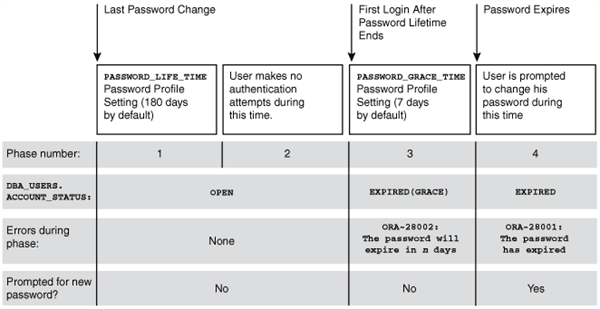
Description of the illustration admin107.png
In this figure:
-
Phase 1: After the user account is created, or the password of an existing account is changed, the password lifetime period begins.
-
Phase 2: This phase represents the period of time after the password lifetime ends but before the user logs in again with the correct password. The correct credentials are needed for Oracle Database to update the account status. Otherwise, the account status will remain unchanged. Oracle Database does not have any background process to update the account status. All changes to the account status are driven by the Oracle Database server process on behalf of authenticated users.
-
Phase 3: When the user finally does log in, the grace period begins. Oracle Database then updates the
DBA_USERS.EXPIRY_DATEcolumn to a new value using the current time plus the value of thePASSWORD_GRACE_TIMEsetting from the account’s password profile. At this point, the user receives anORA-28002warning message about the password expiring in the near future (for example,ORA-28002 The password will expire within 7daysifPASSWORD_GRACE_TIMEis set to7days), but the user can still log in without changing the password. TheDBA_USERS.EXPIRY_DATEcolumn shows the time in the future when the user will be prompted to change their password. -
Phase 4: After the grace period (Phase 3) ends, the
ORA-28001: The password has expirederror appears, and the user is prompted to change the password after entering the current, correct password before the authentication can proceed. If the user has an Oracle Active Data Guard configuration, where there is a primary and a stand-by database, and the authentication attempt is made on the standby database (which is a read-only database), then theORA-28032: Your password has expired and the database is set to read-onlyerror appears. The user should log into the primary database and change the password there.
During any of these four phases, you can query the DBA_USERS data dictionary view to find the user’s account status in the DBA_USERS.ACCOUNT_STATUS column.
In the following example, the profile assigned to johndoe includes the specification of a grace period: PASSWORD_GRACE_TIME = 3 (the recommended value). The first time johndoe tries to log in to the database after 90 days (this can be any day after the 90th day, that is, the 91st day, 100th day, or another day), he receives a warning message that his password will expire in 3 days. If 3 days pass, and if he does not change his password, then the password expires. After this, he receives a prompt to change his password on any attempt to log in.
CREATE PROFILE prof LIMIT
 FAILED_LOGIN_ATTEMPTS 4
 PASSWORD_LIFE_TIME 90
 PASSWORD_GRACE_TIME 3;

ALTER USER johndoe PROFILE prof;
A database administrator or a user who has the ALTER USER system privilege can explicitly expire a password by using the CREATE USER and ALTER USER statements. The following statement creates a user with an expired password. This setting forces the user to change the password before the user can log in to the database.
CREATE USER jbrown
 IDENTIFIED BY password
 ...
 PASSWORD EXPIRE;
There is no “password unexpire” clause for the CREATE USER statement, but an account can be “unexpired” by changing the password on the account.
PASSWORD_LIFE_TIME Profile Parameter Low Value
Be careful if you set the PASSWORD_LIFE_TIME parameter of CREATE PROFILE or ALTER PROFILE to a low value (for example, 1 day).
The PASSWORD_LIFE_TIME limit of a profile is measured from the last time that an account’s password is changed, or the account creation time if the password has never been changed. These dates are recorded in the PTIME (password change time) and CTIME (account creation time) columns of the SYS.USER$ system table. The PASSWORD_LIFE_TIME limit is not measured starting from the timestamp of the last change to the PASSWORD_LIFE_TIME profile parameter, as may be initially thought. Therefore, any accounts affected by the changed profile whose last password change time was more than PASSWORD_LIFE_TIME days ago immediately expire and enter their grace period on their next connection, issuing the ORA-28002: The password will expire within n days warning.
As a database administrator, you can find an account’s last password change time as follows:
ALTER SESSION SET NLS_DATE_FORMAT='DD-MON-YYYY HH24:MI:SS';
SELECT PTIME FROM SYS.USER$ WHERE NAME = 'user_name'; -- Password change time
To find when the account was created and the password expiration date, issue the following query:
SELECT CREATED, EXPIRY_DATE FROM DBA_USERS WHERE USERNAME = 'user_name';If the user who is assigned this profile is currently logged in when you set the PASSWORD_LIFE_TIME parameter and remains logged in, then Oracle Database does not change the user’s account status from OPEN to EXPIRED(GRACE) when the currently listed expiration date passes. The timing begins only when the user logs into the database. You can check the user’s last login time as follows:
SELECT LAST_LOGIN FROM DBA_USERS WHERE USERNAME = 'user_name';When making changes to a password profile, a database administrator must be aware that if some of the users who are subject to this profile are currently logged in to the Oracle database while their password profile is being updated by the administrator, then those users could potentially remain logged in to the system even beyond the expiration date of their password. You can find the currently logged in users by querying the USERNAME column of the V$SESSION view.
This is because the expiration date of a user’s password is based on the timestamp of the last password change on their account plus the value of the PASSWORD_LIFE_TIME password profile parameter set by the administrator. It is not based on the timestamp of the last change to the password profile itself.
Note the following:
-
If the user is not logged in when you set
PASSWORD_LIFE_TIMEto a low value, then the user’s account status does not change until the user logs in. -
You can set the
PASSWORD_LIFE_TIMEparameter toUNLIMITED, but this only affects accounts that have not entered their grace period. After the grace period expires, the user must change the password.
Related Topics
- Managing Resources with Profiles
- Automatically Locking Inactive Database User Accounts
- Configuration of the Maximum Number of Authentication Attempts
- Controlling the User Ability to Reuse Previous Passwords
- About Controlling Password Aging and Expiration
- Controlling the User Ability to Reuse Previous Passwords
- Oracle Database SQL Language Reference
- About Password Complexity Verification
- Password Change Life Cycle