Registering a Client with Entra ID Application Registration
This type of registration is similar to registering Oracle Database with Entra ID app registration.
-
Confidential and Public Client Registration
You can register the database client with Entra ID as either confidential or public depending on your use case. -
Registering a Database Client App with Entra ID
Creating the client app registration is similar to creating the Oracle Database instance with the Microsoft Entra ID tenancy.
Confidential and Public Client Registration
You can register the database client with Entra ID as either confidential or public depending on your use case.
See the Microsoft Azure article Authentication flows and application scenarios for detailed information about authentication flows and application scenarios.
Registering a confidential client app requires that the client have a secret, in addition to the client ID. The confidential client app uses both the client ID and the secret when it makes Entra ID requests. However, in an enterprise, it is not practical for every SQL*Plus and SQLcl user to create a separate app registration with its own secret. In addition, a secret is no longer a secret when you start to share it within an organization. It is far better to just create a public client app. A public client app does not have a secret; it only has a client ID. All database tool users can use the public client ID when they connect to Entra ID to get an access token. The Azure user still needs to authenticate to Entra ID with their own user credential.
Registering a Database Client App with Entra ID
Creating the client app registration is similar to creating the Oracle Database instance with the Microsoft Entra ID tenancy.
-
Log in to the Azure portal as an administrator who has Microsoft Entra ID privileges to register applications.
-
In the Azure Active directory admin center page, from the left navigation bar, select Microsoft Entra ID.
-
In the MS - App registrations page, select App registrations from the left navigation bar.
-
Select New registration.
-
In the Register an application page, enter the following Oracle Database client registration information:
-
In the Name field, enter a name for the client app (for example,
DatabaseClientApplication).. -
Under Supported account types, select the account type that matches your use case.
-
Accounts in this organizational directory only (tenant_name only - Single tenant)
-
Accounts in any organizational directory (Any Entra ID directory - Multitenant)
-
Accounts in any organizational directory (Any Entra ID directory - Multitenant) and personal Microsoft accounts (e.g. Skype, Xbox)
-
Personal Microsoft accounts only
-
-
-
Under Redirect URI (optional), configure the redirect URI for the client app.

Description of the illustration azure-redirect-uri.png
-
Select Public client/native (mobile & desktop) or Web. Choose Public client if this client app will be used by multiple users such as database administrators who need to use SQL*Plus to access the Oracle Database instance.
-
Add a redirect URI of
http://localhost, unless you have another address to use. This redirect URI is needed for the authorization flow.
-
-
Click Register.
At this stage, the database client has been registered with Entra ID. Next, you must add the new client to the list of authorized client apps for the Oracle Database instance.
-
To add the new client to this list of client apps, do the following:
-
Make a note of the new client’s Application (client) ID. This ID is in the Overview page for the app.
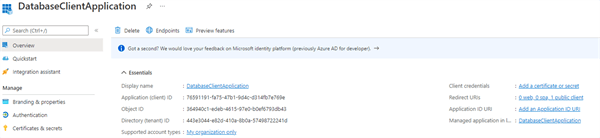
-
On the App registrations page, open the app registration page for the database server by selecting it from the menu.
-
On the left side, select Expose an API.
-
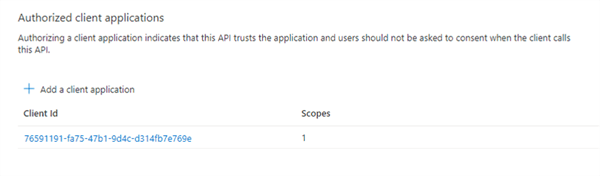
Scroll down on the main page until you see Authorized client applications.
-
Select + to add a client application.
-
Copy the new client’s Application (client) ID to the Client Id field.
-
Click Add application.
-
Related Topics
Configuration of Clients to Work with Microsoft Entra ID Tokens
Depending on the Oracle Database client, you can configure the client to either directly request the token from Entra ID or retrieve it from a file location.
-
Configuring Clients to Work with Microsoft Entra ID Tokens
There are different ways to configure your database client to work with Entra IDOAuth2access tokens. -
Enabling Clients to Directly Retrieve Entra ID Tokens
You can set parameters to enable clients to directly retrieve Entra ID tokens on their own. -
Client Credential Flow
The client credential flow allows on-premises applications and applications in non-Azure cloud environments to get an MS-EI OAuth2 token to connect to the Oracle AI Database. -
Enabling Clients to Retrieve Entra ID Tokens from a File Location
If you choose to retrieve the Entra ID location from a file location when you use the/slash login, then you will need to configure your client. -
Using Azure App Configuration Store for Network Service Configuration Information
You can store connect string and other network configuration information in Azure App Configuration Store.
Configuring Clients to Work with Microsoft Entra ID Tokens
There are different ways to configure your database client to work with Entra ID OAuth2 access tokens.
Depending on your use case (flow), the database client can directly request the OAuth2 token from the Entra ID endpoint. In other cases, a separate utility will need to be run to get the token and put it into a file location for use by the database client. An application can also use the Azure SDK to get a token and send it through the database client API. Refer to the database client specific documentation for using the client API and for client configuration information. Before you can request a token from Entra ID, you must perform the following configuration.
-
Ensure that you have an Azure user account.
-
Check with an Entra ID administrator or Oracle AI Database administrator for one of the following:
-
An application client ID that you can use to get Entra ID tokens. If you have Entra ID privileges to do so, then create your own client app registration, similar to registering the Oracle Database instance with an Entra ID tenancy.
-
You are mapped to a global schema in the database either directly or through an app role.
-
-
Ensure that you are using the latest release updates for the Oracle Database client releases 19c or 26ai and later.
Entra ID integration is not supported with Oracle Database 21c.
A TLS connection is required between the database client and the database server to pass OAuth2 tokens. You can use TLS (server authentication) or mTLS (client and server authentication). If your database client and platform support it, then you can simply use your system default certificate store when using TLS and not use a wallet. In addition to using TLS, you must specify either partial or full DN matching (TLS_SERVER_DN_MATCH = ON).
Note: To bring Oracle parameters in accord with the actual encryption and authentication methods for network connections, Oracle is deprecating all connect parameters prefixed with SSL_ in favor of parameters prefixed with TLS_. During this deprecation period, if both TLS_SERVER_DN_MATCH and SSL_SERVER_DN_MATCH parameters are configured, then the SSL_SERVER_DN_MATCH parameter is ignored.