Getting Started
Install Oracle Trusted Answer Search, explore the demo brokerage sample, and create your first search space using the Wikimedia example.
Install Trusted Answer Search
Download the installation archive from the Oracle Trusted Answer Search downloads page. Extract the archive and follow the instructions in its README.md to install Trusted Answer Search.
After installation, record the Admin application and demo website URLs displayed by the installer. Use the demo website URL to continue with Explore the Demo Brokerage Sample.
Explore the Demo Brokerage Sample
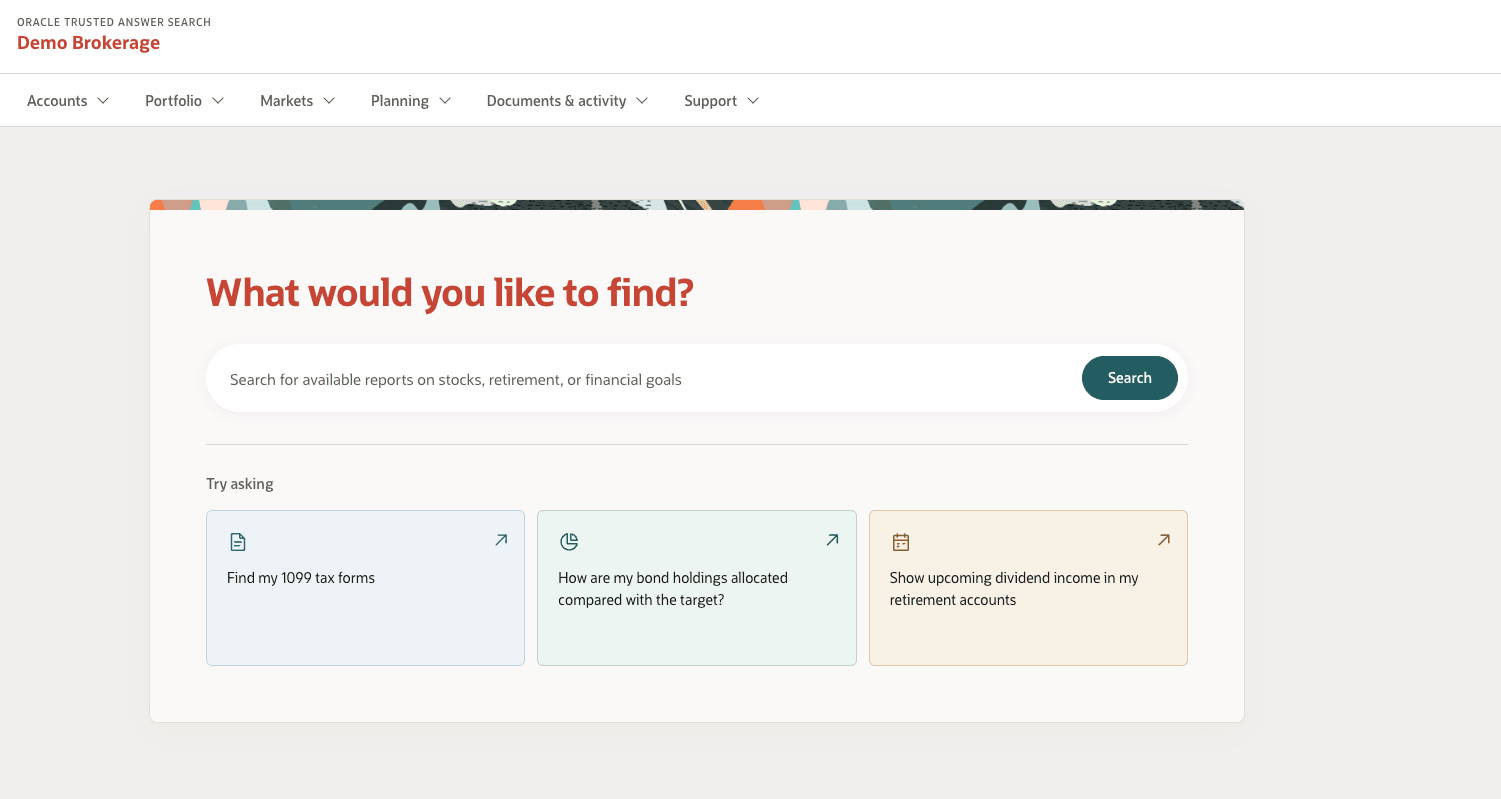
After installation, explore the demo brokerage website using the demo website URL displayed by the installer.
-
Open the demo brokerage website. Explore the search field and suggested questions.
-
Enter
asset allocation. Search starts automatically after a brief pause in typing. You can also press Enter or select Search. Review the available reports.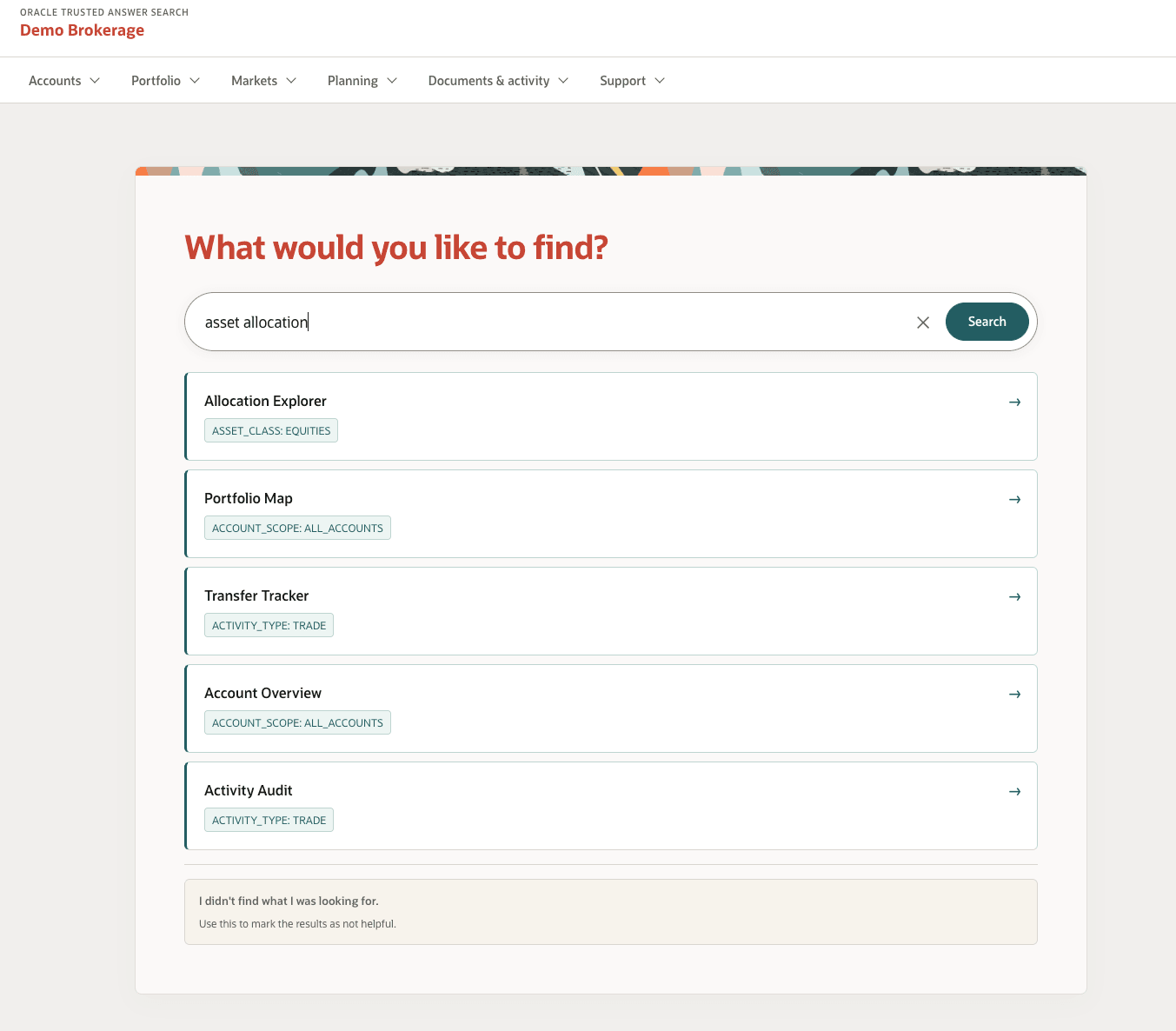
-
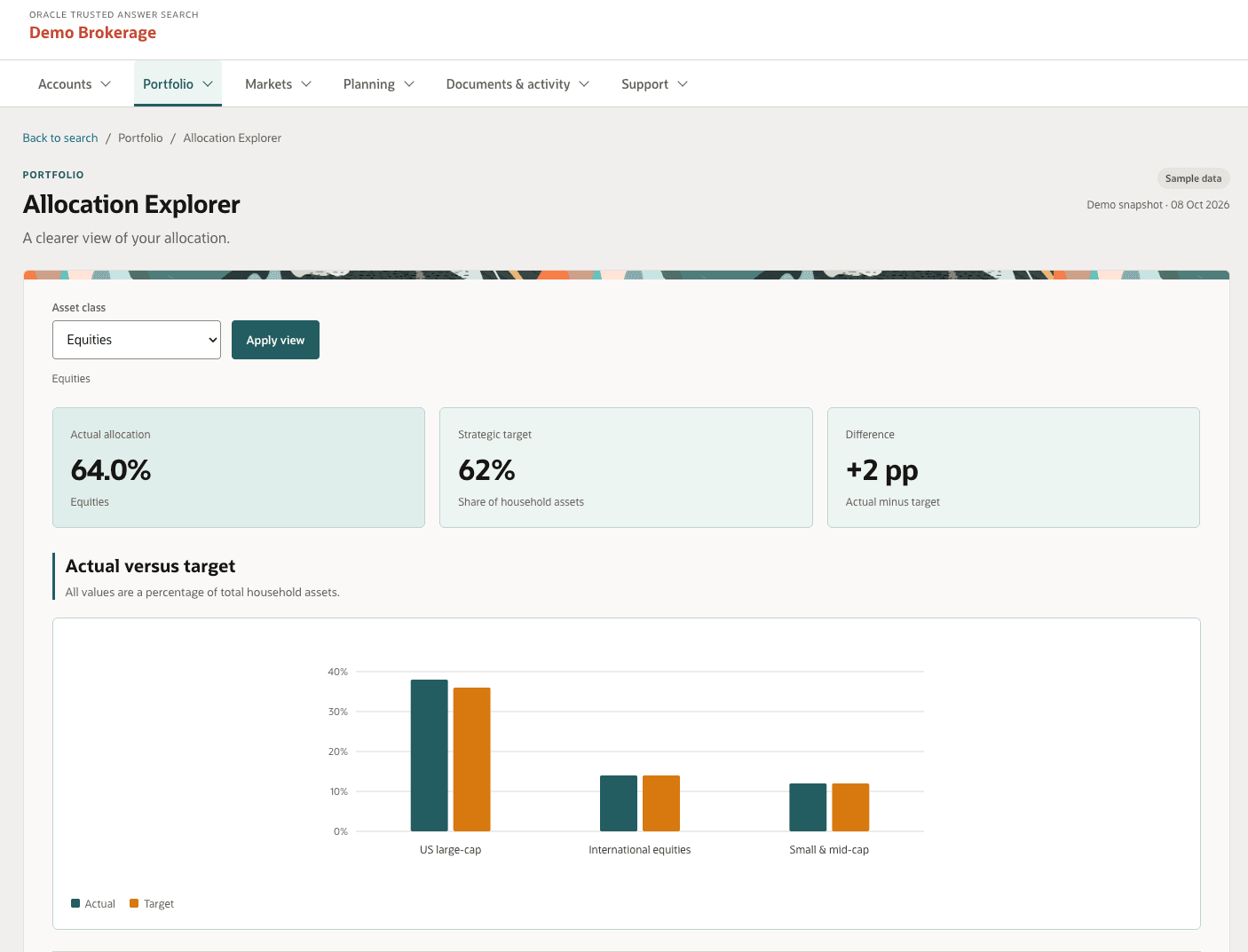
Select Allocation Explorer. Explore the report and its asset allocation view.
Create Your First Search Space
Create a search space for Wikimedia reports from scratch. In this walkthrough, you add a text search target, configure manual target value sets, test queries, and publish the draft.
Create a Search Space
-
Sign in as a Search Administrator, such as
TASADMIN. A Search Space Expert can maintain an assigned search space after an administrator creates it. -
Select Search Spaces in the left navigation. The table lists every search space that currently exists.
-
Select Create Search Space to open the configuration drawer. Provide a Name such as
WIKIMEDIAand complete the required fields. You can give the initial version a label, such asv1, to identify it later. -
Select Create. The new search space appears in the table with an initial draft version. Use this draft for the following steps.
Add a Search Target
Register the Total Page Views – All Projects report as a search target so users can find it with questions such as “Show monthly page views for all Wikimedia projects.”
Its URL contains two target inputs: :period controls the time window, and :frequency controls daily or monthly granularity. TAS resolves these inputs using the mapped target value sets and substitutes their values into the URL. For example, 2-year and monthly produce a URL for the report’s monthly page-view data over two years.
-
Sign in to the Admin application with Search Administrator credentials. Note the global Search Space selector in the header.
-
Open the Search Space dropdown and select wikimedia, then select a draft Search Space Version. Select Search Targets in the left navigation to load the catalog for that version.
- Select Create Target on the top-right of the page. Provide the general metadata first.
- Search Target Title –
Total Page Views - All Projects -
Search Target Description – The target description should semantically describe what this target is about. This description is used during Trusted Answer Search retrieval and directly impacts search quality.
Enter this description:
This report shows overall pageview volume across all Wikimedia projects over time. It opens a time-series chart with a table view and supports changing the time window and daily or monthly granularity. It is useful for readers, analysts, and community members tracking overall demand for Wikimedia content.
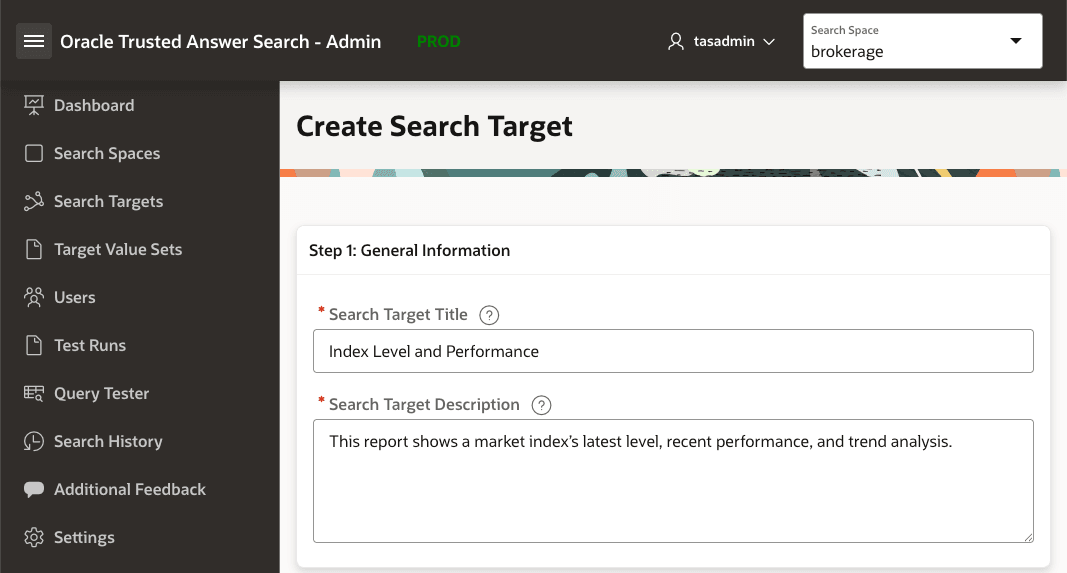
Description of the illustration target-inputs-create-target.png
- Search Target Title –
-
In Step 2: Select Target Action, select URL and paste
https://stats.wikimedia.org/#/all-projects/reading/total-page-views/normal|bar|:period|~total|:frequencyinto the URL field. The form detects the:periodand:frequencyplaceholders and displays them as target inputs. Map them to thePERIODandFREQUENCYTarget Value Sets. If those sets do not exist in this search space, create them from the form as described in Add and Map Target Value Sets, then return to this procedure.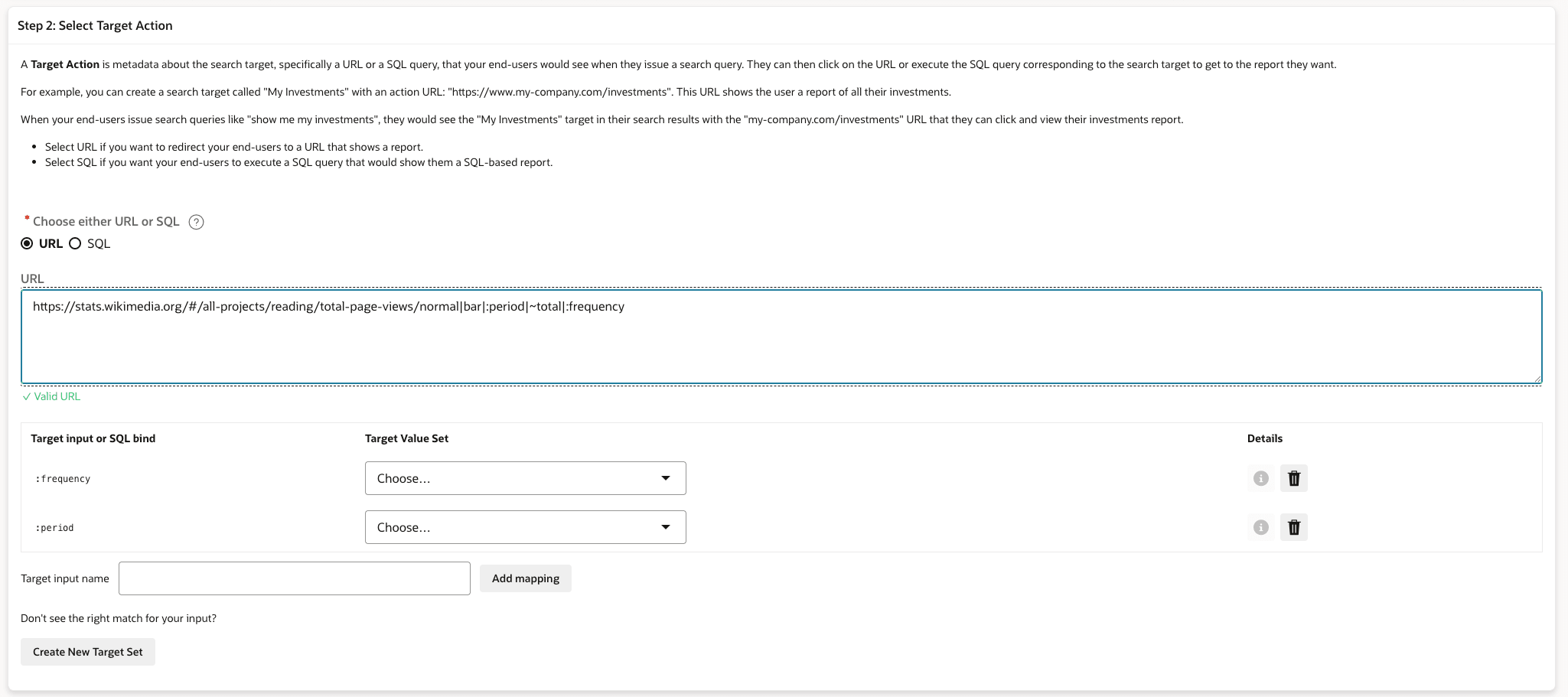
Description of the illustration target-action-create-target.png
-
Select Text Target as the target type. Under Add Sample Queries, supply realistic prompts that should retrieve this target. Each sample query must mirror the language your app’s end-users naturally use; specific scenarios and intent-driven phrasing guide semantic matching.
Enter the following queries into the Sample Query box and select Add Sample Query after every entry. For example:
What is the daily pageview trend for all Wikimedia projects?Show monthly page views for all Wikimedia projects.
As you add them, the table beneath the input lists the saved queries.
-
Select Create Search Target. The new “Total Page Views - All Projects” target appears in the wikimedia catalog.
The search target does not appear in end-user search results until you publish the draft search space version. Publish the search space version after you finish making and reviewing the draft changes.
Continue with Test Queries and Publish the Draft.
Add and Map Target Value Sets
Some reports require parameters before they can resolve to the required view. For example, the Wikimedia page-view target can use a time period and a frequency value to control the chart. Instead of creating separate search targets for each combination, use Target Inputs so Trusted Answer Search can substitute values from the user’s query into the action URL or SQL.
The “Total Page Views - All Projects” target uses the following URL template:
https://stats.wikimedia.org/#/all-projects/reading/total-page-views/normal|bar|:period|~total|:frequencyIn this URL, :period and :frequency are target input placeholders. Each placeholder must be mapped to a Target Value Set so Trusted Answer Search can resolve values from natural-language queries.
-
While creating the “Total Page Views - All Projects” Search Target, review its title and description before configuring the URL action. For this example, use:
- Title:
Total Page Views - All Projects - Description:
This report shows overall pageview volume across all Wikimedia projects over time. It opens a time-series chart with a table view and supports changing the time window and daily or monthly granularity.
- Title:
-
Under Step 2: Select Target Action, select URL and paste the parameterized link. The form detects
:frequencyand:periodand exposes both rows in the Target Inputs table beneath the URL. -
If a required value set does not yet exist, select Create New Target Set to open the Add Target Value Set dialog.
For this example, create a manual Target Value Set for
FREQUENCY.- Name:
FREQUENCY - Description:
Time bucket options that control the resolution of the trends
Select Manual to enter the allowed values yourself. Enter
dailyin Value and select + Add.Enter
monthlyin Value. To recognize alternative wording, enterby month, monthin Synonym(s), then select + Add.Set Default Value to
monthly. This value is used when the query does not contain a matching frequency. Select Save.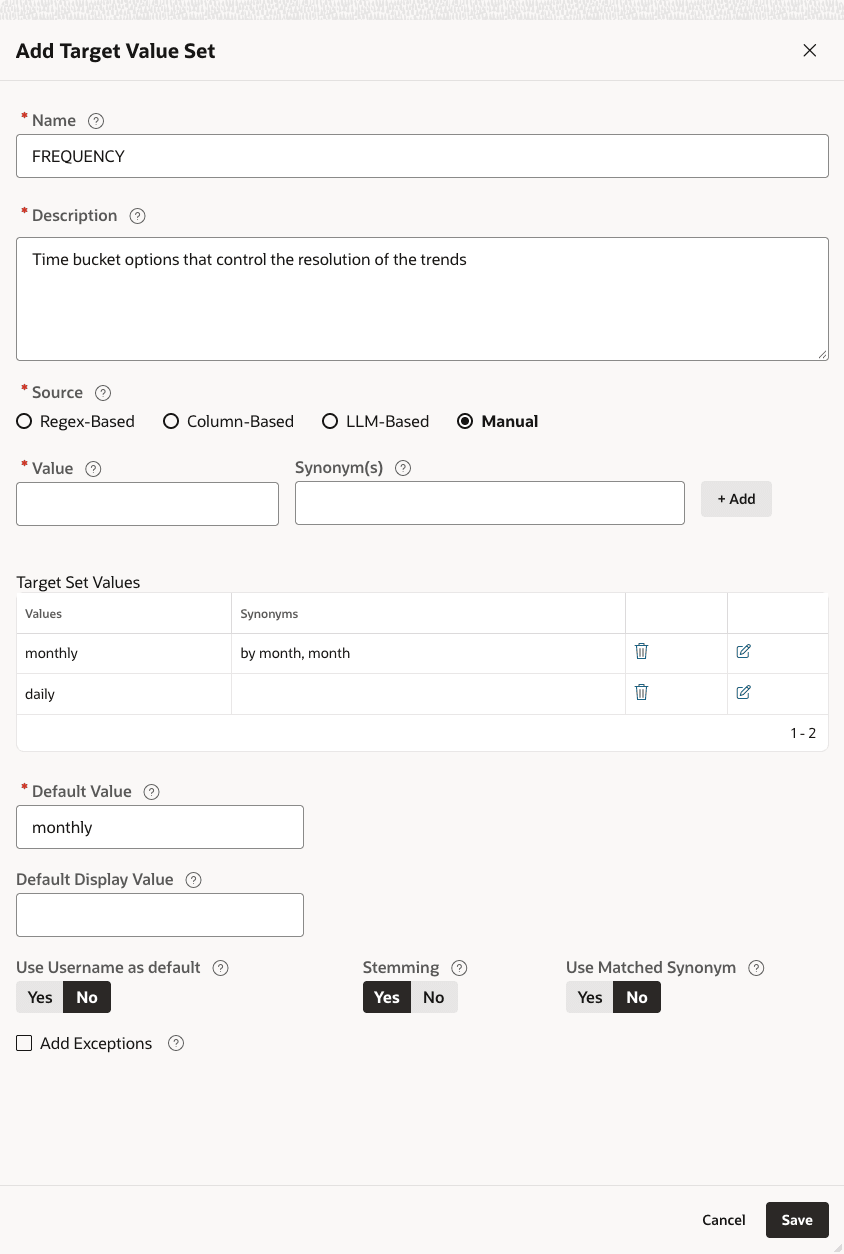
Description of the illustration target-value-set-manual-frequency.png
This supports both sample queries in Add a Search Target. Create a manual
PERIODTarget Value Set the same way. Add2-yearas a value and set it as the default for this example. - Name:
-
Save the new value sets and select them from the Target Value Set dropdowns so
frequencymaps toFREQUENCYandperiodmaps toPERIOD. The table shows which value set supplies each target input. Then complete the sample queries and create the Search Target as described in Add a Search Target.
With the mapping in place, a search query such as “Show monthly page views for all Wikimedia projects” can resolve :frequency to monthly and substitute that value into the target URL.
Test Queries
As a Search Space Expert, use Query Tester to test queries against your draft before publishing it. Check that TAS returns the expected search target and resolves its target inputs correctly.
- Select Query Tester in the Admin application’s left navigation.
- Select wikimedia as the Search Space and select the draft Search Space Version that contains your new target.
- Enter
Show monthly page views for all Wikimedia projects.in the search field and press Enter. -
Check that Total Page Views - All Projects is returned. Under Target Inputs on its result card, verify that
frequencyismonthlyandperiodis2-year. The query does not specify a time period, so TAS uses the2-yeardefault configured in thePERIODTarget Value Set.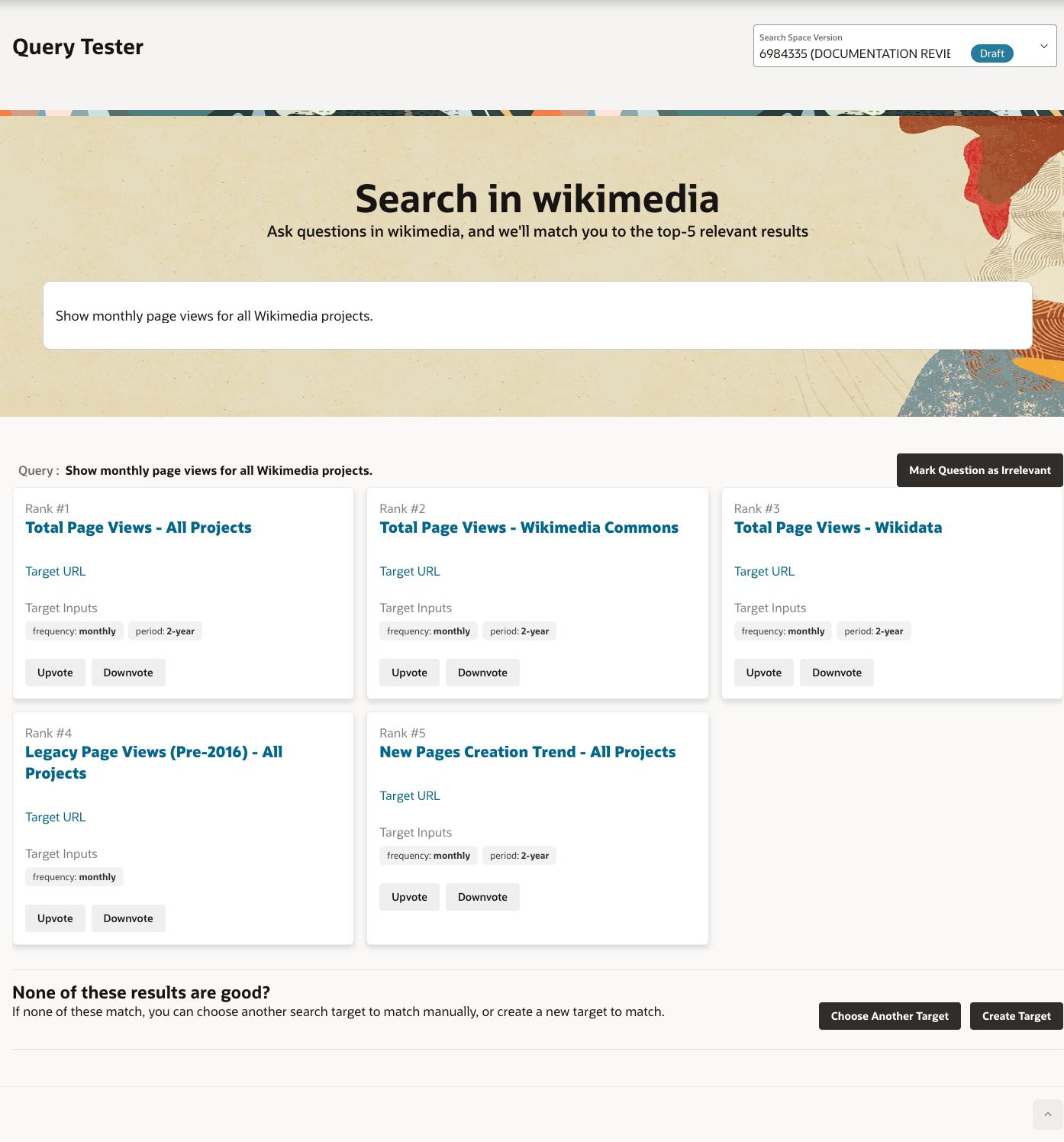
Description of the illustration query-tester-wikimedia.png
The screenshot shows a populated Wikimedia search space with additional targets. Your results depend on the targets you have added.
- Repeat with
What is the daily pageview trend for all Wikimedia projects?. Verify thatfrequencyisdailyandperiodremains2-year, because this query also does not specify a time period.
If the target is missing or an input is incorrect, review the target description, sample queries, value set entries, and input mappings in the draft, then test again.
Publish the Draft
- Select Search Spaces, then select WIKIMEDIA to open Search Space Versions.
-
In the version list on the left, locate the version you tested with the Draft status. Open the action menu (three dots) beside that version.
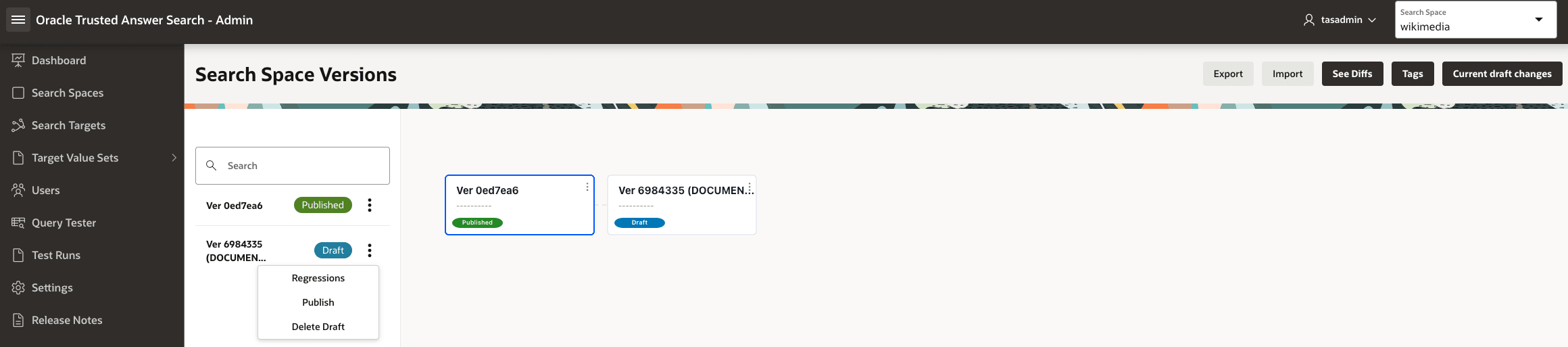
Description of the illustration search-space-publish-draft.png
- Select Publish from the menu.
- Confirm that the version’s status changes to Published.
The published version is available for end-user searches, subject to the search space’s visibility and access controls. For private spaces, a Search Administrator must explicitly grant each user access, including users who sign in through SSO. See Configure Search Space Visibility and Managing User Access.
For further configuration and administration, see Configure Search Spaces.
For authentication and integration with your own application, see Search Widgets.