14 Getting Started with the Plug-in for Protégé

Oracle Graph enables you to view, edit, and manage database ontologies in your Protégé application using a plug-in for Protégé.

Learn the main steps to get started with the plug-in for Protégé.

The instructions in the following steps assume that you are using Protégé 5.5.0.
  1. Download the plug-in for Protégé from Oracle Software Delivery Cloud.
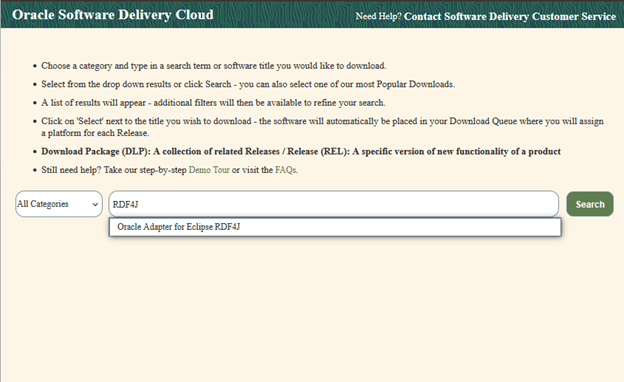
    1. Log into https://edelivery.oracle.com/.
    2. Search RDF4J in the search bar.

      Figure 14-1 Oracle Software Delivery Cloud


    3. Click Oracle Adapter for Eclipse RDF4J in the results.
    4. Click and select Oracle Adapter for Eclipse RDF4J 22.4.0.0 in the results.
      This will add the package to the Download Queue.
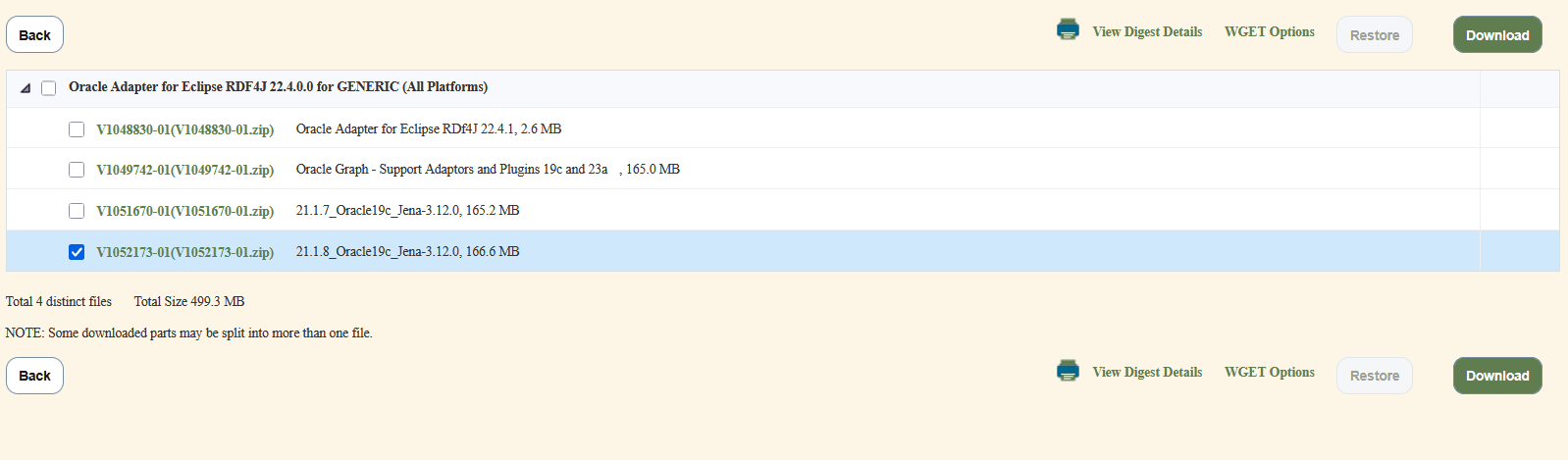
    5. Click through Continue, accept the license agreement, and click on V1052173-01(V1052173-01.zip) 21.1.8_Oracle19c_Jena-3.12.0 to download the plug-in.

      Figure 14-2 Downloading Plug-in for Protege


  2. Unzip the downloaded V1052173-01.zip file.
    • The protege-plugin folder contains the .jar files that support the implementation of the plug-in.
    • The protege-plugin/doc directory contains a PDF file that describes the system prerequisites, installation steps, and serves as a guide to work with the different features of the Oracle menu enabled by the plug-in.
  3. Install and enable the plug-in following the steps in the PDF file for your operating system.
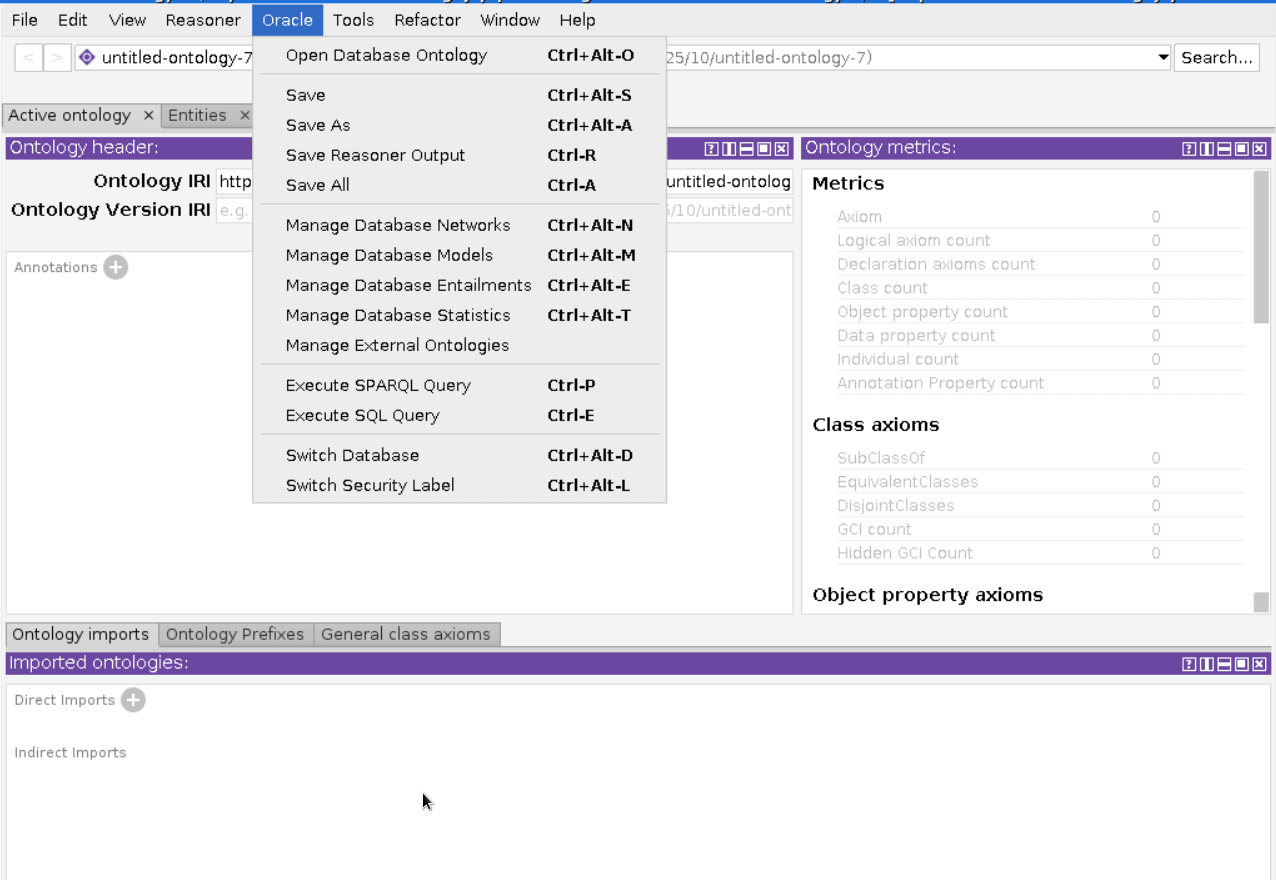
    Launch the Protégé application to view the Oracle menu enabled by the plug-in as shown:

    Description of oracle_menu_protege.png follows
    Description of the illustration oracle_menu_protege.png

  4. Optionally, update the bundled JRE in your Protégé installation if you plan to work with Oracle Autonomous AI Database. Skip this step otherwise.

    Protégé 5.5 includes a bundled Java 1.8 JRE that is missing required cryptography libraries for connecting with Autonomous AI Database. To enable this database connection:

    1. Go to Java SE 8 Archive Downloads.
    2. Download the compressed archive version for your platform and unzip the bundle.
    3. Rename the /jre directory under /Protege-5.5.0 to /jre_old.
    4. Copy the /jre directory from your JDK download to /Protege-5.5.0.
      This replaces the bundled JRE with version 8u211 or later.
    5. Launch the application with the new JRE files.
  5. Optionally, obtain and use a JDBC URL if you wish to connect to the Autonomous AI Database.