Describe Images Using Public REST Providers
Perform an image-to-text transformation by supplying an image along with a text question as the prompt, using publicly hosted third-party LLMs by Google AI, Hugging Face, OpenAI, or Vertex AI.
Here, you can use the UTL_TO_GENERATE_TEXT function from either the DBMS_VECTOR or the DBMS_VECTOR_CHAIN package, depending on your use case.
WARNING:
Certain features of the database may allow you to access services offered separately by third-parties, for example, through the use of JSON specifications that facilitate your access to REST APIs.
Your use of these features is solely at your own risk, and you are solely responsible for complying with any terms and conditions related to use of any such third-party services. Notwithstanding any other terms and conditions related to the third-party services, your use of such database features constitutes your acceptance of that risk and express exclusion of Oracle’s responsibility or liability for any damages resulting from such access.
To generate a text response by prompting with the following image and the text question “Describe this image?”, using an external LLM:
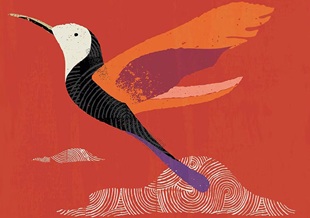
Description of the illustration bird.jpg
-
Connect to Oracle AI Database as a local user.
-
Log in to SQL*Plus as the
SYSuser, connecting asSYSDBA:conn sys/password as sysdbaCREATE TABLESPACE tbs1 DATAFILE 'tbs5.dbf' SIZE 20G AUTOEXTEND ON EXTENT MANAGEMENT LOCAL SEGMENT SPACE MANAGEMENT AUTO;SET ECHO ON SET FEEDBACK 1 SET NUMWIDTH 10 SET LINESIZE 80 SET TRIMSPOOL ON SET TAB OFF SET PAGESIZE 10000 SET LONG 10000 -
Create a local user (
docuser) and grant necessary privileges:DROP USER docuser cascade;CREATE USER docuser identified by docuser DEFAULT TABLESPACE tbs1 quota unlimited on tbs1;GRANT DB_DEVELOPER_ROLE, create credential to docuser; -
Connect as the local user (
docuser):CONN docuser/password
-
-
Set the HTTP proxy server, if configured.
EXEC UTL_HTTP.SET_PROXY('<proxy-hostname>:<proxy-port>'); -
Grant connect privilege to
docuserfor allowing connection to the host, using theDBMS_NETWORK_ACL_ADMINprocedure.This example uses
*to allow any host. However, you can explicitly specify the host that you want to connect to.BEGIN DBMS_NETWORK_ACL_ADMIN.APPEND_HOST_ACE( host => '*', ace => xs$ace_type(privilege_list => xs$name_list('connect'), principal_name => 'docuser', principal_type => xs_acl.ptype_db)); END; / -
Create a local directory (
DEMO_DIR) to store your image file:create or replace directory DEMO_DIR as '/my_local_dir/'; create or replace function load_blob_from_file(directoryname varchar2, filename varchar2) return blob is filecontent blob := null; src_file bfile := bfilename(directoryname, filename); offset number := 1; begin dbms_lob.createtemporary(filecontent, true, dbms_lob.session); dbms_lob.fileopen(src_file, dbms_lob.file_readonly); dbms_lob.loadblobfromfile(filecontent, src_file, dbms_lob.getlength(src_file), offset, offset); dbms_lob.fileclose(src_file); return filecontent; end; /Upload the image file (for example,
bird.jpg) to the directory. -
Set up your credentials for the REST provider that you want to access and then call
UTL_TO_GENERATE_TEXT:-
Call
CREATE_CREDENTIALto create and store a credential.Google AI, Hugging Face, OpenAI, and Vertex AI require the following authentication parameter:
{ "access_token": "<access token>" }You will later refer to this credential name when declaring JSON parameters for the
UTL_TO_GENERATE_TEXTcall.exec dbms_vector_chain.drop_credential('<credential name>');declare jo json_object_t; begin jo := json_object_t(); jo.put('access_token', '<access token>'); dbms_vector_chain.create_credential( credential_name => '<credential name>', params => json(jo.to_string)); end; /Replace
access_tokenandcredential_namewith your own values. For example:declare jo json_object_t; begin jo := json_object_t(); jo.put('access_token', 'AbabA1B123aBc123AbabAb123a1a2ab'); dbms_vector_chain.create_credential( credential_name => 'HF_CRED', params => json(jo.to_string)); end; / -
Call
UTL_TO_GENERATE_TEXT:-- select example var input clob; var media_data blob; var media_type clob; var params clob; begin :input := 'Describe this image'; :media_data := load_blob_from_file('DEMO_DIR', 'bird.jpg'); :media_type := 'image/jpeg'; :params := ' { "provider" : "<REST provider>", "credential_name": "<credential name>", "url" : "<REST endpoint URL for text generation service>", "model" : "<REST provider text generation model name>", "max_tokens" : <maximum number of tokens in the output text> }'; end; / select dbms_vector_chain.utl_to_generate_text(:input, :media_data, :media_type, json(:params)); -- PL/SQL example declare input clob; media_data blob; media_type varchar2(32); params clob; output clob; begin input := 'Describe this image'; media_data := load_blob_from_file('DEMO_DIR', 'bird.jpg'); media_type := 'image/jpeg'; params := ' { "provider" : "<REST provider>", "credential_name": "<credential name>", "url" : "<REST endpoint URL for text generation service>", "model" : "<REST provider text generation model name>", "max_tokens" : <maximum number of tokens in the output text> }'; output := dbms_vector_chain.utl_to_generate_text( input, media_data, media_type, json(params)); dbms_output.put_line(output); if output is not null then dbms_lob.freetemporary(output); end if; if media_data is not null then dbms_lob.freetemporary(media_data); end if; exception when OTHERS THEN DBMS_OUTPUT.PUT_LINE (SQLERRM); DBMS_OUTPUT.PUT_LINE (SQLCODE); end; /Note: For a list of all supported REST endpoint URLs, see Supported Third-Party Provider Operations and Endpoints.
Replace
provider,credential_name,url, andmodelwith your own values. Optionally, you can specify additional REST provider parameters. This is shown in the following examples:Google AI example:
{
  "provider"       : "googleai",
  "credential_name": "GOOGLEAI_CRED",
  "url"            : "https://generativelanguage.googleapis.com/v1beta/models/",
  "model"          : "gemini-pro:generateContent"
}
Hugging Face example:
{
  "provider"       : "huggingface",
  "credential_name": "HF_CRED",
  "url"            : "https://api-inference.huggingface.co/models/",
  "model"          : "gpt2"
}
Note: Hugging Face uses an image captioning model, which does not require a prompt. If you input a prompt along with an image, then the prompt will be ignored.
OpenAI example:
{
  "provider"       : "openai",
  "credential_name": "OPENAI_CRED",
  "url"            : "https://api.openai.com/v1/chat/completions",
  "model"          : "gpt-4o-mini",
  "max_tokens"     : 60
}
Vertex AI example:
{
  "provider"         : "vertexai",
  "credential_name"  : "VERTEXAI_CRED",
  "url"              : "https://LOCATION-aiplatform.googleapis.com/v1/projects/PROJECT/locations/LOCATION/publishers/google/models/",
  "model"            : "gemini-1.0-pro:generateContent",
  "generation_config": {
                        "temperature"    : 0.9,
                        "topP"           : 1,
                        "candidateCount" : 1,
                        "maxOutputTokens": 256
                       }
}
A generated text response to your question may appear as:
This image showcases a stylized, artistic depiction of a hummingbird in mid-flight, set against a vibrant red background. The bird is illustrated with a mix of striking colors and details - its head and belly are shown in white, with a black patterned detailing that resembles stripes or scales. Its long, slender beak is depicted in a darker color, extending forwards. The hummingbird's wings and tail are rendered in eye-catching shades of orange, purple, and red, with texture that suggests a rough, perhaps brush-like stroke. The background features abstract shapes resembling clouds or wind currents in a white line pattern, which adds a sense of motion or air dynamics around the bird. The overall use of vivid colors and dynamic patterns gives the image an energetic and modern feel. -
This example uses the default settings for each provider. For detailed information on additional parameters, refer to your third-party provider’s documentation.
Related Topics