Graph Interaction Options
The Graph Visualization library supports different types of graph interactions.
The following graph interaction options are supported (described in order from left to right):
Figure: Graph Interaction Options

Description of the illustration graph_interaction_options.png
-
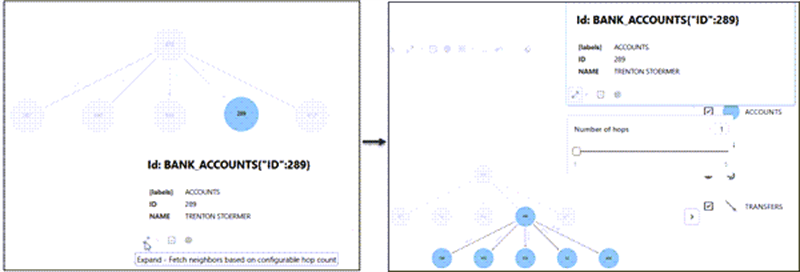
Expand: You can expand one or more selected vertices to fetch n-hop neighbors.
To expand a vertex, click on the specific vertex and click the Expand option in the toolbar. Alternatively, you can right-click on the vertex and click Expand in the context menu.
By default, the expand action fetches 1-hop neighbors and also displays a hop count panel. You can control the hop count through the slider in the panel. The range for the hop count is between 1 and
settings.maxNumberOfHops(default value is five). You can drag the slider or edit the hop count value directly in the text box as desired.The following figure illustrates expanding on vertex
289. The image on the right shows that the specified hop count value is one and therefore 1-hop neighbors are fetched when expanding on the vertex.Figure: Expand Action
-
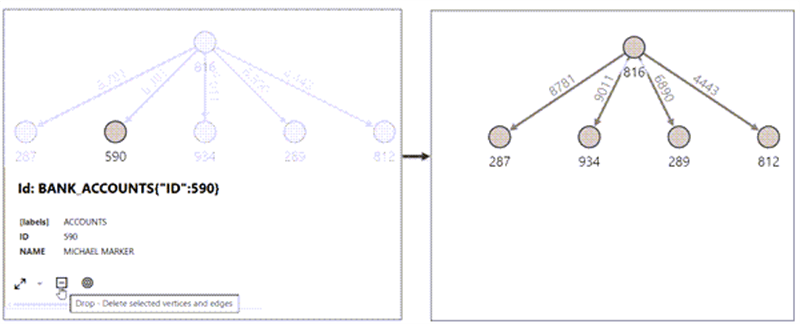
Drop Action: You can remove one or more selected vertices from the visualization.
To drop a vertex, click on the specific vertex and click the Drop option in the toolbar. Alternatively, you can right-click on the vertex and click Drop in the context menu.
The following figure illustrates dropping of vertex
590.Figure: Drop Action
-
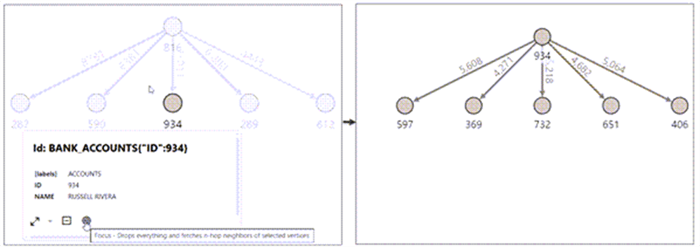
Focus: You can drop everything in your visualization and fetch n-hop neighbors of one or more selected vertices.
To focus on a vertex, click on the specific vertex and click the Focus option in the toolbar. Alternatively, you can right-click on the vertex and click Focus in the context menu.
The following figure illustrates focused visualization on vertex
934.Figure: Focus Action
-
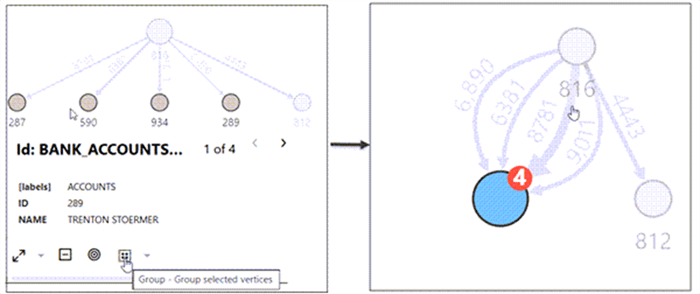
Group: You can group selected vertices and collapse them into a single one.
To group vertices, select multiple vertices and click the Group option in the toolbar. Alternatively, you can right-click on the selection and click Group in the context menu.
The following figure illustrates grouping of vertices
287,590,934, and289.Figure: Group Action
-
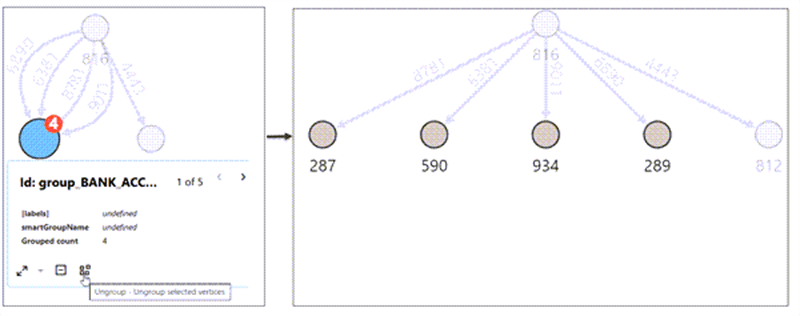
Ungroup: You can ungroup a group of selected vertices.
To ungroup, select the group and click the ungroup option in the toolbar. Alternatively, you can right-click on the group and click ungroup in the context menu.
The following figure illustrates ungrouping of vertices
287,590,934, and289.Figure: Ungroup Action
-
Undo: To undo the last action in your visualization.
-
Redo: To redo the last action in your visualization.
-
Reset: To reset the visualization to its original state.