Using the Autonomous AI Database Graph Client in OCI Data Science Notebooks
You can use the AdbGraphClient API in your Oracle Cloud Infrastructure (OCI) Data Science Notebook to access Graph Studio features in Autonomous AI Database programmatically using the Oracle Graph Python Client.
This API provides the following capabilities:
-
Authenticate with Autonomous AI Database
-
Manage the Graph Studio environment
-
Execute graph queries and algorithms against the graph server (PGX)
-
Execute graph queries directly against the database
Also, prior to using the Autonomous AI Database Graph Client, ensure you meet all the prerequisite requirements explained in Prerequisites for Using Autonomous AI Database Graph Client.
The following example shows using the AdbGraphClient API to establish a connection to Graph Studio, start an environment with allocated memory, load a SQL property graph into the graph server (PGX) memory, execute PGQL queries and run algorithms against the graph.
Note: See the Python API Reference for more information on AdbGraphClient API.
-
Sign in to the OCI console using your Oracle Cloud Account.
-
Open the main navigation menu, expand the Analytics & AI section and click on Data Science (under Machine Learning).
-
Create a project (see Creating a Project) and open a notebook session (see Creating a Notebook).
The JupyterLab interface opens as shown:
Figure: JupyterLab Interface
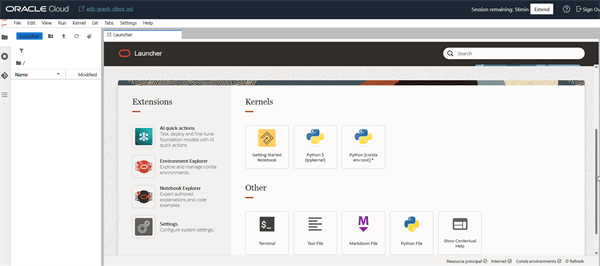
Description of the illustration oci_ds_jupyter.png
-
Install the Oracle Graph Python client as described in the following steps.
-
Download Oracle Graph Client (oracle-graph-client-26.1.0.zip) from Oracle Graph Server and Client Downloads page.
-
Click Upload Files in the left file browser panel of the JupyterLab interface, and upload the downloaded
oracle-graph-client-26.1.0.zipfile.Once the upload is complete, the file gets displayed in the left browser panel.
-
Open the Terminal in the Launcher page and run
unzip oracle-graph-client-26.1.0.zip.The unzipped folder contains the
oracle-graph-python-client-26.1.0.zipfile for installing the Python client. -
Install the Python client by running the following command.
python3 oracle-graph-python-client-26.1.0.zip --user
-
-
Click Python3 (ipykernel) under Kernels section in the Launcher page, and select Create Notebook.
This will create and open a new notebook using the Python 3 kernel. You can then run the code described in the following steps in each notebook cell.
-
Start the interactive graph shell CLI and connect to your Autonomous AI Database instance with the
AdbGraphClientby running the following code:import opg4py from opg4py.adb import AdbClient config = { 'tenant': '<tenancy_OCID>', 'database': '<DB_name>', 'database_ocid': '<DB_OCID>', 'username': 'ADBGRAPHUSER', 'password': '<password_for_ADBGRAPHUSER>', 'endpoint': 'https://<hostname-prefix>.adb.<region>.oraclecloudapps.com/' } client = AdbClient(config) client.__enter__() -
Start the PGX server environment with the desired memory as shown in the following code.
memory_gb = 8
job = client.start_environment(memory_gb)
job.get()
This submits a job in Graph Studio for environment creation.
job.get()waits for the environment to get started. You can always verify if the environment has started successfully withclient.isAttached(). The method returns a booleantrueif the environment is running.However, you can skip the step of creating an environment, if
client.isAttached()returnstruein the first step of the code. -
Create an instance and a session object as shown:
instance = client.get_pgx_instance() session = instance.create_session("adb-session") -
Load a SQL property graph or a PGQL property graph from your Autonomous AI Database instance into memory.
graph = session.read_graph_by_name("BANK_GRAPH", "pg_sql") -
Create an Analyst and execute a Pagerank algorithm on the graph as shown:
session.create_analyst().pagerank(graph) -
Execute a PGQL query on the graph and print the result set as shown:
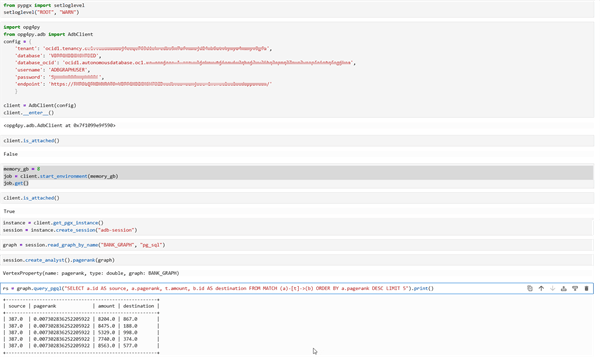
rs = graph.query_pgql("SELECT a.id AS source, a.pagerank, t.amount, b.id AS destination FROM MATCH (a)-[t]->(b) ORDER BY a.pagerank DESC LIMIT 5").print()The following image shows the execution of the code:
Figure: AdbGraphClient API
-
Close the session after executing all graph queries as shown:
session.close()