Querying and Visualizing Graphs Loaded Into the Graph Server (PGX)
In Graph Explorer, you can create or load a graph into the graph server (PGX) and then query the graph using PGQL graph queries.
-
Expand Graph Server in the left navigation pane.
-
Right click on a specific graph and click Generate Basic Query in the context menu.
The basic PGQL
SELECTquery is auto-generated in the query editor for the selected graph. You can edit the query, if required.Alternatively, you can directly enter the graph query in the query editor.
Graph Explorer allows you to run the following queries in the graph server (PGX) :
-
CREATE PROPERTY GRAPH: To create and load a new property graph in the graph server (PGX). Note that this is a transient graph which will be destroyed at the end of the session. -
SELECT: To query a property graph.The name of the graph must be provided in the PGQL graph query. To copy the name of an existing graph, right click on the graph and select Copy Graph Name from the context menu.
-
-
Select Graph Server driver in the query actions panel at the top of the query editor.
-
Click Run Query.
Example: Creating a PGQL Property Graph in the Graph Server (PGX)
The following example shows creating a new PGQL property graph using the CREATE PROPERTY GRAPH statement in the graph server (PGX).
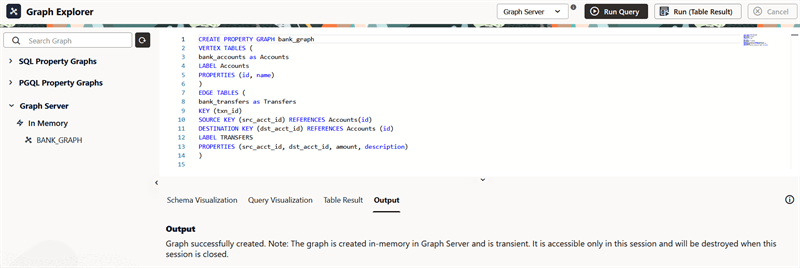
Description of the illustration explorer_gs_create_pg.png
Example: Querying a PGQL Property Graph in the Graph Server (PGX)
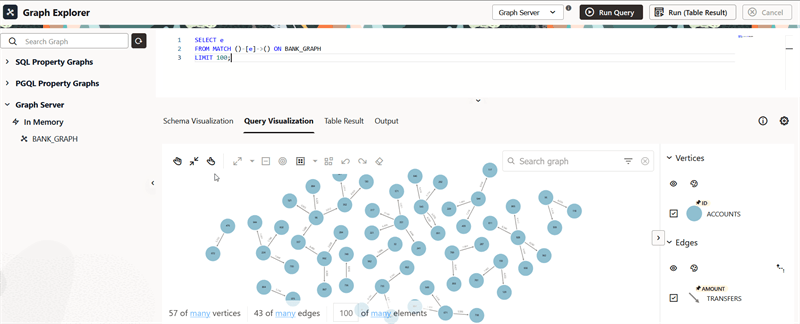
The following example queries a property graph in the graph server (PGX) and displays the first 100 rows of the results as a graph visualization.