Using Network Evolution in Graph Visualization
You can visualize the evolution of a graph over time using the Network Evolution feature in Graph Explorer.
In order to visualize a dynamic graph, it is important that the graph contains date or time properties. It can either be a vertex or an edge property.
Perform the following steps for configuring network evolution:
-
Click Settings in the graph visualization panel to open the graph Visualization Settings.
-
Click the Graph Exploration tab.
-
Switch on the Enable Network Evolution toggle.
-
Select a graph element from the Based On drop-down list.
You can configure the network evolution to be based on vertices, or edges, or both.
Depending on your selection, you must select one or more of the following properties:
-
Vertex Start Property: Select the name of the property to use for the vertex filtering.
The time frame for the graph will be after the Vertex Start Property.
-
Vertex End Property: Optionally, select the name of the property to use for the vertex filtering.
The time frame for the graph will be before the Vertex End Property.
-
Edge Start Property: Select the name of the property to use for the edge filtering.
The time frame for the graph will be after the Edge Start Property.
-
Edge End Property: Optionally, select the name of the property to use for the edge filtering.
The time frame for the graph will be before the Edge End Property.
-
-
Select the data type from the Property Type drop-down list.
Supported property type values are
IntegerandDate. -
Optionally, select the Unit of time for the increment and the Date Format if the Property Type is
Date. -
Optionally, enable Advanced Settings if you want to explore advanced network evolution features and select one or more of the following options:
-
Height: Select a value to specify the height of the network evolution chart.
-
Chart Type: Select the type of the chart to be used to show the network evolution.
-
Granularity: Specify the aggregation granularity for the input unit.
-
Exclude Values: Specify one or more values to be excluded.
-
Playback Step: Specify a value to determine how often does the playback advance in ms.
-
Playback Timeout: Specify a value to determine how many steps are taken per time out during playback.
-
-
Close the Settings dialog.
The chart displaying the evolution of the graph data gets displayed at the bottom of the graph visualization. You can view the graph animation by clicking the Play Network Evolution button. The animation shows the changes in the graph network over time.
The following figure shows an example for network evolution of graph data using line chart in the graph visualization panel:
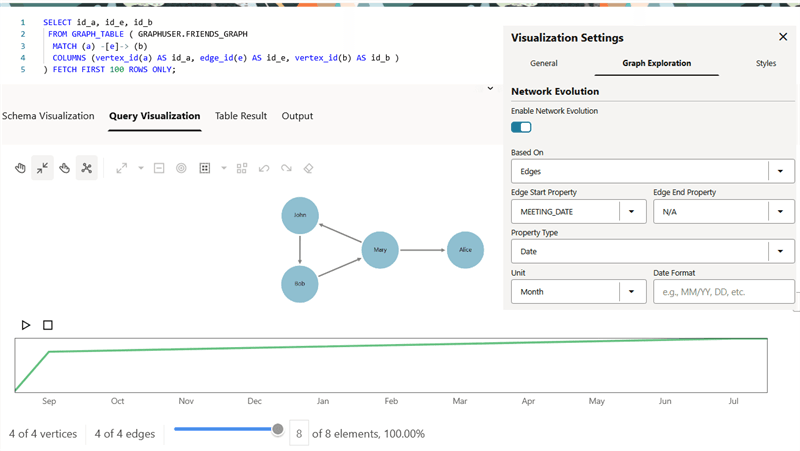
Description of the illustration network_evolution.png
Also, you can activate and deactivate network evolution by clicking the Activate Network Evolution icon which is show highlighted in the preceding figure.