Using Search in a Graph Visualization
You can search using keywords, or run a conditional search directly in a graph visualization.
Consider the following graph query visualization in the Query visualization tab:
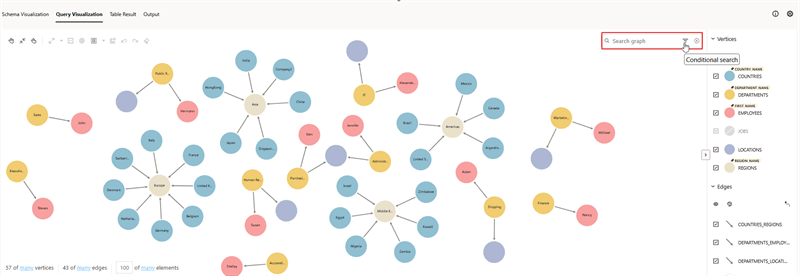
Description of the illustration searchbox_example.png
As seen in the preceding figure, the graph comprises several vertex and edge labels. You can use any of the following approach to search the graph using the Search graph box in the query result panel.
-
Keyword Search: To perform a keyword search, start typing the keyword in the search input box. The search results are shown highlighted in the graph visualization.
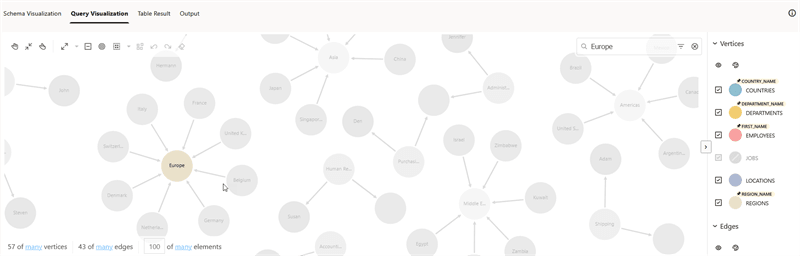
-
Conditional Search: Using this advanced search feature, you can build conditional filters on graph entities (vertices and edges), combining entity types, labels, properties, and operators.
The following two options are supported for a conditional search:
- Search by Label:
-
Click
 in the search input box.
 -
Click Search by Label.
-
Click the input text box and select (or deselect) the Vertices and Edges as required.
The filter is applied immediately applied to the graph visualization. The following example filters on
COUNTRIESandREGIONSvertices, andCOUNTRIES_REGIONSedges.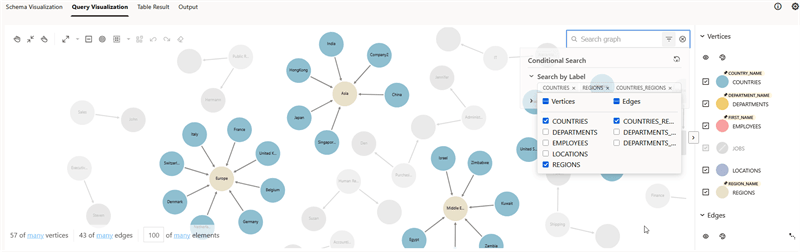
-
- Search by Property:
-
Click
in the search input box. -
Click Search by Property.
-
Click + to add the property attribute to search.
-
Select the graph element to which the property belongs.
Supported values are: Vertex, Edge, or Both.
-
Select a property name.
-
Select an operator.
-
Enter the property value that you wish to search.
Note that you can configure a single value or a list of values to search.
-
-
Optionally, repeat the previous step to add as many rows for conditional search.
-
Set the Logic operator value ( OR or AND) if you have more than one row configured for conditional search.
The following example shows a search on all
EMPLOYEEShavingSALARY> 10000.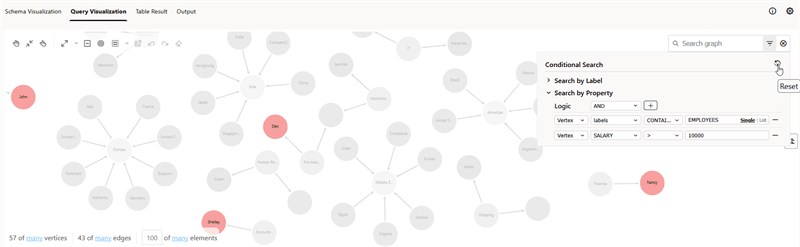
-
- Search by Label: