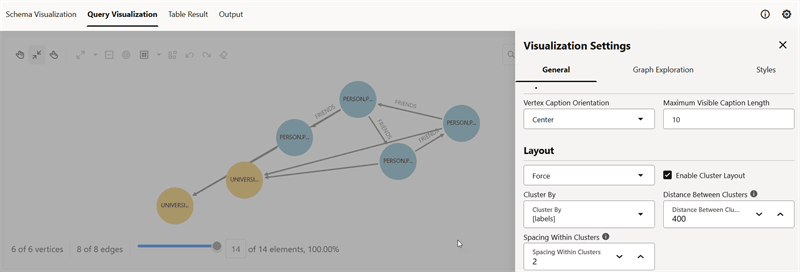
Visualizing Clusters in Graph Explorer
You can enable the cluster option with Force layout to group vertices by labels or by any specific vertex property in your graph visualization.
This is very useful when you are visualizing a graph with a lot of interconnected vertices.
Perform the following steps to apply clustering of vertices in your graph visualization:
-
Click the Settings gear icon to open the graph Visualization Settings slider.
-
Click the General tab.
-
Select Force Layout in the Layout section.
-
Click the Enable Cluster Layout checkbox.
-
Select the Cluster By option.
You can choose to cluster the vertices by labels (default) or by any specific vertex property.
If you choose to cluster by a vertex property, then note that the clusters are created around property values that are identical. For instance, when querying a graph after running a community detection algorithm, you can use the vertex property containing the community ID value as a Cluster By option. This will create clusters that contain vertices with the same community ID.
-
Optionally, adjust Distance Between Clusters to set the distance between the clusters.
-
Optionally, adjust Spacing Within Clusters to set the distance between vertices inside clusters.
-
Close the Visualization settings dialog.
The vertices in the graph are clustered together based on the selected clustering option. For example, the following figure shows clustering of vertices based on labels: