Graph Interaction Options
The Graph Visualization library supports different types of graph interactions.
The following graph interaction options are supported (described in order from left to right):
Figure: Graph Interaction Options

Description of the illustration graph_interaction_options.png
-
Expand: You can expand one or more selected vertices to fetch n-hop vertices of the selected expansion type, such as descendants, ancestors, or siblings.
To expand a vertex, click on the specific vertex and click the Expand option in the toolbar. Alternatively, you can right-click on the vertex and click Expand in the context menu.
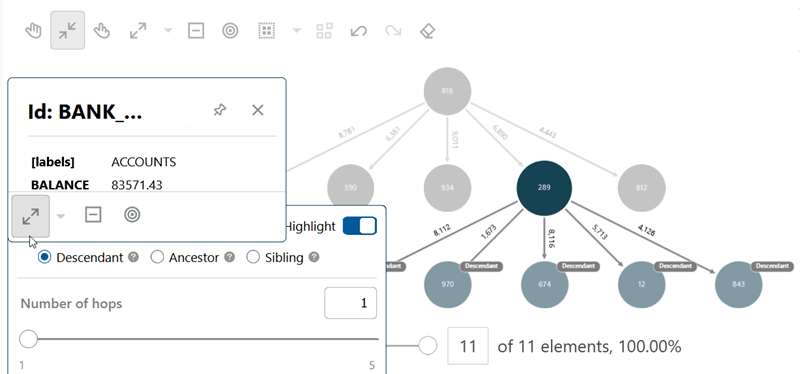
By default, the expand action fetches 1-hop descendants. It also displays a hop count panel. You can control the hop count through the slider in the panel. The range for the hop count is between 1 and
settings.maxNumberOfHops(default value is five). You can drag the slider or edit the hop count value directly in the text box as desired.You can also enable relationship highlighting to highlight vertices based on their relationship to the selected vertex. When you turn on the Highlight switch, the Relationship section is displayed, and Descendant is selected by default.
The following relationship types are supported:
-
Descendant: Highlights vertices reached by traversing outward from the selected vertex.
-
Ancestor: Highlights vertices reached by traversing inward toward the selected vertex.
-
Sibling: Highlights vertices that share a parent-style connection with the selected vertex.
When you select a relationship type, Graph Visualization recomputes the result using the selected relationship type and the current hop count.
When highlighting is enabled:
-
Related vertices are highlighted in the visualization.
-
Vertex opacity may vary based on the distance from the selected vertex.
-
Relationship captions may be displayed.
When highlighting is disabled, the relationship selection is cleared, relationship controls are hidden, distance-based highlighting is removed, and relationship captions are hidden.
The following figure illustrates expanding on vertex
289. The image on the right shows that the specified hop count value is one and therefore 1-hop descendants are fetched when expanding on the vertex.Figure: Expand Action
-
Description of the illustration expand_action.png
-
Drop Action: You can remove one or more selected vertices from the visualization.
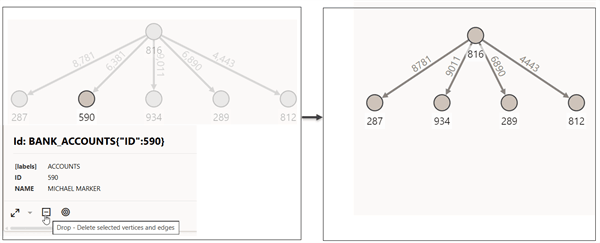
To drop a vertex, click on the specific vertex and click the Drop option in the toolbar. Alternatively, you can right-click on the vertex and click Drop in the context menu.
The following figure illustrates dropping of vertex
590.Figure: Drop Action
Description of the illustration drop_action.png
-
Focus: You can drop everything in your visualization and fetch n-hop neighbors of one or more selected vertices.
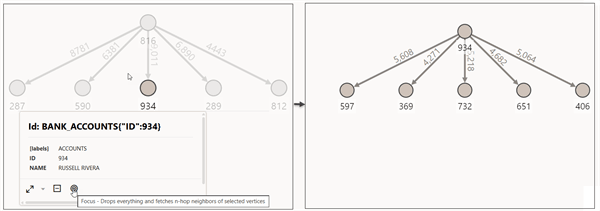
To focus on a vertex, click on the specific vertex and click the Focus option in the toolbar. Alternatively, you can right-click on the vertex and click Focus in the context menu.
The following figure illustrates focused visualization on vertex
934.Figure: Focus Action
Description of the illustration focus_action.png
-
Group: You can group selected vertices and collapse them into a single one.
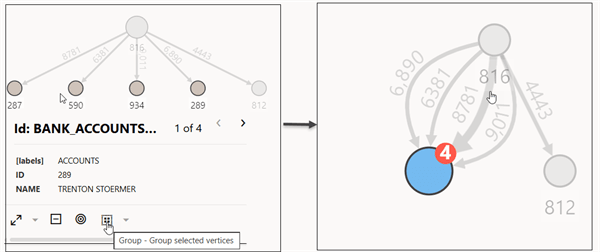
To group vertices, select multiple vertices and click the Group option in the toolbar. Alternatively, you can right-click on the selection and click Group in the context menu.
The following figure illustrates grouping of vertices
287,590,934, and289.Figure: Group Action
Description of the illustration group_action.png
-
Ungroup: You can ungroup a group of selected vertices.
To ungroup, select the group and click the ungroup option in the toolbar. Alternatively, you can right-click on the group and click ungroup in the context menu.
The following figure illustrates ungrouping of vertices
287,590,934, and289.Figure: Ungroup Action
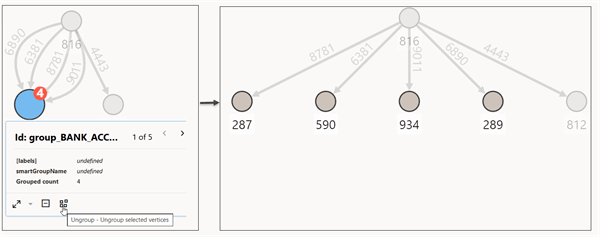
Description of the illustration ungroup_action.png
-
Undo: To undo the last action in your visualization.
-
Redo: To redo the last action in your visualization.
-
Reset: To reset the visualization to its original state.