Querying and Visualizing PGQL Property Graphs
You can query and visualize PGQL property graphs in Graph Explorer.
-
Expand PGQL Property Graphs in the left navigation pane.
-
Expand the desired schema to view the list of PGQL property graphs to which you have access.
-
Right click on a specific graph and click Generate Basic Query in the context menu.
The basic PGQL
SELECTquery is auto-generated in the query editor for the selected graph. You can edit the query, if required.Alternatively, you can directly enter the PGQL query in the query editor.
Also, note the following:
-
Graph Explorer allows you to run the following PGQL queries:
-
CREATE PROPERTY GRAPH: To create a new PGQL property graph. -
DROP PROPERTY GRAPH: To drop a PGQL property graph. -
SELECT: To query a PGQL propert graph. -
INSERT,UPDATE, andDELETE: To modify a PGQL property graphs.
-
-
The name of the graph must be provided in the PGQL graph query.
To copy it, right click on the graph and select Copy Graph Name from the context menu.
-
-
Select PGQL driver in the query actions panel at the top of the query editor.
-
Click Visualize Graph.
Example: Creating a PGQL Property Graph
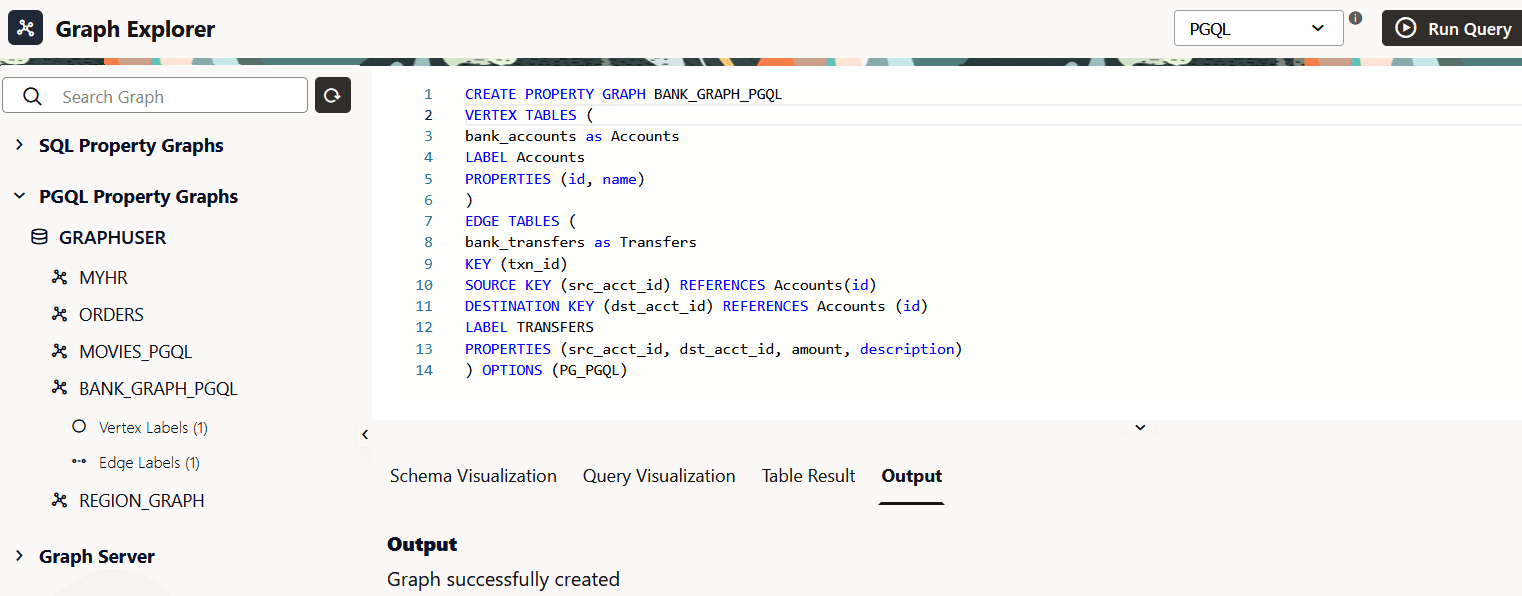
The following example shows creating a new PGQL property graph using the CREATE PROPERTY GRAPH statement.
Figure: Creating a PGQL Property Graph
Description of the illustration explorer_create_pgql_pg.png
Example: Modifying a PGQL Property Graph
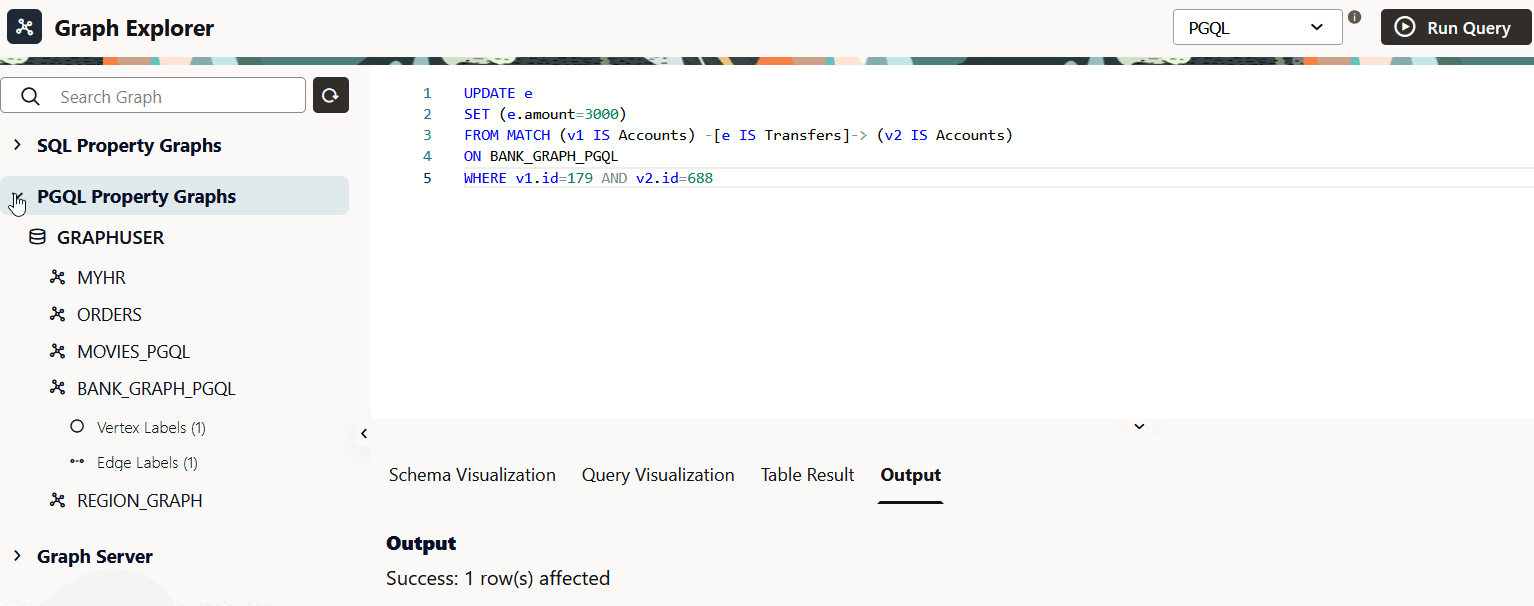
The following example shows updating the amount value for an edge in the PGQL property graph.
Figure: Modifying a PGQL Property Graph
Description of the illustration explorer_update_pgql_pg.png
Example: Querying a PGQL Property Graph
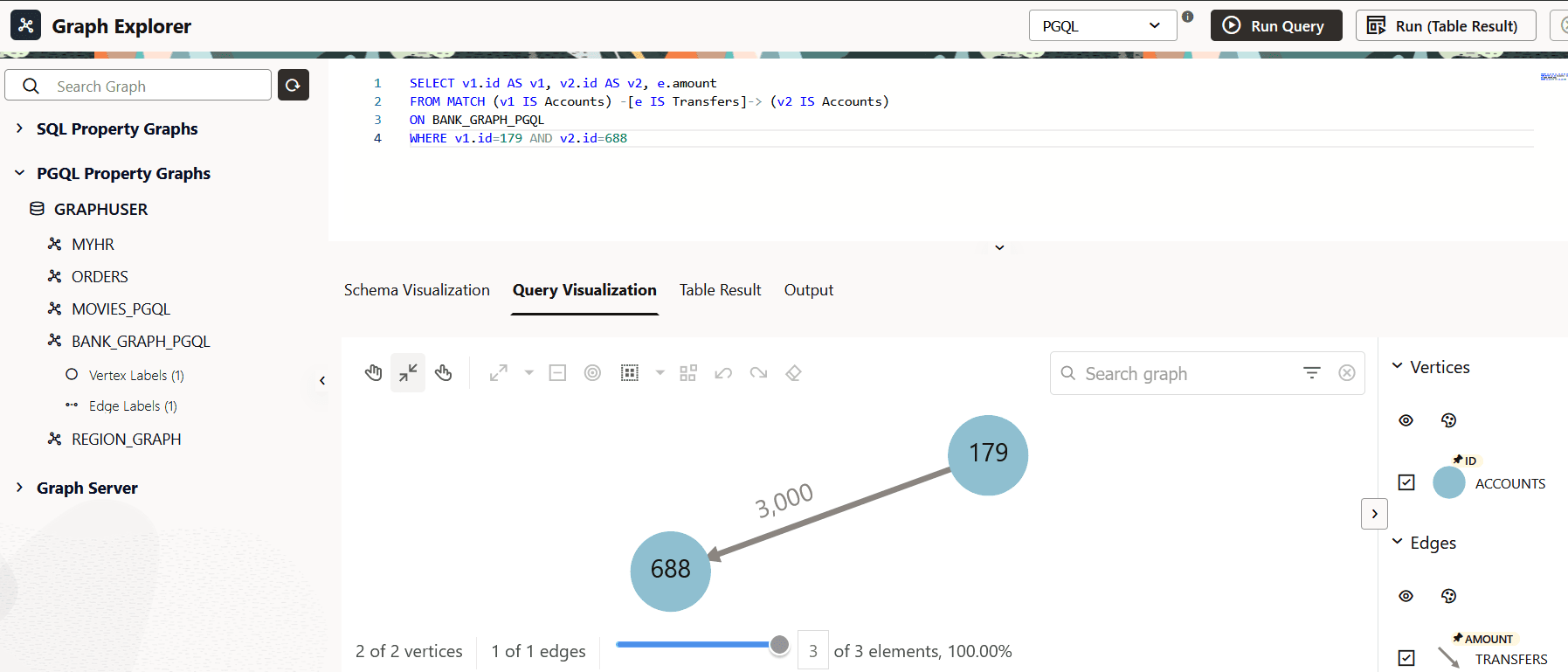
The following example queries the PGQL property graph to show the transaction from account ID = 179 to account ID = 688.
Figure: Querying a PGQL Property Graph
Description of the illustration explorer_query_pgql_pg.png
Example: Dropping a PGQL Property Graph
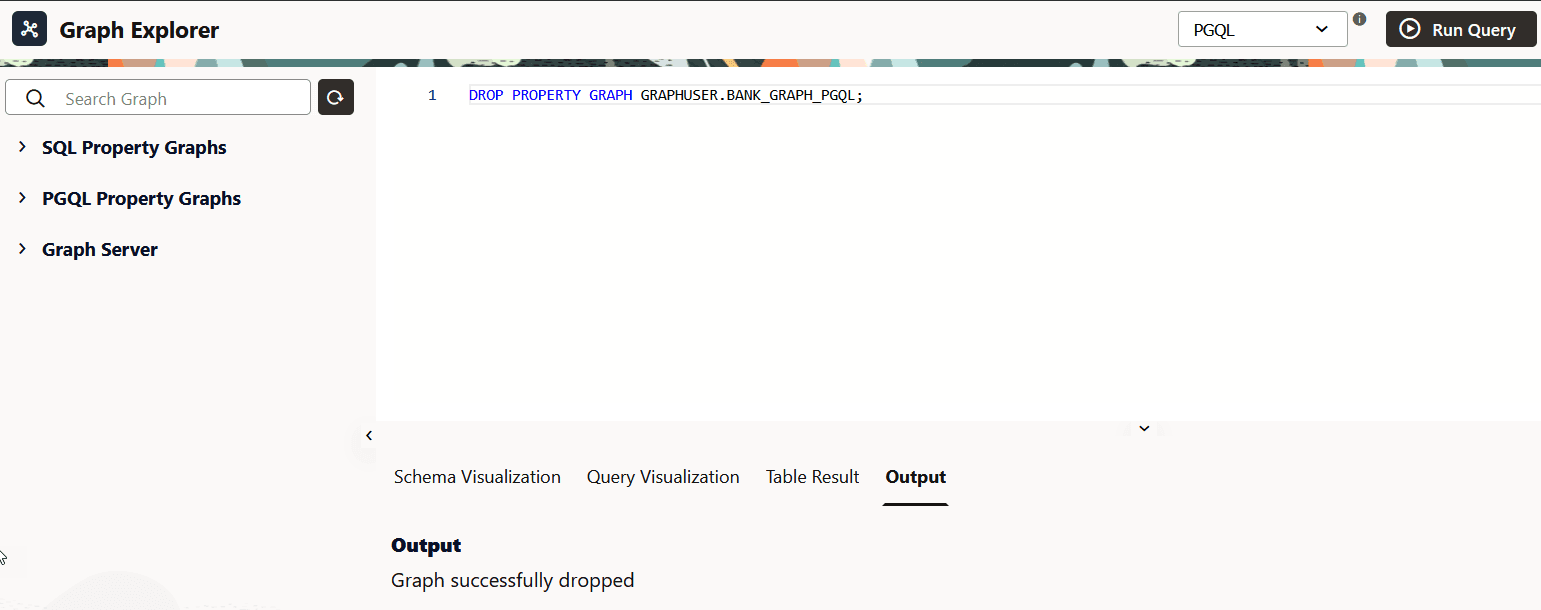
The following example shows dropping the PGQL property graph using the DROP PROPERTY GRAPH statement.
Figure: Dropping a PGQL Property Graph