Constructing a Path Pattern in Visual Graph Query Builder
Use Visual Graph Query Builder to select a graph, construct a MATCH path from its schema, refine selected elements, review, and run the generated SQL Graph query.
-
Open Graph Studio and select the the Visual Graph Query Builder tab in Graph Explorer.
-
Select Graph Owner and Graph Name.
You can view the schema of the graph in Schema View. The Edges and Vertices panels display the graph edges and vertices respectively.
-
Construct one or more path patterns as required.
-
Select an edge or vertex from Schema View or from the rows displayed under Edges and Vertices.
Alternatively, select Add Path followed by + to start adding the graph elements in Path Builder.
The following figure highlights these three different ways for adding graph elements to construct a path pattern:
Figure: Building a Path Pattern
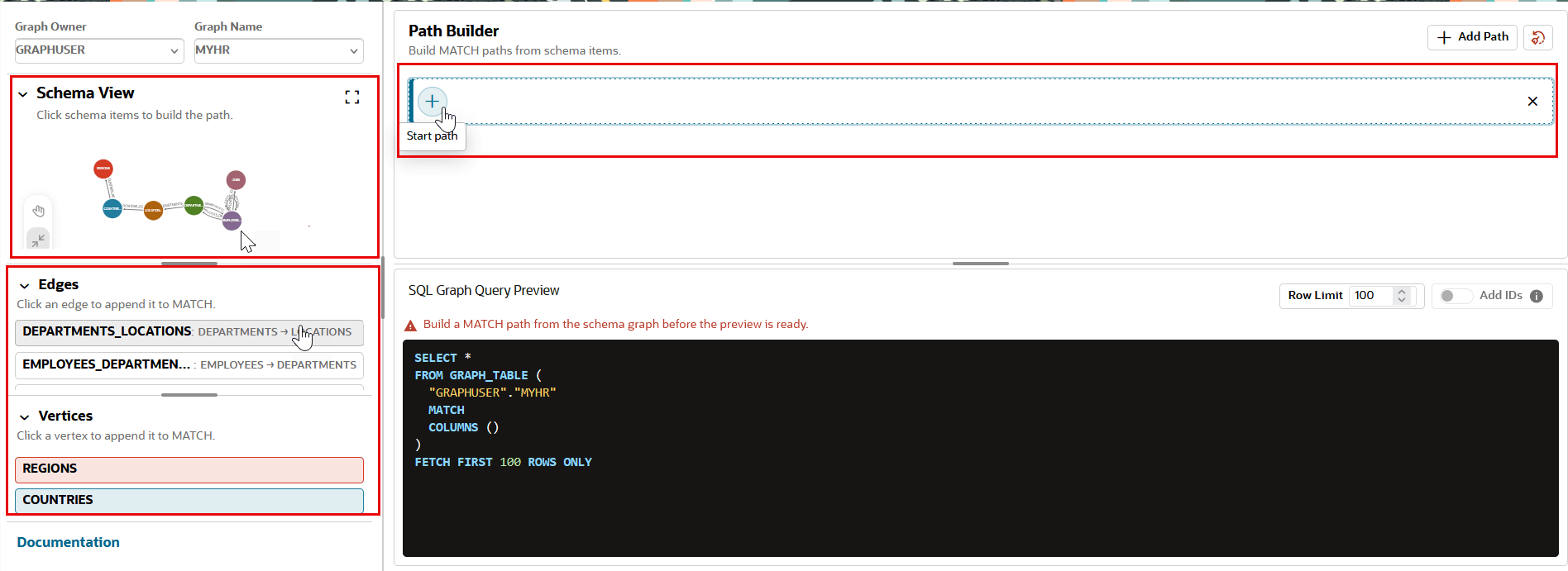
Description of the illustration query_builder_start_path.png
The selected vertex or edge element gets added to the
MATCHpath and is displayed in Path Builder.Note that when you add an edge the respective vertices are also added to the path.
The graph element variable, labels, and properties are displayed in the panels on the right side of the page.
You can also view the complete SQL query that is generated using the constructed path pattern in SQL Graph Query Preview.
-
Repeat the previous step to add or change the graph elements to build the required path pattern.
-
Optionally, select + Add Path and repeat step 3a and 3b if you wish to add an additional path pattern.
-
-
Optionally, select a vertex or an edge element in the Path Builder to modify any of the following details:
-
Edit the variable name in the Variable panel.
-
Select the required label under Labels.
-
Select the required properties (and optionally, an alias) to be included in the
COLUMNSoutput in the Properties panel. -
Add one or more
WHEREpredicates in the Filters panel by selecting Add filter.
-
-
Review the SQL Graph Query Preview to confirm that the selected labels, properties, and filter are represented in the query.
-
Optionally, set Row Limit in the preview panel to the number of rows to be included in the query output. The displayed default is
100. -
Optionally, enable Add IDs if you wish to visualize the SQL graph query.
-
Select one of the following actions to run the generated SQL graph query.
-
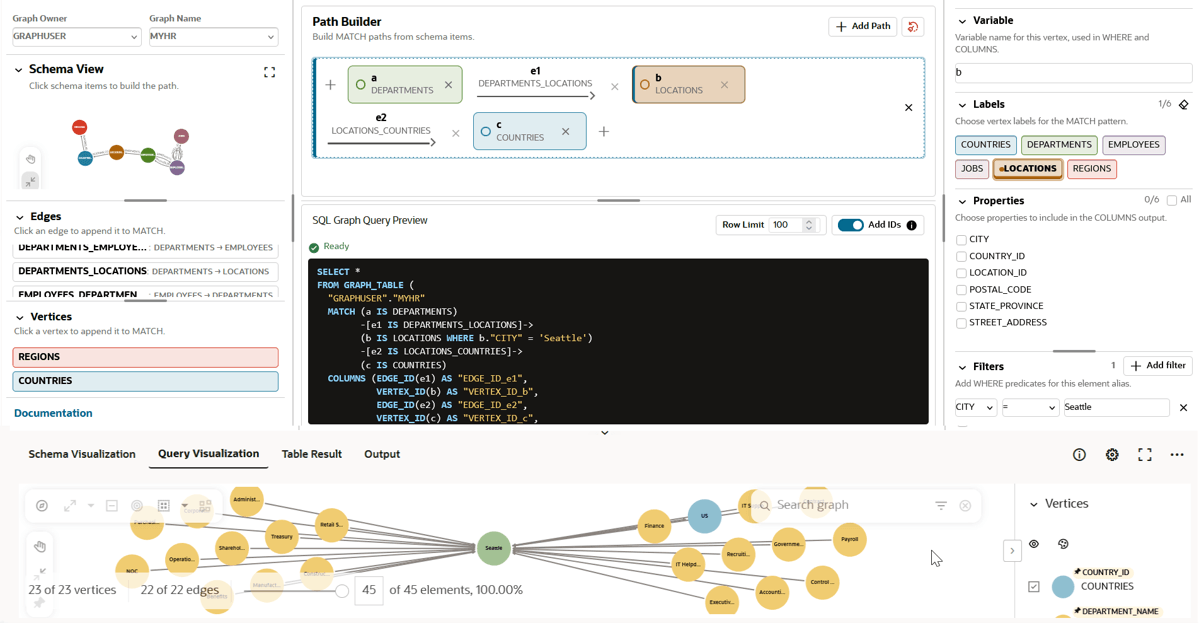
Select Visualize Graph to visualize the results of the SQL graph query.
The following figure shows an example of a SQL property graph query visualization using Visualize Graph:
Figure: Visualizing a SQL property graph query
-
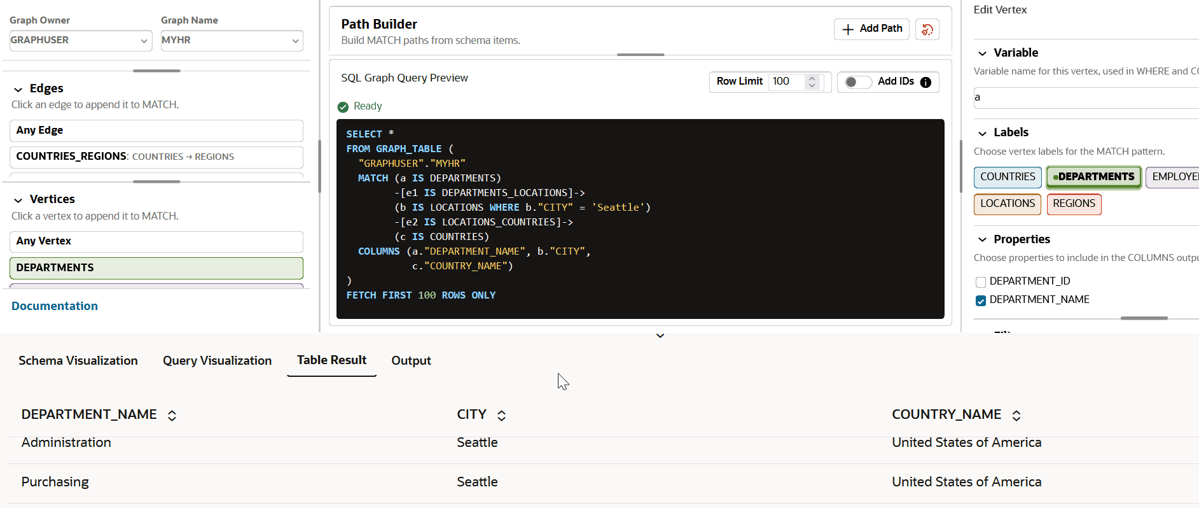
Select Run Statement to view the results of the SQL graph query in tabular format.
The following figure shows an example of viewing the SQL property graph query output in tables using Run Statement:
Figure: Viewing a SQL graph query output in tables
-
Select Copy to the query editor to copy the generated SQL graph query to the Query Editor tab in Graph Explorer. You can then run the query in Query Editor.
-