Viewing Vertex and Edge Properties
Property tooltips display the properties associated with graph vertices and edges in the graph visualization.
To display a property tooltip:
-
Right-click a vertex or an edge in the graph visualization.
-
Review the properties displayed in the tooltip.
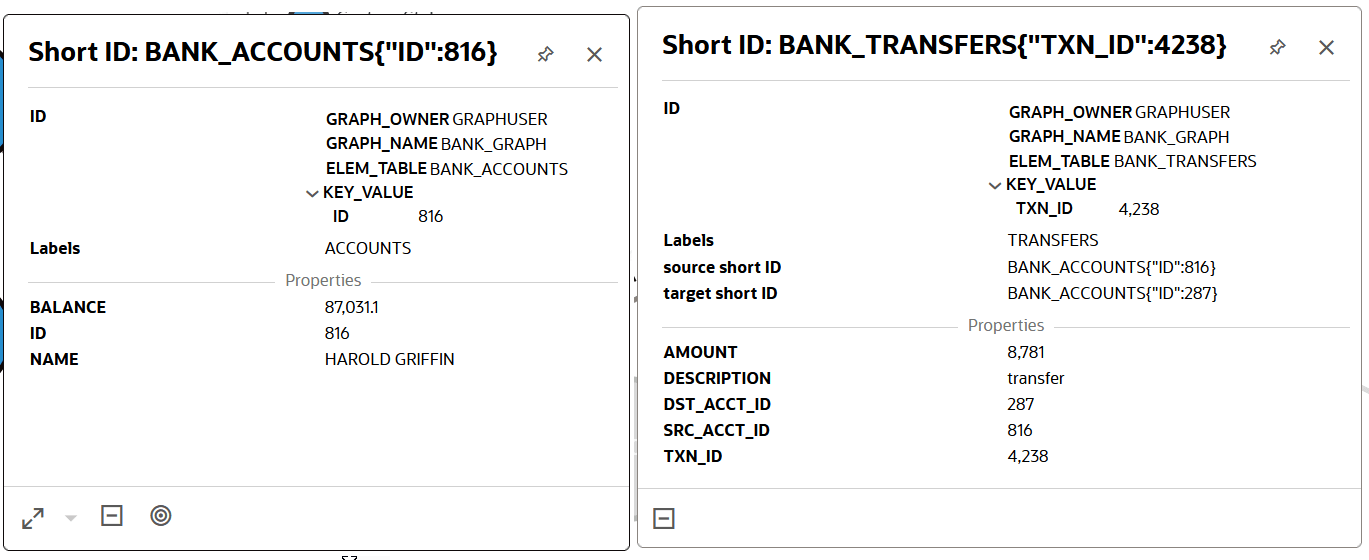
The following figure shows an example of two property tooltips in Graph Explorer for a SQL property graph query: a vertex tooltip for BANK_ACCOUNTS on the left and an edge tooltip for BANK_TRANSFERS on the right.
Figure: Vertex and Edge Tooltips for a SQL Property Graph Query
Description of the illustration sql_pg_tooltips.png
As seen in the preceding figure, the property tooltip for a SQL property graph query displays:
- Short ID: The scalar identifier used by the graph visualization.
- Structured ID: The structured element identifier returned by the database.
For an edge, the tooltip also displays its source short ID and target short ID.
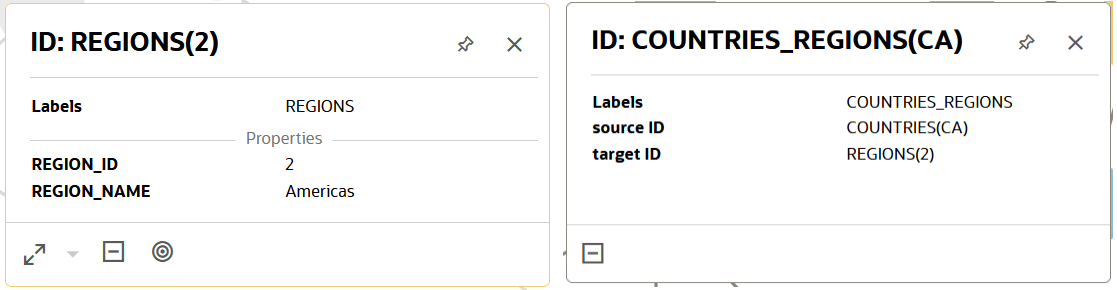
The following figure shows an example of two property tooltips in Graph Explorer for a PGQL property graph query: a vertex tooltip for REGIONS(2) on the left and an edge tooltip for COUNTRIES_REGIONS(CA) on the right.
Figure: Vertex and Edge Tooltips for a PGQL Property Graph Query
Description of the illustration pgql_pg_tooltips.png
The tooltip for a PGQL property graph query results display their existing scalar ID.
You can perform the following actions on a property tooltip:
-
Pin a tooltip: Pin a tooltip to keep it visible while exploring other graph elements.
-
Display a property tooltip.
-
Click the Pin icon in the tooltip header.
The tooltip remains visible in the graph visualization until it is unpinned.
-
-
Compare multiple vertices or edges: You can display multiple property tooltips simultaneously.
-
Display a property tooltip.
-
Pin the tooltip.
-
Right-click another vertex or edge to display its properties and pin the tool tip.
-
Repeat as needed.
Multiple property tooltips remain visible, allowing you to compare the properties of different graph elements.
-
-
Move a tooltip: You can reposition a property tooltip within the graph visualization.
-
Display a property tooltip.
-
Drag the tooltip header to a different location.
The tooltip is moved to the selected location.
-
-
Resize a tooltip: You can resize a property tooltip to display more property information.
-
Display a property tooltip.
-
Drag the resize control located on the tooltip edge.
-
Adjust the tooltip to the required size.
The tooltip is resized to display more or less property information as needed.
-