5.10 Joining Point Datasets Using H3 Aggregations

You can join two point datasets and perform a spatial analysis based on their colocation within H3 (Hexagonal Hierarchical Spatial Index) cells at a selected resolution in Spatial Studio.

In the H3 Join analysis, H3 aggregations are obtained based on the specified aggregation operation(s) on a given column (or no column in case of Count) for both participating point datasets. These aggregated results are then joined together using the H3 key of each hexagon as the join key. Note that all this is performed on the specified single resolution.
You can perform the H3 Join analysis as described in the following steps:
The instructions assume that you have two datasets with point geometries added in your Active Project page.
  1. Click Menu Icon against the map layer whose coordinates needs to be filtered in the Layers tab.
  2. Select Spatial Analysis.
    The Spatial Analysis Operations slider opens as shown in Figure 5-1.
  3. Click on the Combine tab and select H3 Join.
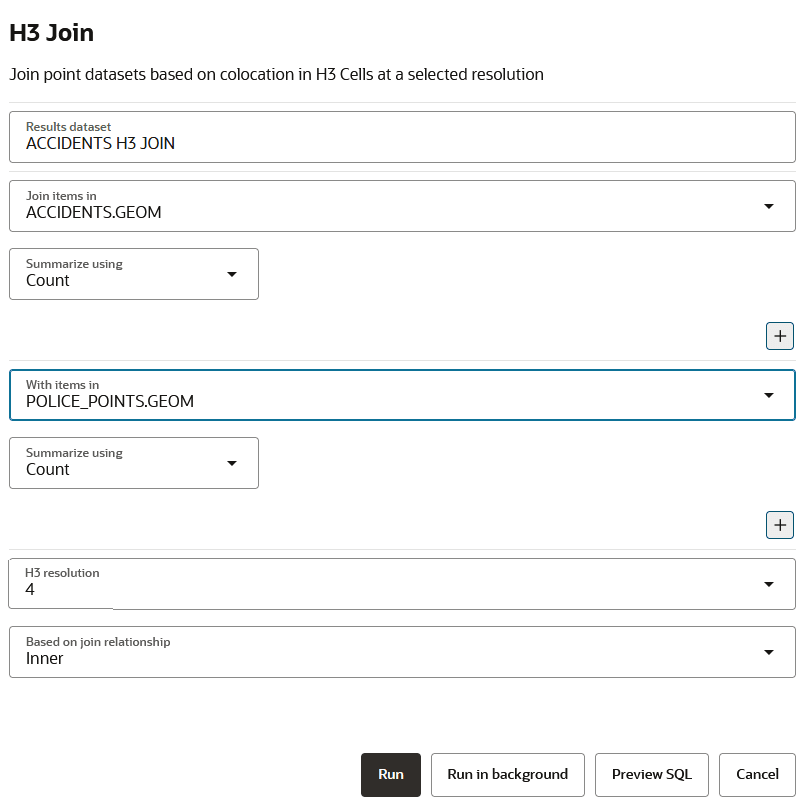
    A slider opens as shown:

    Figure 5-18 Configuring H3 Join Analysis


  4. Optionally, modify the Results dataset name.
  5. Configure H3 aggregation for the first point dataset.
    1. Select the geometry column from the Join items in drop-down list.
    2. Select an aggregate operation from the Summarize using drop-down list.
      The supported values are Count, Sum, Avg, Min, and Max. For all operations other than Count, you must select a column for aggregation.
    3. Optionally, click + and repeat the previous step to add as many aggregate operations as required.
  6. Configure H3 aggregation for the second point dataset.
    1. Select the geometry column for the second point dataset from the With items in drop-down list.
    2. Select an aggregate operation from the Summarize using drop-down list.
      The supported values are Count, Sum, Avg, Min, and Max. For all operations other than Count, you must select a column for aggregation.
    3. Optionally, click + and repeat the previous step to add as many aggregate operations as required.
  7. Select the H3 resolution value.
    The supported resolution range is from 0 (coarser hexagons) to 15 (finer hexagons).
  8. Select the join type from the Based on join relationship drop-down.
    The supported values are:
    • Inner: Retains only the hexagons that are one to one matched between the two datasets.
    • Left: Retains all the hexagons from the left dataset. Hexagons with a matching entry in the right dataset will display data from both datasets, while hexagons without a match will show aggregations from the left dataset only, with no data from the right dataset.
    • Right: Retains all the hexagons from the right dataset. Hexagons with a matching entry in the left dataset will display data from both datasets, while hexagons without a match will show aggregations from the right dataset only, with no data from the left dataset.
    • Full: Retains all the hexagons from both datasets. Hexagons that have matching entries in both datasets will display aggregations from both sides. Hexagons without a match in one of the datasets will show aggregations only from the dataset where they exist.
  9. Click Run.
    The resulting newly joined analysis dataset is added in the Active Project page.
  10. Drag and drop the analysis result on the map view.
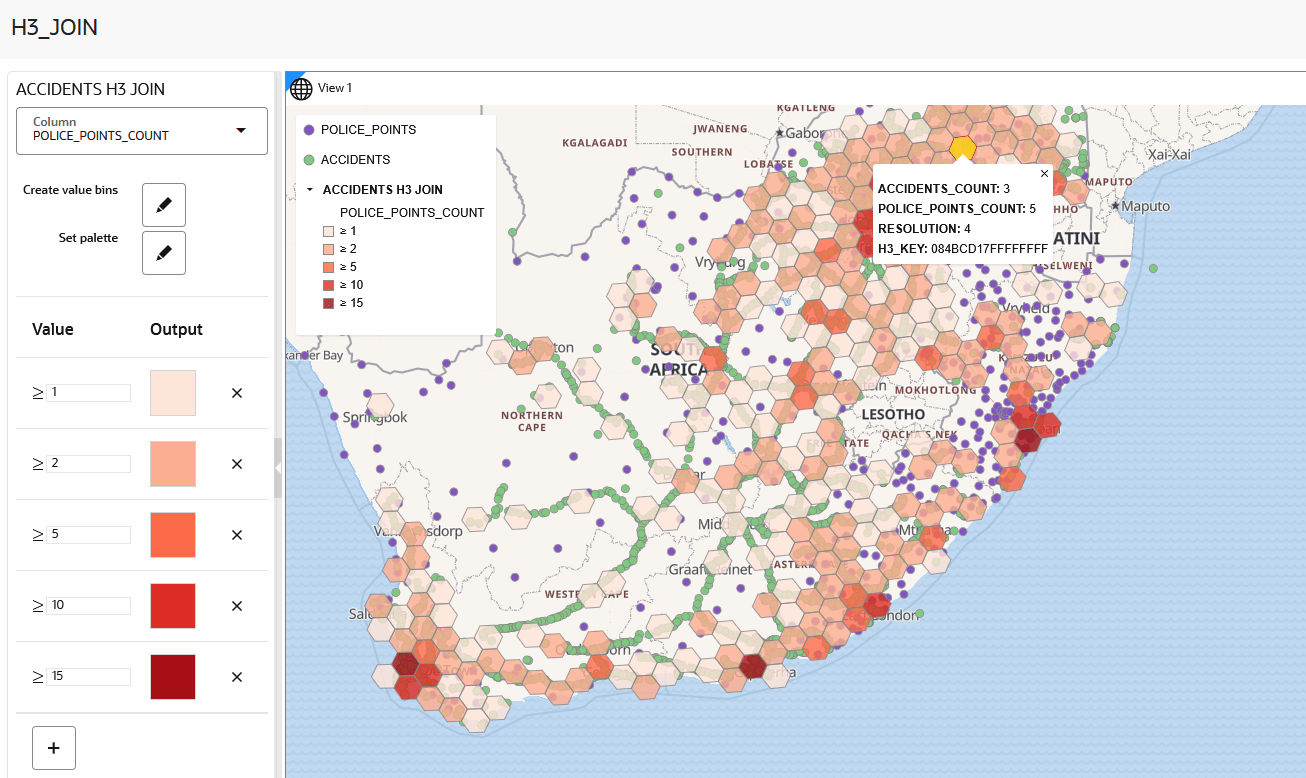
    This creates a new map layer highlighting the H3 cells. For example, the following visualization analyzes the relationship between accident locations and police coverage using H3 cell colocation:

    Figure 5-19 Visualizing an H3 Join Analysis