Searching Locations and Features on a Map
Using the Search option, you can quickly find locations and features on a map.
- Click
 in the map tool bar to search on the map.
 - Select one of the following option to perform the search.
- Search by Locations
- Click Address or Longitude, Latitude in the search drop-down list.
- Enter Address or place name, or
alternatively, enter Longitude and
Latitude to search.
Note that as you enter the address (or place name), suggestions more relevant to your search are displayed first.
- Select the required suggestion from the list if you
entered Address or place name in the
preceding step.
Spatial Studio drops a pin and zooms to the location of the search result.
- Search by Feature ID
A feature is a geometry object (point, line, or polygon type) on the map.
- Click Feature in the search drop-down list.
- Select one of the following options:
- Replace current selection: Searches for
the feature ID and replaces any existing selected features
on the map with the new search result.
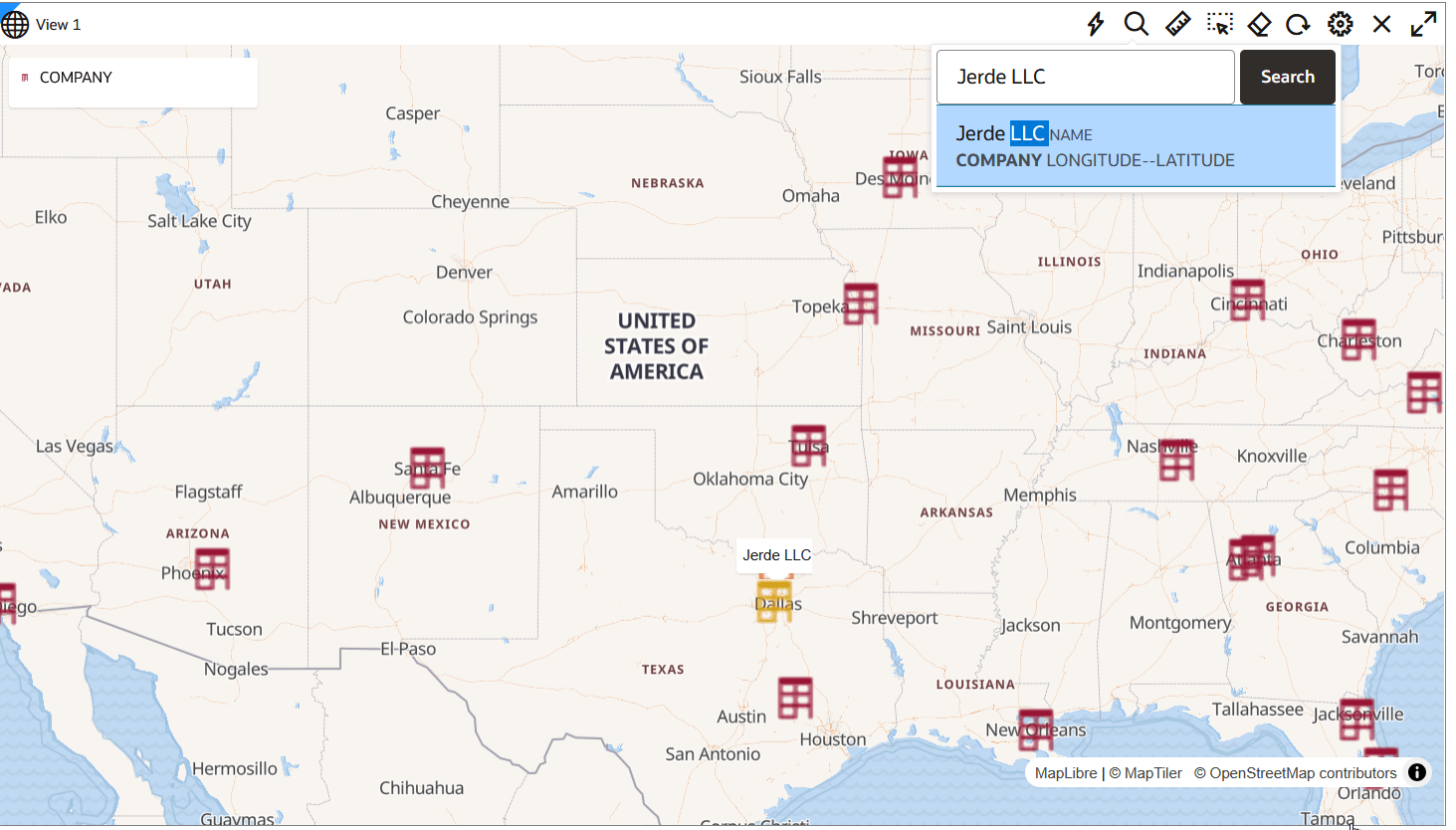
For example, in the following image, the match for the searched feature Jerde LLC (shown highlighted) replaces the earlier map selection:
Figure 4-52 Replacing a Current Selection with a Feature
- Add to current selection: Searches for
the feature ID and adds the matching feature to the existing
selection on the map.
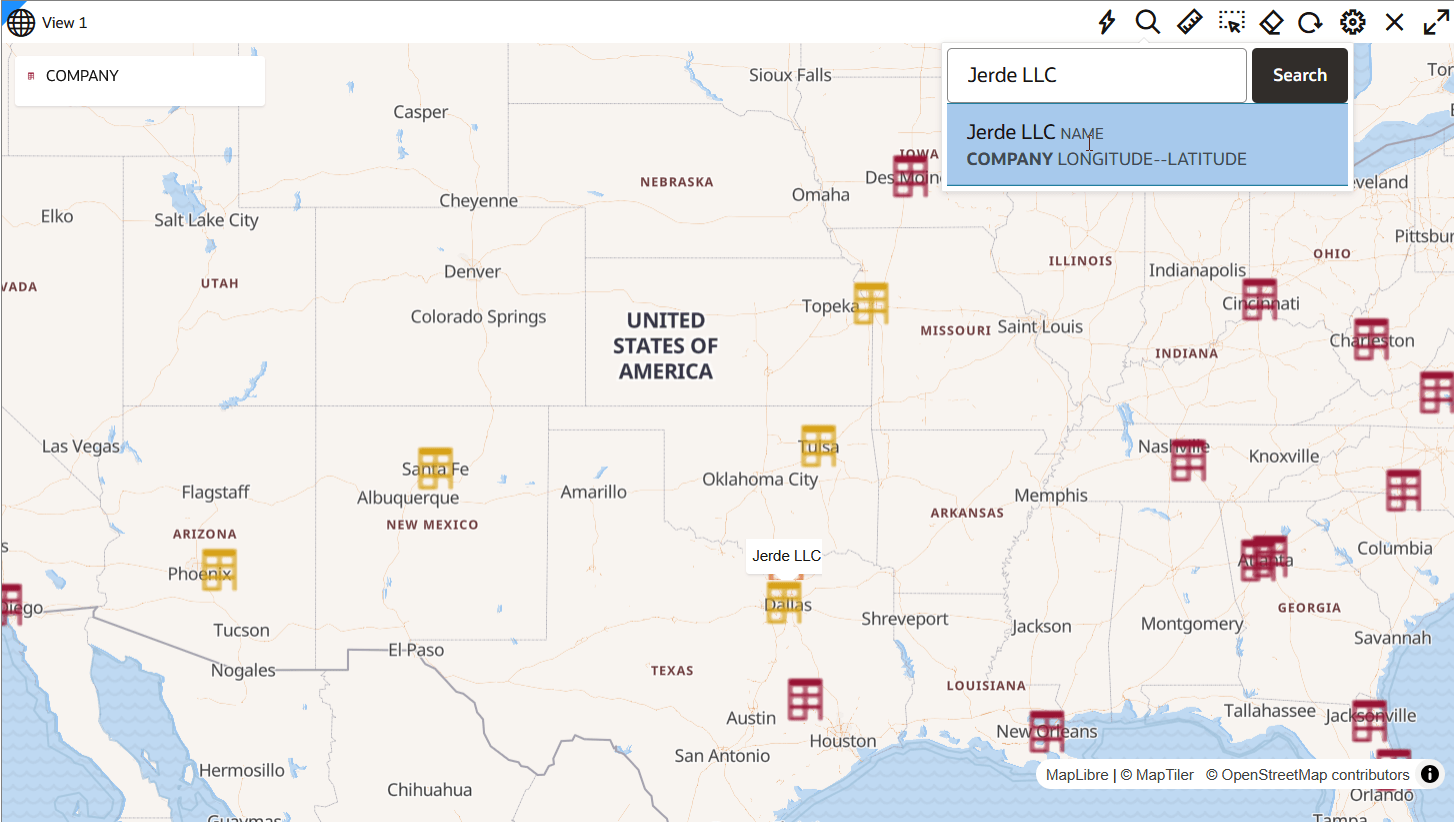
For example, in the following image, the match for the searched feature Jerde LLC is added to the current map selection (shown highlighted):
Figure 4-53 Adding a Feature to a Map Selection
- Replace current selection: Searches for
the feature ID and replaces any existing selected features
on the map with the new search result.
- Enter the complete feature ID of the feature in the
search input box.
Note the following:
- The feature ID is identified by the key property column value of the specific feature in its dataset.
- The search key is not case sensitive.
- You must enter the complete feature key to find the feature on the map.
- Click Search.
If the feature is found, Spatial Studio displays the feature ID and the dataset name in the selection box.
- Select the feature in the selection box.
Spatial Studio searches the source data table and either replaces the current selection of features or adds the feature to the existing map selection, depending on the option you selected in step-b.
- Selected features
Click Selected features to zoom to and highlight the selected features in or near the map viewport.
- Search by Locations