3.18 Using Drag and Drop for Code Generation
The Drag-and-Drop Code Generation feature simplifies how various programming languages interact with Oracle databases. It enables you to drag and drop database objects into a Java file, which automatically generates the corresponding Java code, including all the logic required to execute queries on the Oracle database.
Additionally, you can drag an entire database connection from the
Connections panel into your Java file to quickly
generate the connection string or complete JDBC API code, streamlining your
development process.
3.18.1 Generate Connection Code
When you drag a connection from the Connections panel and drop it into a Java file, the feature will automatically generate the necessary code for you. It supports all connection types including Basic, Custom JDBC, Cloud Wallet, and TNS ensuring flexibility for a wide range of Oracle database scenarios.
The following examples illustrate a specific connection type configuration and the corresponding auto-generated JDBC code and the connection string after using the drag-and-drop feature. Here is a custom JDBC connection type without any advanced properties specified.
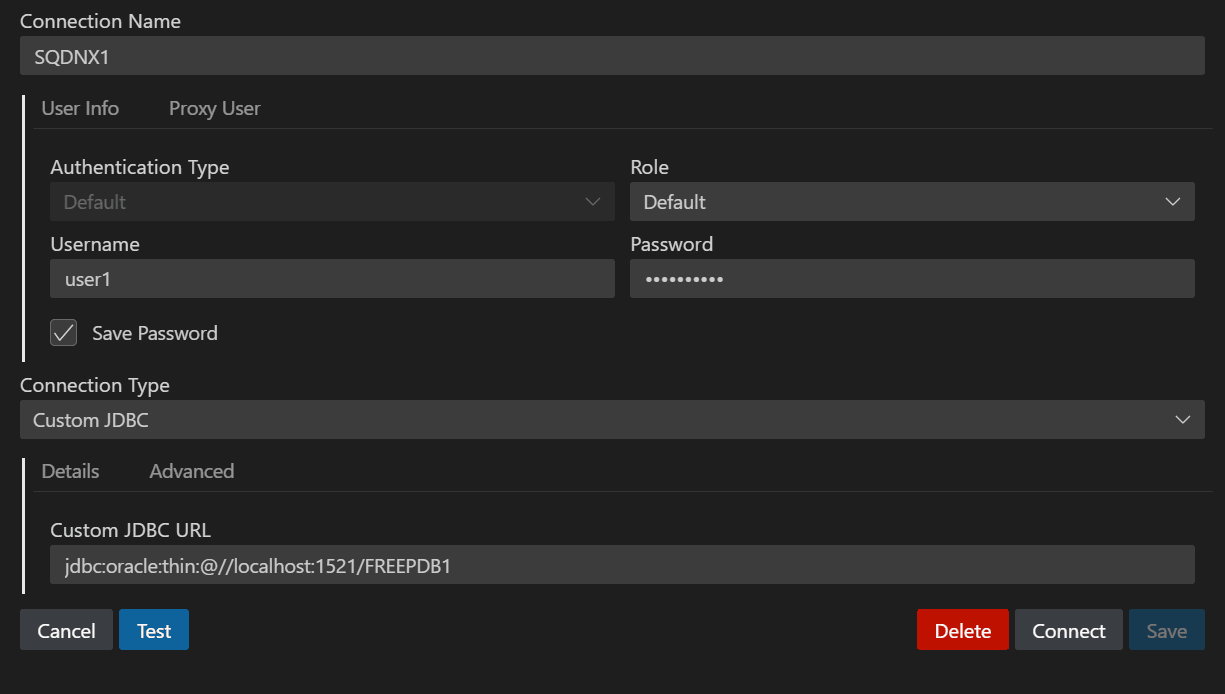
For a selected connection type, such as Custom JDBC, if the code
generation option is set to JDBC, the corresponding JDBC
connection code is automatically generated. This code includes all the relevant
details specified in the connection configuration, streamlining the process of
connecting to the database.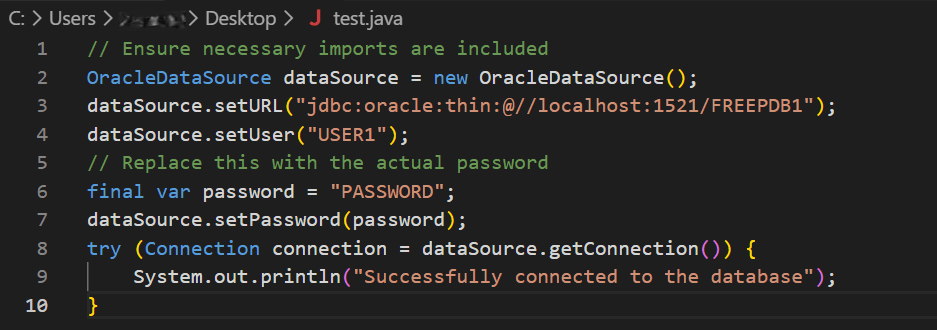
Description of the illustration code_generation_output.png
If the code generation option selected is Connection String, only the connection string is displayed.

3.18.2 Generate Java Code for Database Objects
When you drag a database object, such as a table, view, duality view, materialized views, and columns from the Connections panel and drop it into a Java file, the feature will automatically generate the corresponding Java code. This includes all necessary logic required to execute queries on the Oracle database, streamlining the integration of database operations within your Java application.
- Select columns from the selected object to be included in the generated SQL or
Java code for operations, such as,
SELECT,INSERT,UPDATE,DELETE, orJOIN, and then click OK.
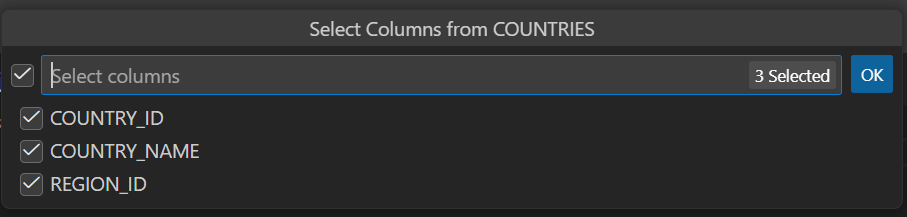
Example 3-1 Generating Java code for inserting data into a table
When you drag and drop the COUNTRIES table while
selecting all the columns and choose the INSERT statement option,
the following code is generated: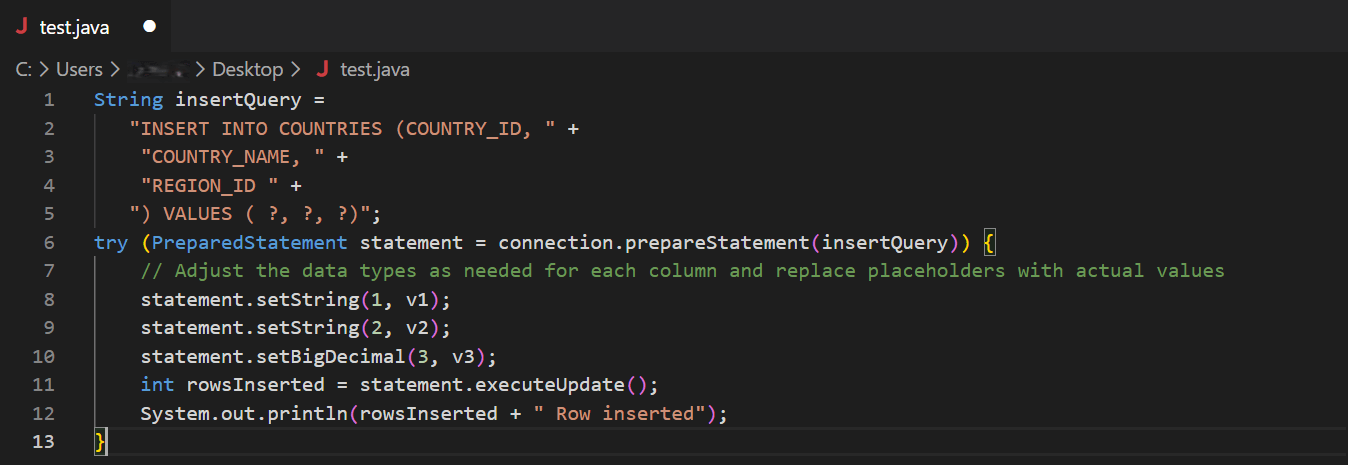
Description of the illustration code_generation_insert.png
This Java code snippet demonstrates that data is inserted into a database
table named COUNTRIES using a PreparedStatement
for safe and efficient database operations. This code inserts values into the
COUNTRY_ID, COUNTRY_NAME, and
REGION_ID columns. The question marks (?) are placeholders for
the values that will be supplied later. The actual values for the placeholders are
set using the .setString() and .setBigDecimal()
methods.
Example 3-2 Generating Java code for retriving data spanning multiple related tables
When you drag and drop the COUNTRIES,
DEPARTMENTS, and EMPLOYEES tables, select a
few columns from each, and choose the JOIN statement option, the
following code is generated: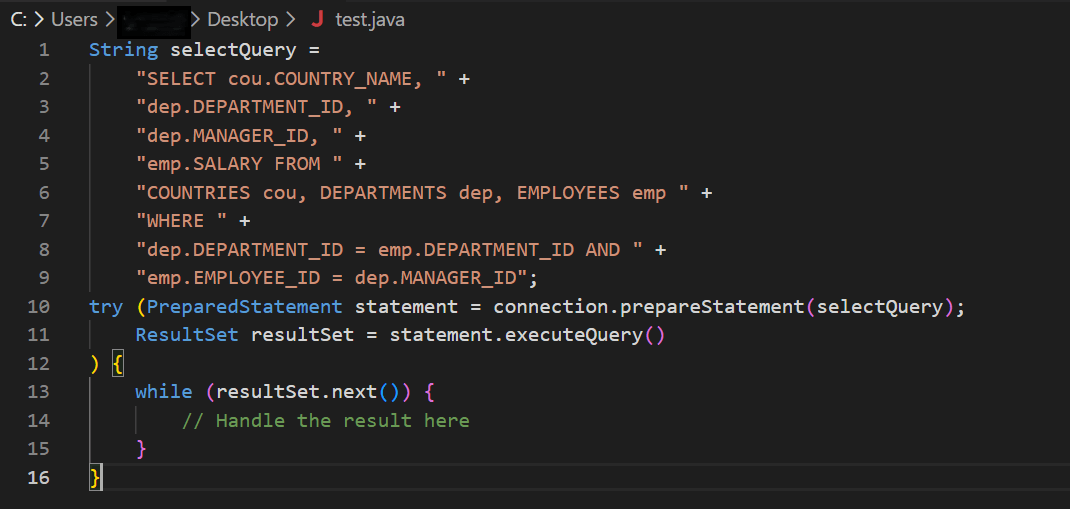
Description of the illustration code_generation_join.png
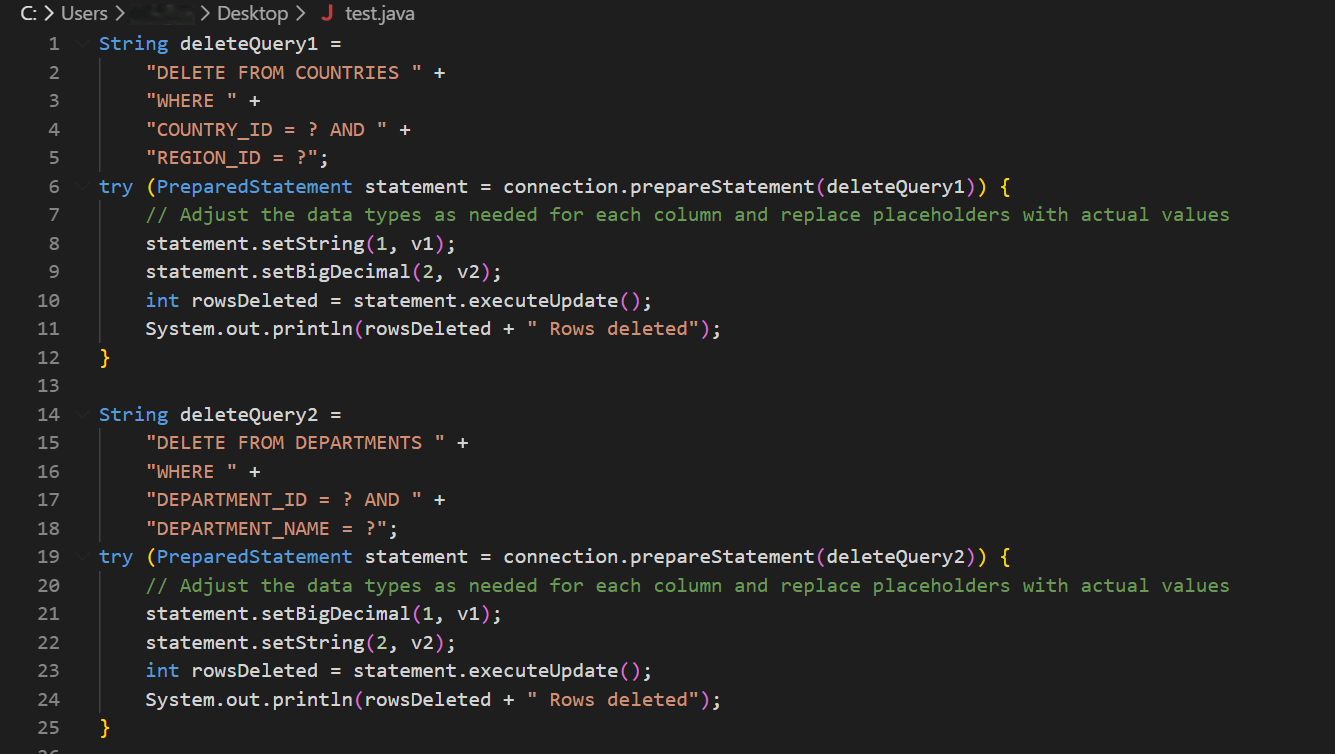
Example 3-3 Generating Java code for multiple database objects simultaneously
When you drag and drop the COUNTRIES and
DEPARTMENTS tables, select a few columns from each, and choose
the DELETE statement option, delete code for each individual table
is automatically generated. This code deletes records from multiple database tables
(COUNTRIES and DEPARTMENTS) using
parameterized SQL delete queries with JDBC’s PreparedStatement.