Configuring Licensed Database Packs for a Connection
SQL Developer for VS Code displays a licensing prompt when you open a feature that requires the Oracle Diagnostics Pack or Oracle Tuning Pack and the selected connection is not already configured for that pack. Use the prompt or the connection licensing settings to indicate that the database connection is licensed for the required pack.
Note: Select a pack only if the database connection is properly licensed for that pack. If the database is not licensed for the pack, do not enable the pack for the connection.
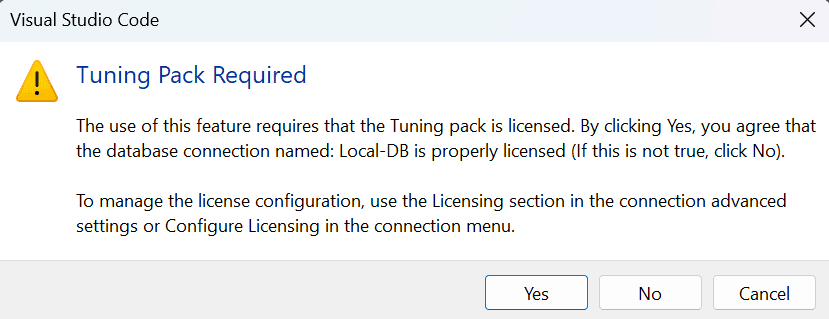
A prompt appears when you open a feature that requires a licensed database pack. For example, a Diagnostics Pack prompt can appear when opening AWR Report or ASH Report. A Tuning Pack prompt can appear when opening a feature that requires Oracle Tuning Pack, such as Real Time SQL Monitor.
Review the pack name in the prompt, such as Diagnostics Pack Required or Tuning Pack Required, and verify that the database connection is properly licensed for the required pack. Click Yes to continue and mark the required pack as licensed for the connection. Click No if the database connection is not licensed for the required pack. Click Cancel to close the prompt without continuing.
Configure Licensing from the Connections Panel
You can configure licensing options before opening a licensed feature.
-
In the Connections panel, right-click the connection.
-
Select Configure Licensing.
-
In the Licensing selector, select Diagnostics, Tuning, or both, depending on the packs that are licensed for the database connection.
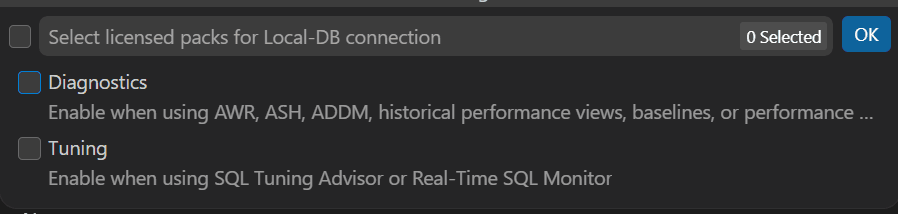
Description of the illustration configure_license_connectionpanel.png
-
Click OK.
Configure Licensing from the Connection Dialog
You can also configure licensing options while creating or editing a connection.
-
Create a connection, or right-click an existing connection and select Edit.
-
Click the Advanced Settings
 icon in the connection dialog.
 -
Select Licensing.
-
Select Diagnostics, Tuning, or both, depending on the packs that are licensed for the database connection.
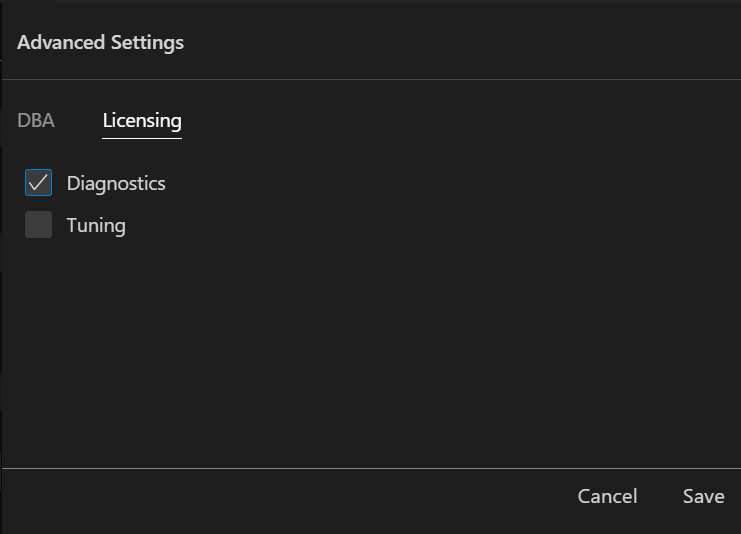
Description of the illustration configure_license_advancedsettings.png
-
Click Save.