Creating an OCI Connection
Use the OCI DBTools connection type to select an OCI Database Tools connection and save it as a named connection in SQL Developer for VS Code. You can test the connection, save it, connect to it, and edit it from the Connections panel. The connection can be reused across supported client tools, and sensitive credentials, such as passwords and wallets, are securely stored in OCI Vault and retrieved only when needed.
Prerequisites:
-
Configure an OCI profile that has access to the tenancy, compartments, and OCI Database Tools connections. For more information, see SDK and CLI Configuration File.
-
Ensure that you have the required OCI permissions to list compartments and Database Tools connections.
Perform the following steps to create an OCI connection:
-
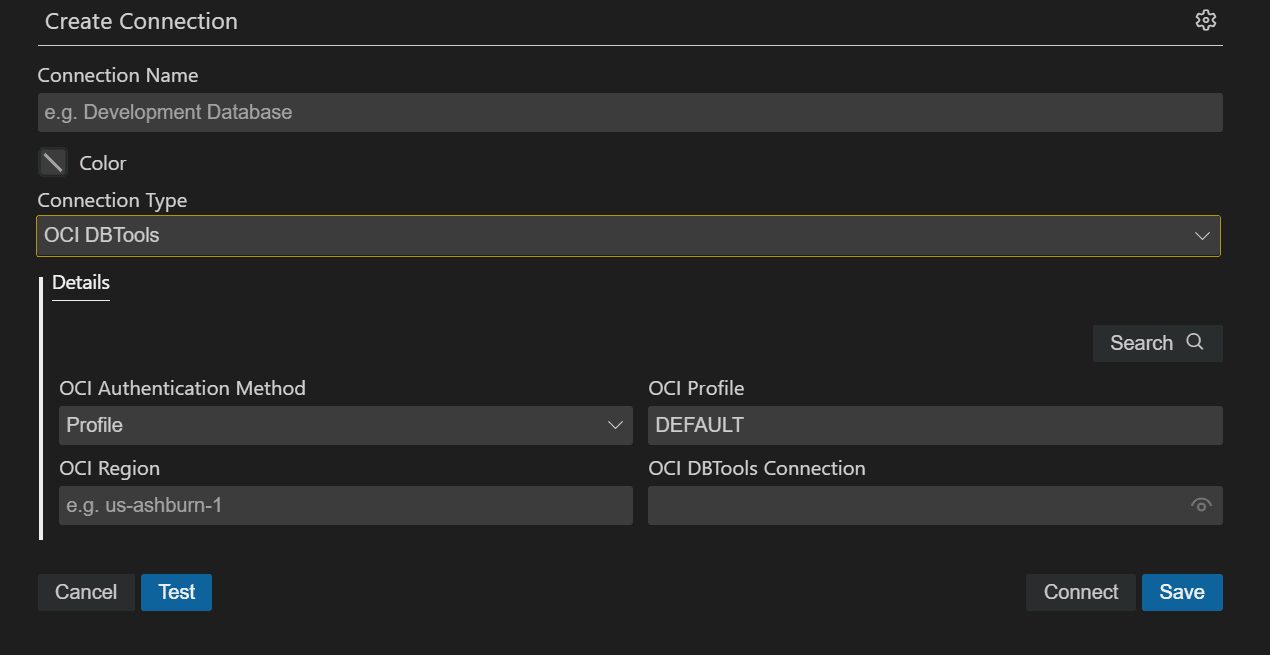
In the Connections panel, click the Add icon.
-
In the Connection Name field, enter a name for the connection.
-
From the Connection Type list, select OCI DBTools.
The Details tab displays OCI-specific fields.
-
In OCI Authentication Method, select Profile.
-
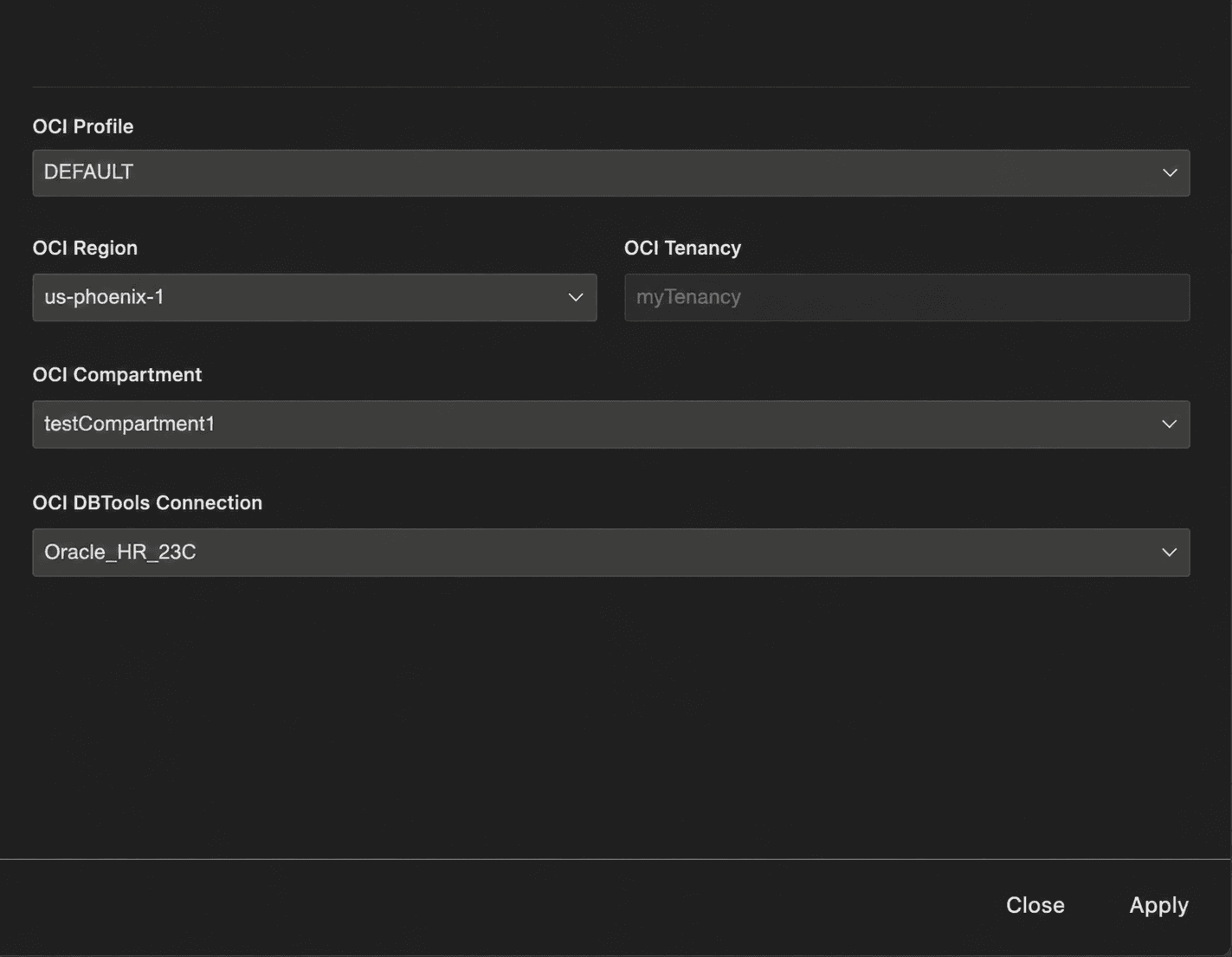
Click Search to open the Select OCI Database Tools Connection drawer.
-
In the OCI Profile field, select the local OCI profile to use for the lookup. The selected profile determines the default tenancy and region information available to SQL Developer for VS Code.
-
From the OCI Region list, select the OCI region that contains the OCI Database Tools connection.
The OCI Tenancy field is populated automatically.
-
From the OCI Compartment list, select the compartment that contains the OCI Database Tools connection.
-
From the OCI DBTools Connection list, select the OCI Database Tools connection to use.
Description of the illustration create_oci_connection_drawer.png
-
Click Apply. The selected connection details are populated in the Create Connection pane.
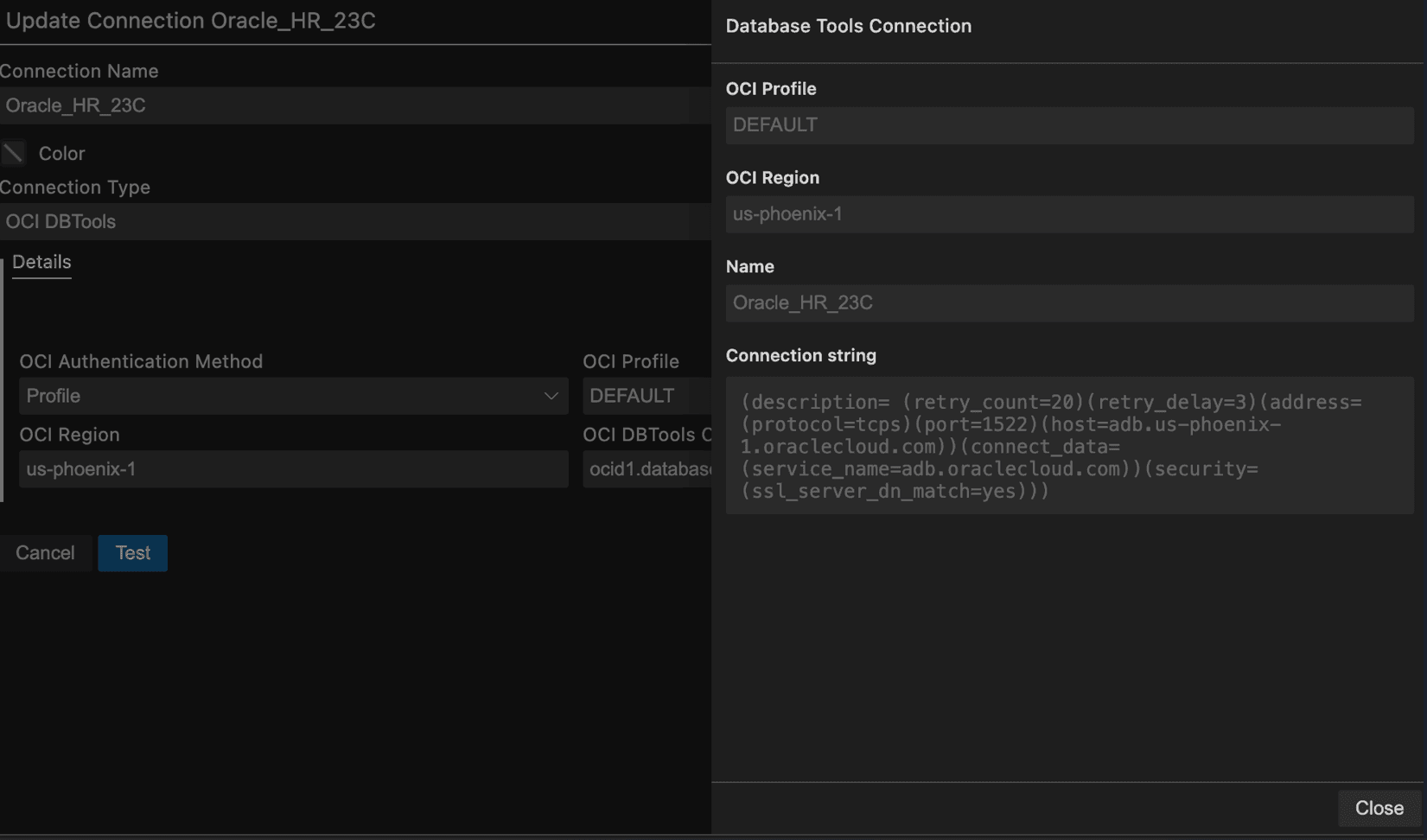
You can click
 to view the Database Tools connection details, such as OCI Profile, OCI Region, Name, and Connection string.
Description of the illustration view_oci_connection_drawer.png
-
Click Test to test the database connection.
-
Click Save to save the connection, or click Connect to save and open the connection.
To edit an OCI DBTools connection, click the Edit icon next to the connection name. Use the OCI Configuration drawer to select a different OCI profile, region, compartment, or OCI Database Tools connection, and then click Save to update the named connection.