Edit a Data Record in a Duality View
This section covers the steps to edit a data record in a duality view.
-
In the Connections panel, expand the Duality Views node, and then click the duality view name to open it in the right panel.
-
Select the Data tab.
-
Position the cursor on the row that you want to edit, right-click and select Single Record View.
Alternatively, click the Edit icon at the end of the row that you want to edit.
-
In the Single Record View panel, click and type to complete the required changes.
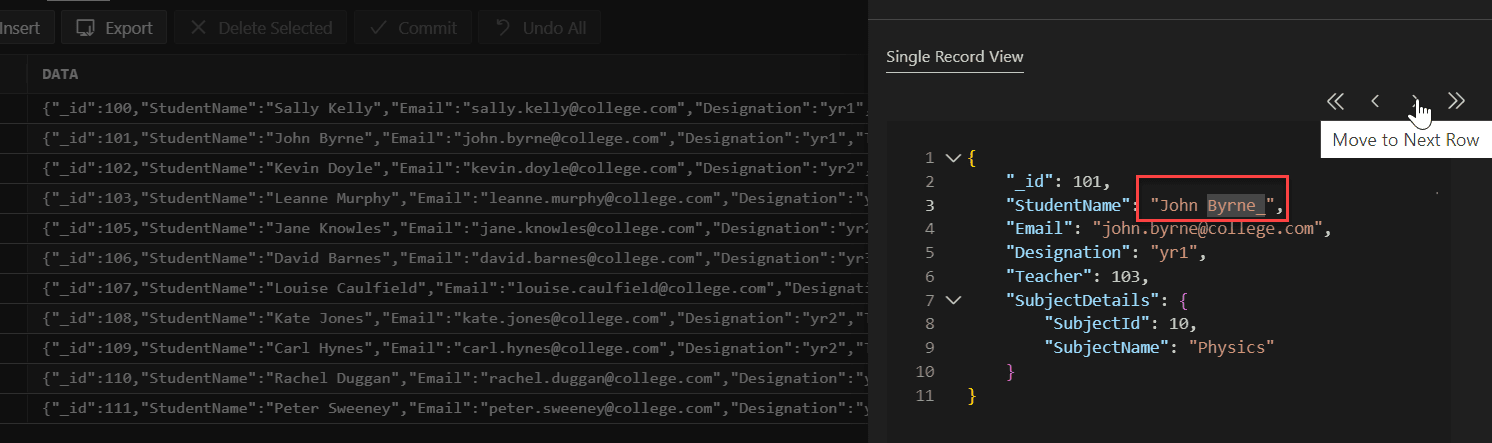
To move to another record, you can use the move to next row or move to previous row icons.
Note:
When using the Single Record View option for a table with a column of JSON data type, note the following:
-
In a duality view, the metadata-related fields (such as etag, asof) are not available for editing.
-
For a regular table that has a column of JSON data type, this restriction does not hold and all the fields can be edited.
-
If the result of a SELECT statement in the worksheet is a duality view table or a table with a JSON data type column, then the table remains read-only and cannot be edited.
-
-
After you have completed all your changes, click Save.
A star symbol (*) appears next to the row number. This indicates that the changes to the row have not yet been committed to the database.
-
Click Commit to commit the changes to the database.