Enriching Columns
For the highest level of detail, you can enrich individual columns within a table.
Adding a Description to a Table Column
You can add a descriptive summary to table columns to clarify their purpose.
Perform the following steps to add a natural language description to a table column:
-
Navigate to the table’s view using any of the following actions:
-
On the AI Enrichment dashboard, click a table group link in the Table groups section, then click a table link in the Tables section.
-
Select a table under the AI Enrichment node in the Connections panel.
-
-
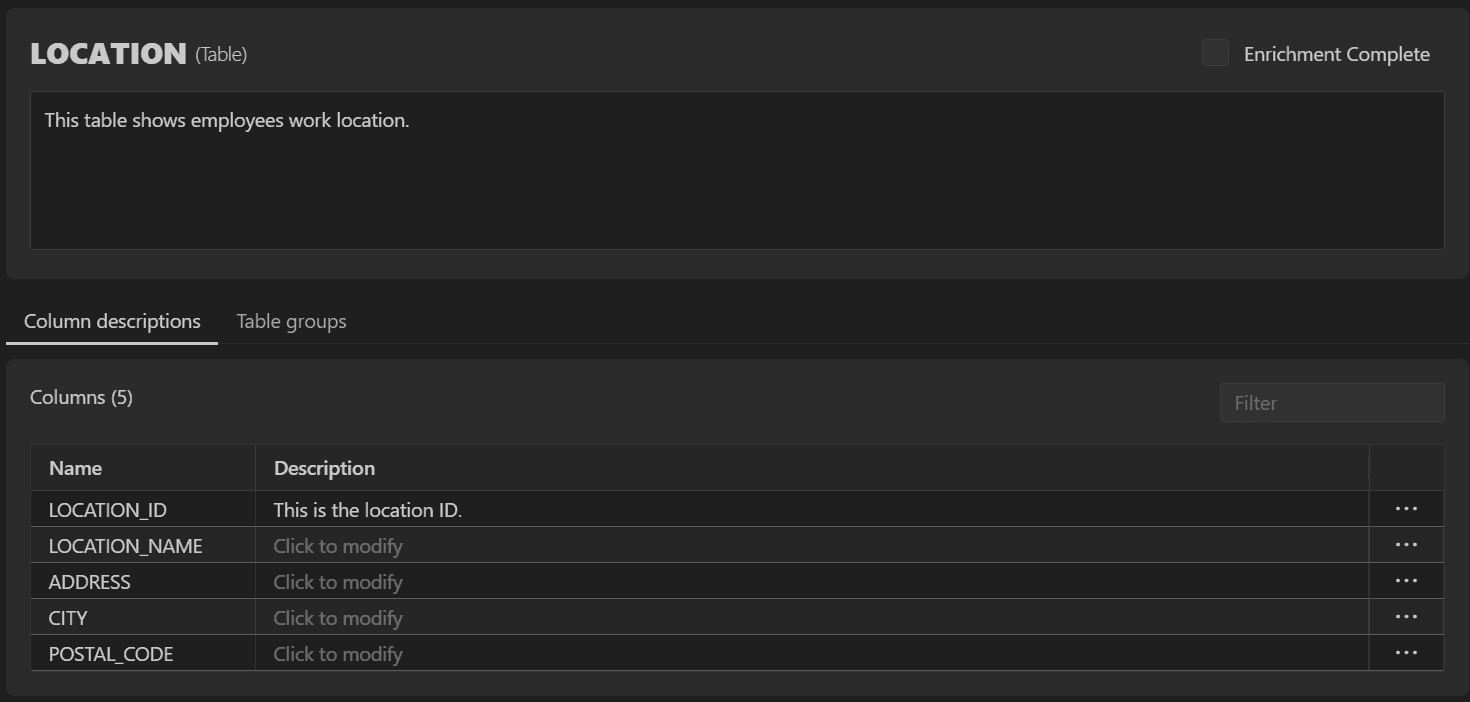
In the Columns section, click the Description cell of a column.
-
In the Set description slider, enter the description and click Save.
Adding Annotations for a Table Column
In addition to providing a description for a column, you can also include additional annotations to further clarify the column’s purpose.
Perform the following steps to add and edit annotations for a column:
-
Navigate to the table’s view using any of the following actions:
-
On the AI Enrichment dashboard, click a table group link in the Table groups section, then click a table link in the Tables section.
-
Select a table under the AI Enrichment node in the Connections panel.
-
-
In the Columns section, click ... next to a column.
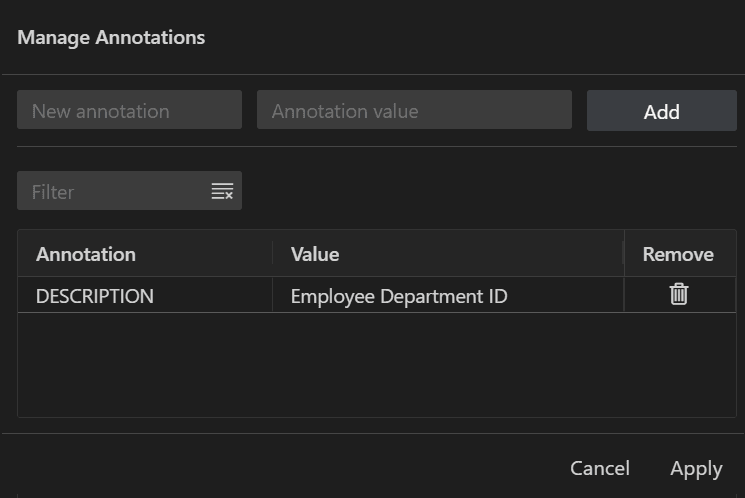
The Manage Annotations slider appears.
-
To define an annotation, enter a key-value pair in the New annotation and Annotation value fields respectively.
-
Click Add, and then click Apply.
The new annotation is added to the column.
To edit an annotation, re-open the Manage Annotations slider, edit the value, and then click Apply to save the changes.