File Permissions for User Accounts in Windows Domain
If there are both local and domain accounts for a user in Windows, the directory is assigned to the local account, creating inaccessible secure storage for the domain account. That is, a DBTools directory owned by the local user is created in the domain user’s AppData\Roaming location.
To resolve this issue:
-
Uninstall SQL Developer for VS Code release 23.4.0.
-
Remove the DBTools directory.
As the domain user, if you try to open
<domain-user>/AppData/Roaming/DBTools, you will get an error message.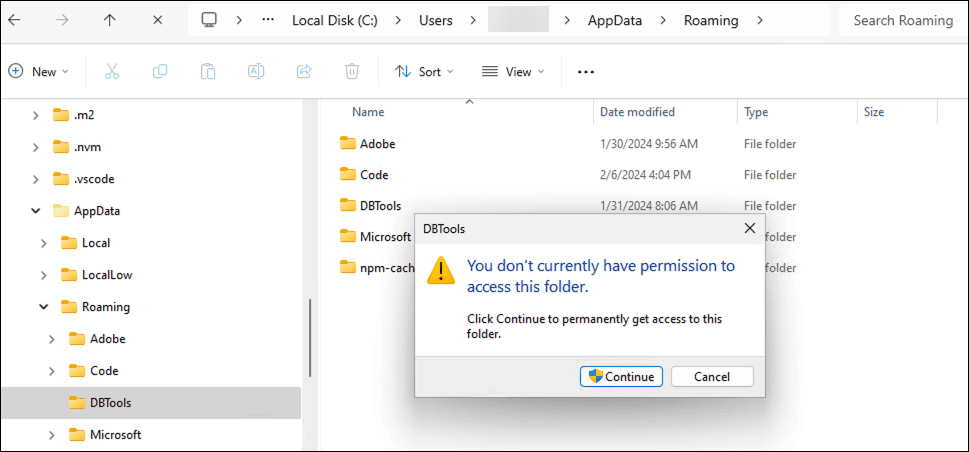
To resolve this, do one of the following:
-
If you are also an administrator, you are prompted for access, then you can delete the directory before installing a new version.
-
If you are not an administrator, contact an administrator who can help to delete the directory.
-
If you know both local and domain passwords, provide local account access to your domain user directory.
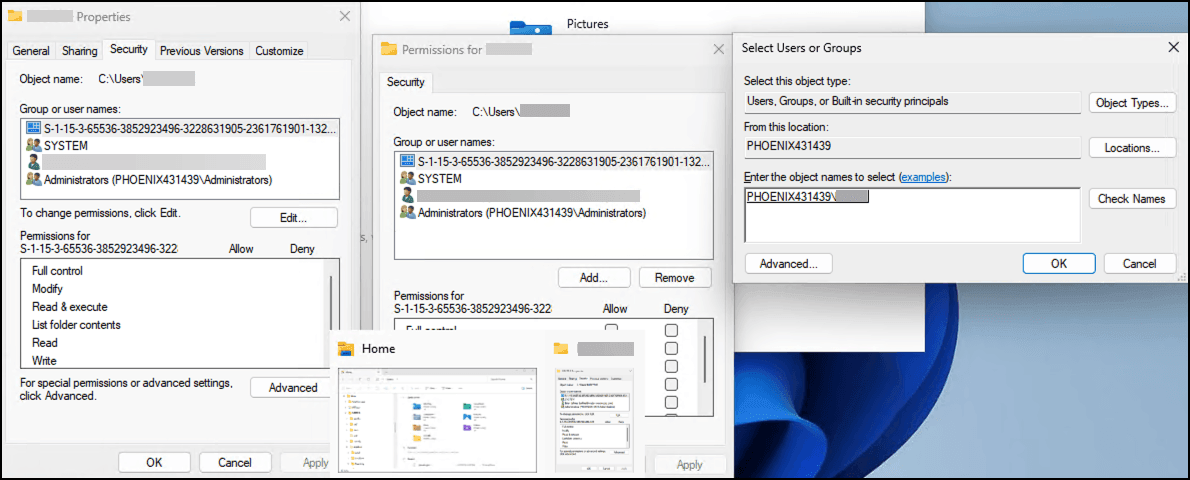
Ignore any errors as the focus is on the path to
AppData\Roaming\DBTools.Permissions are as shown in the following figure:
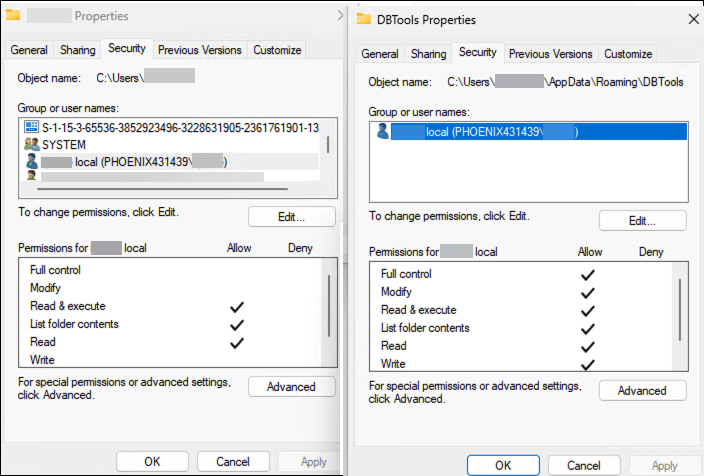
Description of the illustration file_permissions.png
Log in as local user and navigate to
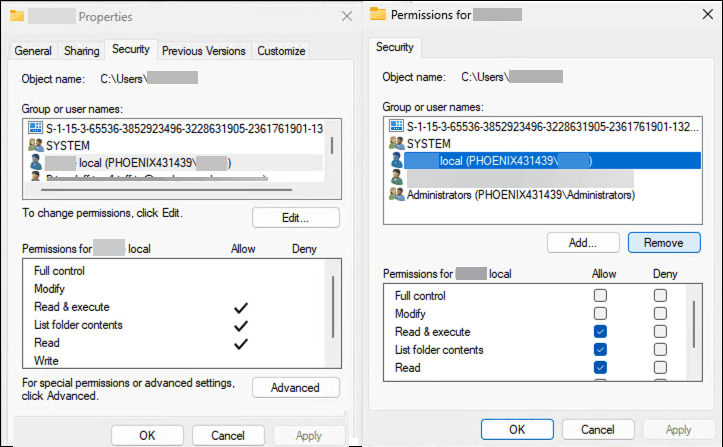
<domain user>\AppData\Roaming, and then delete DBTools.Log in as domain user and remove local account access to the domain account home directory.
-
-
Install SQL Developer for VS Code release 23.4.1.