Installing Oracle SQL Developer for VS Code
Oracle SQL Developer for VS code is available for all major platforms.
Perform the following steps to install Oracle SQL Developer for VS Code:
Note: After installing it the first time, the SQL Developer extension for VS Code is automatically updated as new versions become available.
-
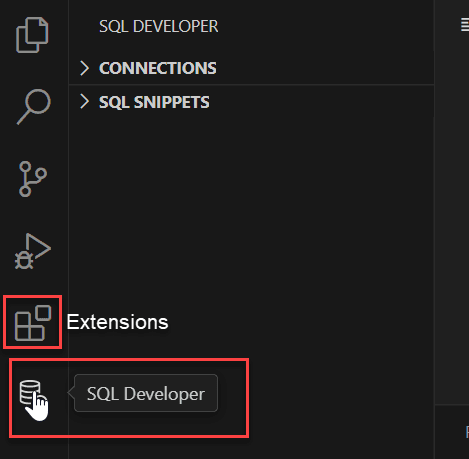
Click the Extensions icon in the Activity Bar on the left side or use the View: Extensions command (Ctrl+Shift+X).
-
In the Extensions pane, in the Search field, enter SQL Developer.
SQL Developer appears as one of the search results.
-
In the result entry, click Install.
SQL Developer appears in the left pane under INSTALLED along with a SQL Developer icon in the left side bar.
-
Click the icon to open SQL Developer. In the left pane, Connections and SQL Snippets appear.