Kerberos Authentication
This section explains how to use Kerberos authentication with the SQL Developer Extension for VS Code on Windows, supporting two Kerberos credential sources:
-
MSLSA (Windows LSA): This is Windows’ native Kerberos credential store, where tickets are kept in memory by the Local Security Authority (LSA).
-
MIT Kerberos: This method uses a file-based Kerberos configuration and credential cache.
VS Code Extension Settings
To open the settings, click the Extensions icon in the Activity Bar on the left side, locate Oracle SQL Developer Extension for VS Code, click Manage, and then select Settings. In the Settings window, select Database Connections from the left pane.
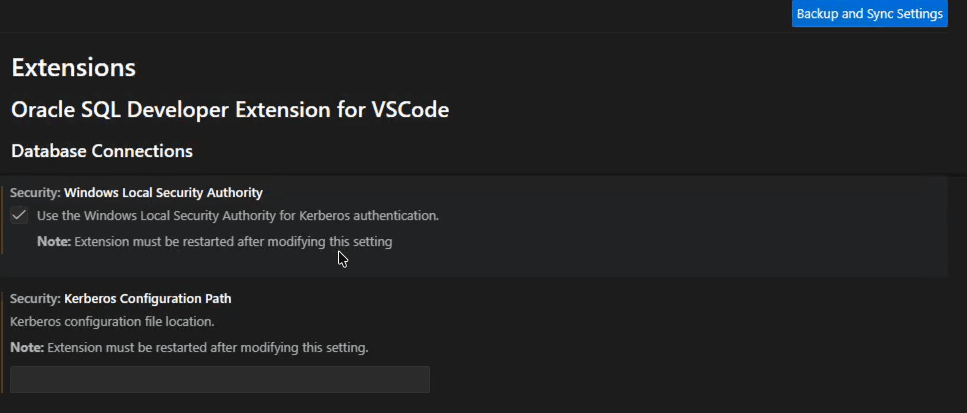
Description of the illustration kerberos_settings.png
Choosing the Kerberos Mode (MSLSA/MIT)
The Kerberos mode is controlled by two settings that are mutually exclusive. After changing either setting, you must restart the extension for changes to take effect.
-
Security: Windows Local Security Authority
This setting enables MSLSA-based Kerberos authentication on Windows. When the Use the Windows Local Security Authority for Kerberos authentication checkbox is selected, the extension uses the Windows Local Security Authority (LSA) credential store to obtain the Kerberos ticket needed to perform the authentication.
-
Security: Kerberos Configuration Path
This setting specifies the location of the Kerberos configuration file (for example, krb5.conf) used when Security: Windows Local Security Authority is not enabled. When a valid path is provided, the extension uses it to get the Kerberos configuration needed to create the connection.
Creating or Editing Connections for Kerberos
To configure a Kerberos connection, ensure the connection definition indicates Kerberos is enabled by setting the following Advanced property. This property is required for both MSLSA and MIT Kerberos connections.
oracle.net.authentication_services = (KERBEROS5)The extension uses the presence of KERBEROS5 to treat the connection as Kerberos-based. For Kerberos connections, the username and password fields can be left empty because authentication is performed using existing Kerberos credentials. This applies to Custom JDBC, TNS, and Wallet connection types.
MIT Kerberos (File-Based) Connection
When using MIT Kerberos-style (file-based) authentication, two additional configuration items are required beyond what is typically needed for an MSLSA Kerberos connection:
-
Set Security: Kerberos Configuration Path to the location of your Kerberos configuration file (for example,
krb5.conf). -
In the connection’s Advanced properties, add
oracle.net.kerberos5_cc_nameto point to the local Kerberos ticket cache file (for example, akrb5.cccache).
This property is used in addition to enabling Kerberos through oracle.net.authentication_services = (KERBEROS5). Together, these settings ensure the connection uses the file-based Kerberos configuration and ticket cache rather than Windows LSA credentials.
SQLCL Support
All Kerberos functionality supported by the VS Code extension is also supported when launching and using SQLcl, so Kerberos-authenticated sessions work seamlessly without requiring users to re-enter connection details. The solution supports opening SQLcl by:
-
Right-clicking a saved connection and selecting Open SQLcl
-
Connecting from an in-IDE SQLcl terminal using
connect -name <connection_name> -
Connecting from an external OS terminal using the SQLcl executable with a named connection:
sql -nolog
connect -name <connection_name>
For MSLSA on Windows, the external scenario introduces an additional -mslsa flag to start SQLcl in native Kerberos mode. For example:
sql -nolog -mslsa
connect -name <connection_name>
For MIT Kerberos, SQLcl continues to work using the configured file-based Kerberos settings. In all cases (except for the optional -mslsa flag on Windows), SQLcl should rely on the already-stored connection definition and require no extra parameters.