Additional Cell Configuration Options
This section outlines additional actions you can perform on a cell.
Actions for Code and Markdown Cells
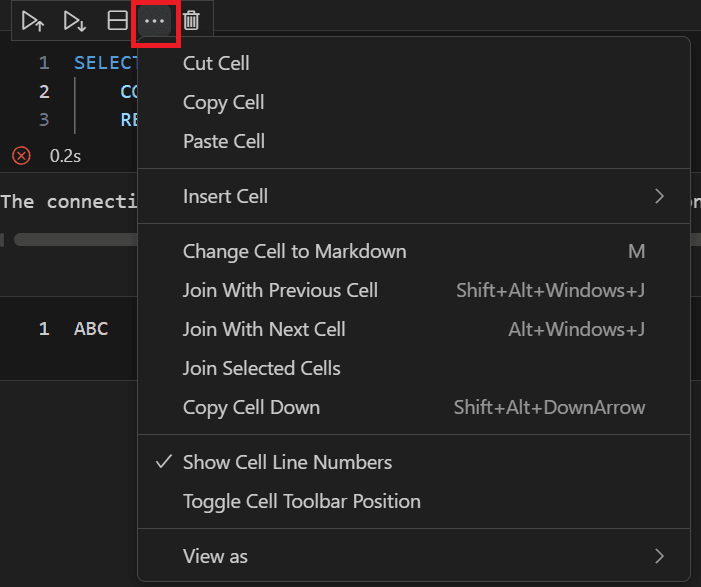
Description of the illustration cell_more_options.png
-
Cut Cell deletes the selected cell and stores its contents for pasting.
-
Copy Cell copies the selected cell.
-
Paste Cell pastes the previously cut or copied cell.
-
Insert Cell inserts a new code or Markdown cell above or below the selected cell.
-
Change Cell to Markdown changes the selected code cell to a Markdown cell. This option is available only for code cells.
-
Join With Previous Cell (Shift+Alt+Windows+j) joins the selected cell with the preceding cell.
-
Join With Next Cell (Alt+Windows+j) joins the selected cell with the next cell.
-
Join Selected Cells joins the selected cells.
-
Copy Cell Down (Shift+Alt+Down Arrow) duplicates the selected cell directly below.
-
Show Cell Line Numbers shows or hides the line numbers in the cell.
-
Toggle Cell Toolbar Position moves the toolbar to either the upper-left or upper-right corner of the cell.
-
View as provides the options to view the output of a code cell in different chart formats. These formats are:
-
View as Table
-
View as Basic Bar Chart
-
View as Horizontal Bar Chart
-
View as Stacked Bar Chart
-
View as Pie Chart
-
View as Donut Chart
-
View as Nightingale Rose Chart
-
View as Basic Line Chart
-
View as Smooth Line Chart
-
View as Area Line Chart
-