Working with Diagrams
The SQL Developer extension for VS Code allows you to visualize database objects, such as tables, views, and duality views on diagrams.
You can save, export, and reopen these diagrams with ease. Additionally, it allows you to explore dependencies between various database objects and provides a search function to quickly find objects within the diagram.
To open a new diagram, right-click the connection name in the Connections panel and select Open Diagram.
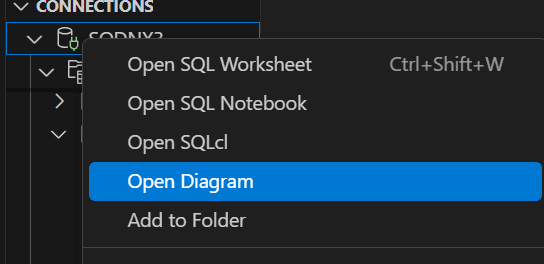
Description of the illustration open_diagram_menu.png
A diagram window, along with the instructions for working with diagrams, is displayed on the right pane. You can now add objects to this diagram.
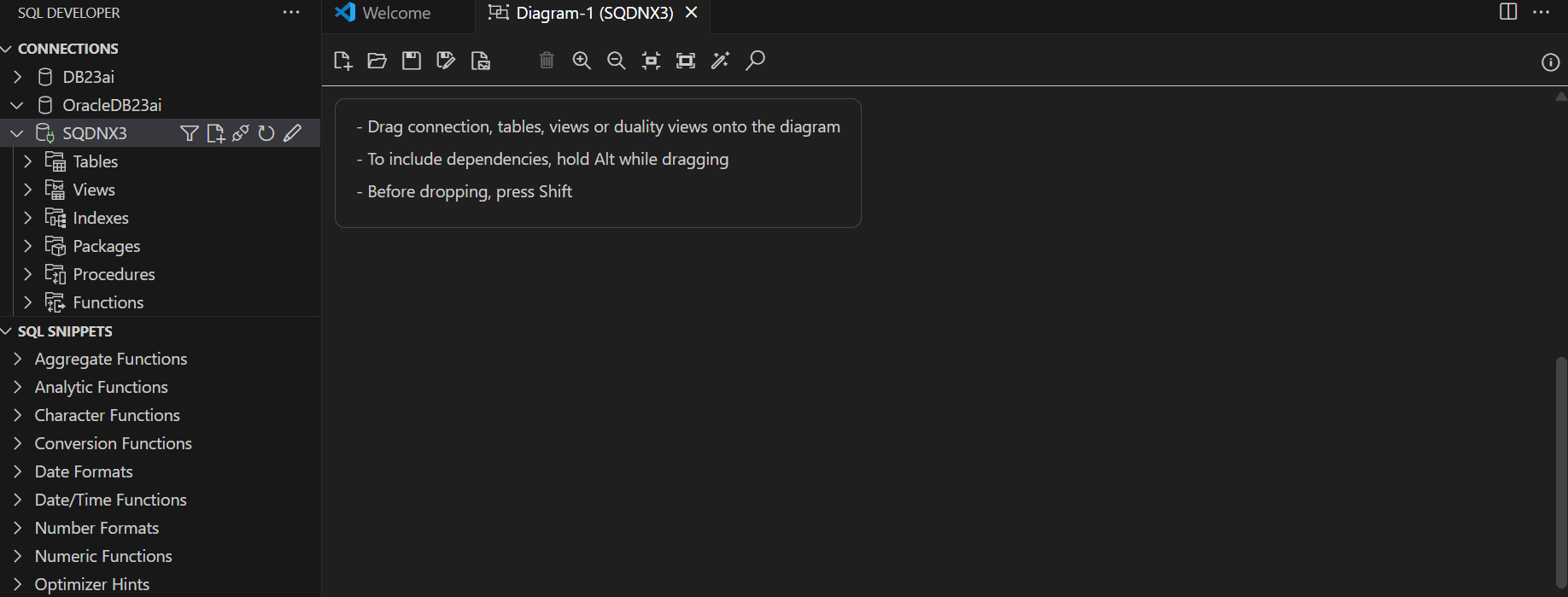
Description of the illustration diagram_editor.png
Adding Objects to a Diagram
You can add objects to the diagram using drag-and-drop functionality from the connection folder (node), object type folders, or individual objects. The supported object types for diagrams are Tables, Views, and Duality Views.
Different types of selections cannot be combined in a single drag-and-drop action. Selection is processed according to the following priority: Connection Folder (Node), Object Type Folders (for example, Tables, Views), Individual Objects. If a higher-priority item is selected, any lower-priority items included in the selection will be ignored. For example, if you select both a connection folder and individual tables, only the connection folder will be processed.
Using the Connection Folder (Node)
-
Select the connection folder and drag it with your mouse.
-
When your cursor is positioned over the diagram, press the Shift key once.
All tables, views, and duality views from the schema associated with the connection will be retrieved and laid out on the diagram.
For example, when you select the entire connection, the required details for all tables, views, and duality views within the schema are retrieved from the database, and the objects are systematically arranged on the diagram.
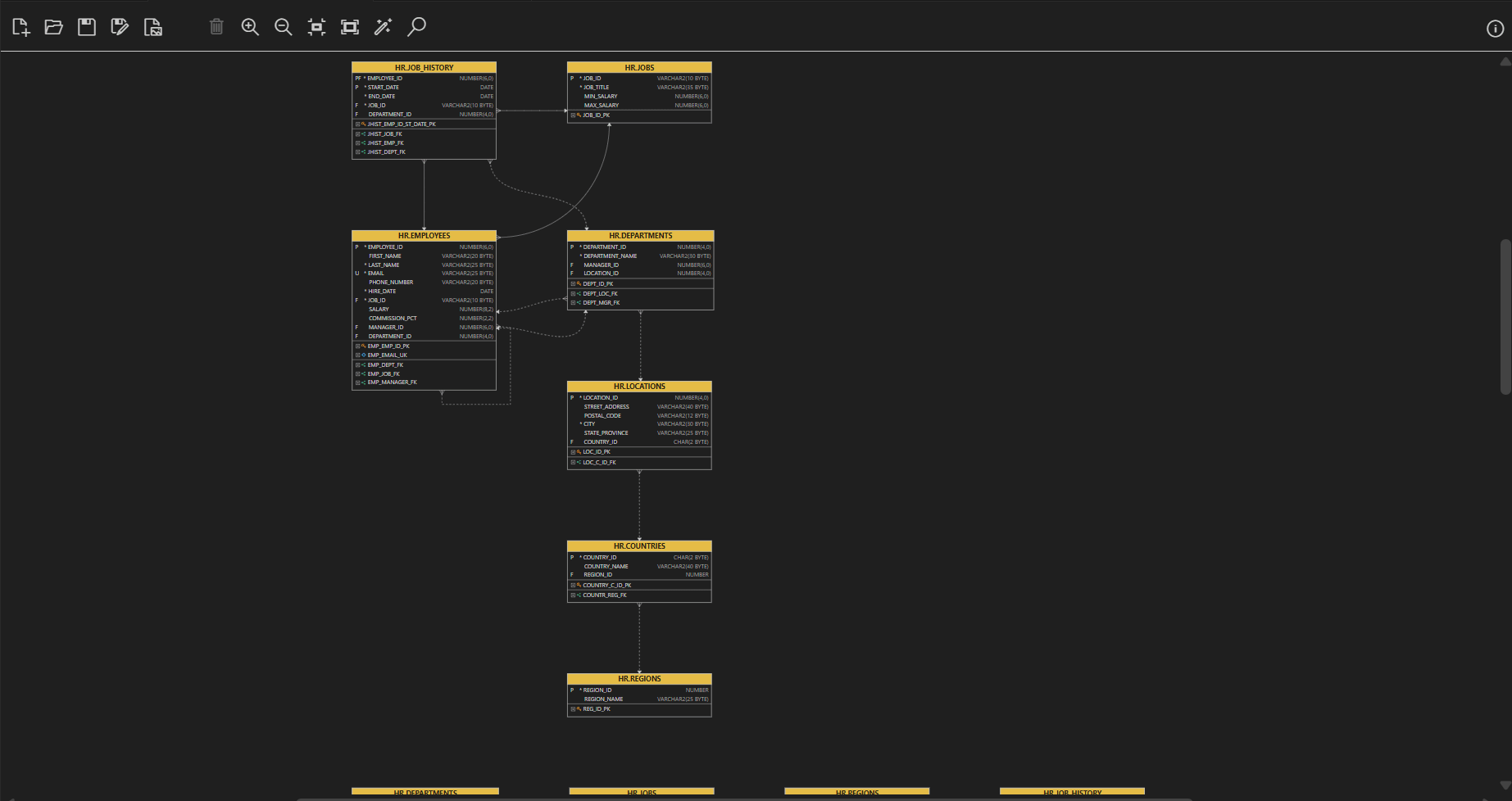
Description of the illustration connection_diagram.png
Using Object Type Folders
Supported object type folders include Tables, Views, and Duality Views. You can select type folders from your schema or from the Other Users folder (for objects in other schemas). Select one or more type folders from one or multiple schemas and drag them to the diagram, then press the Shift key once when the cursor is over the diagram. All objects contained in the selected type folders will be added to the diagram.
For example, if you select the Tables folder, drag it to the diagram window, press the Shift key, and then release the mouse button to drop it. All the tables will be added to the diagram.
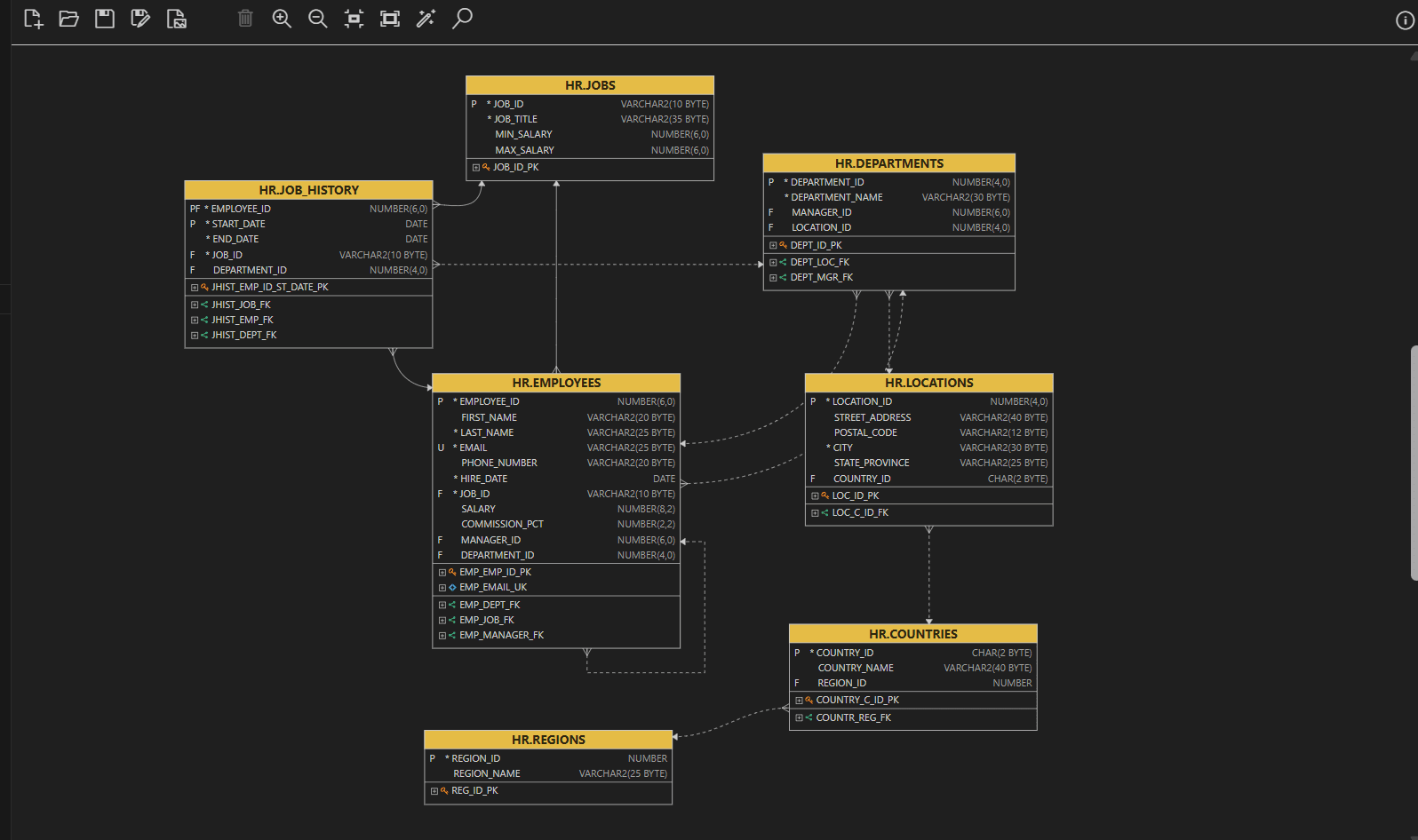
Description of the illustration foldertype_diagram.png
Using a Selection of Supported Objects
You can select individual supported objects (table, view, duality view) from one or multiple schemas (provided your connection user has access). Drag the selected objects to the diagram and press the Shift key once when the cursor is in the diagram area.
Adding Supported Objects with Dependencies
The schema objects can reference other objects as part of their definition. To add objects along with their dependencies, select the objects you wish to add. While dragging to the diagram, hold the Alt key. This will add the objects referencing (one level up) and the objects referencing (one level down) by your selection.
Note: To process and include dependencies, ensure you hold the Alt key during the drag-and-drop action.
For example, if you want to view the dependencies for the COUNTRIES table, hold the Alt key while dragging the COUNTRIES table. Then press the Shift key before dropping the table onto the diagram window. The objects referenced by the selected object, and the objects referencing the selected object will also be added to the diagram.
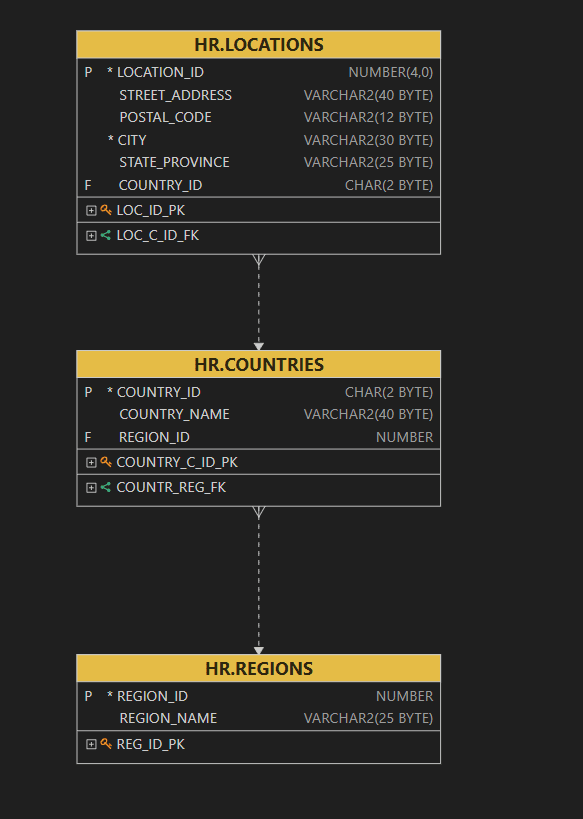
Description of the illustration diagram_dependency.png
The SQL Developer extension for VS Code allows you to perform the following operations using the buttons available on the toolbar:
-
New Diagram (Shift+Alt+N) opens a new diagram window.
-
Open Diagram (Shift+Alt+O) opens a previously saved diagram in the diagram window.
-
Save Diagram (Shift+Alt+S) saves the diagram. The diagram will be saved as
.dgmfile -
Save Diagram As... saves the current diagram under a new name or in a different location.
-
Export Diagram (Shift+Alt+E) exports the diagram to the SVG format.
-
Remove Object removes one or more selected objects from the diagram. To select multiple objects, press the CTRL key and select the objects.
-
Zoom In enlarges the diagram to make the details easier to see.
-
Zoom Out displays less detail, and potentially more objects, in the currently selected diagram.
-
Fit to Screen makes all relevant objects fit in the window for the currently selected diagram.
-
Actual Size displays the diagram at its original size, without any zooming in or out.
-
Auto Layout rearranges the objects in the diagram to a layout that may be more meaningful and attractive.
-
Search displays the Search for Objects dialog box to search for an object type. Type * to list all the objects of an object type (tables, views, or duality views) in the schema. You can also search by typing a few characters.
-
 displays the number of tables, views, duality views, and foreign keys in the diagram.