Using Table Editor
The Table Editor provides users with an intuitive interface to create and modify database tables efficiently.
Users can define table structures by adding, editing, or deleting columns, specifying data types, and setting constraints such as primary keys and unique keys. Additional options, such as defining indexes, foreign keys, and storage parameters, allow for comprehensive table customization. With straightforward navigation, this feature streamlines the table management process, supporting both new table creation and the modification of existing tables to fit evolving data requirements.
To create a new table, right-click Tables in the Connections panel and select Create Table. The Table Editor: New window appears. From the drop-down list, select a Schema and enter the table name in the Name field. By default, the new table will be named NEW_TABLE.
To edit an existing table, right-click the table name in the Connections panel and select Edit.
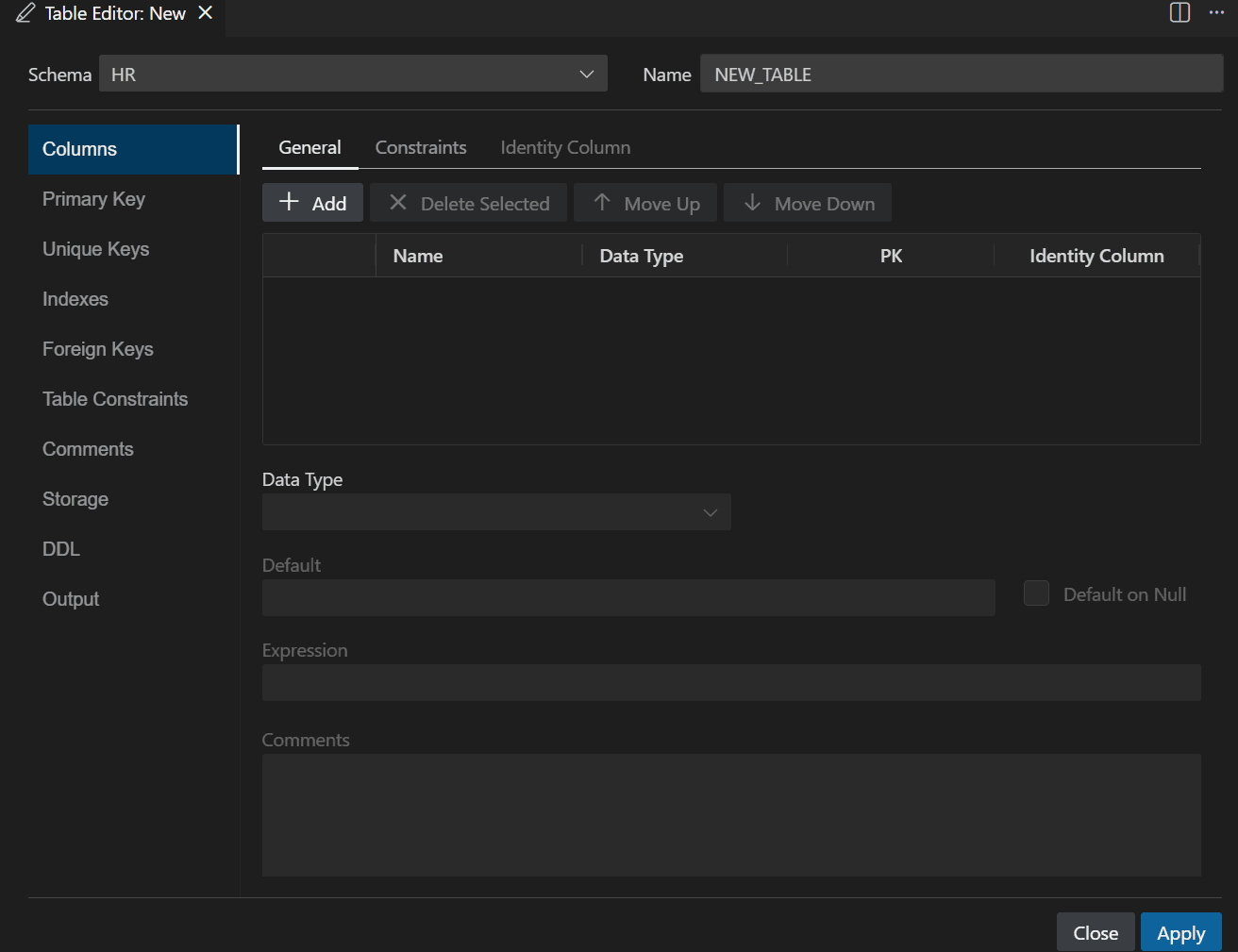
Description of the illustration table_editor_new.png
You can add or edit the table information in the following sections: