19.13.7.5 Access and Share Data using Table Hyperlinks
Table Hyperlinks provide a method for sharing and retrieving data from SQL queries, tables, and views without requiring additional credentials.
Spreadsheet Add-ins support Table Hyperlinks in two ways:
- Producer: Creates and shares a Table Hyperlink for query results. You can create a Table Hyperlink from the add-in UI, such as Direct SQL or Data Analysis.
- Consumer: Uses a Table Hyperlink shared by a Producer to load read-only data directly into a spreadsheet without a database connection or an Oracle Autonomous AI Database account.
For more information, see Use Table Hyperlinks for Read Only Data Access on Autonomous AI Database.
In Autonomous AI Database, a Producer generates a Table Hyperlink using the DBMS_DATA_ACCESS PL/SQL package and
shares it with Consumers. See DBMS_DATA_ACCESS Package.
The following is an example of a Table Hyperlink.
https://dataaccess.adb.<oci_region>.oraclecloudapps.com/adb/p/F5Sn....Use a Shared Table Hyperlink in Spreadsheet Add-ins
-
Start Microsoft Excel or Google Sheets and open a workbook.
-
From the Oracle Database menu select Table Hyperlinks.
-
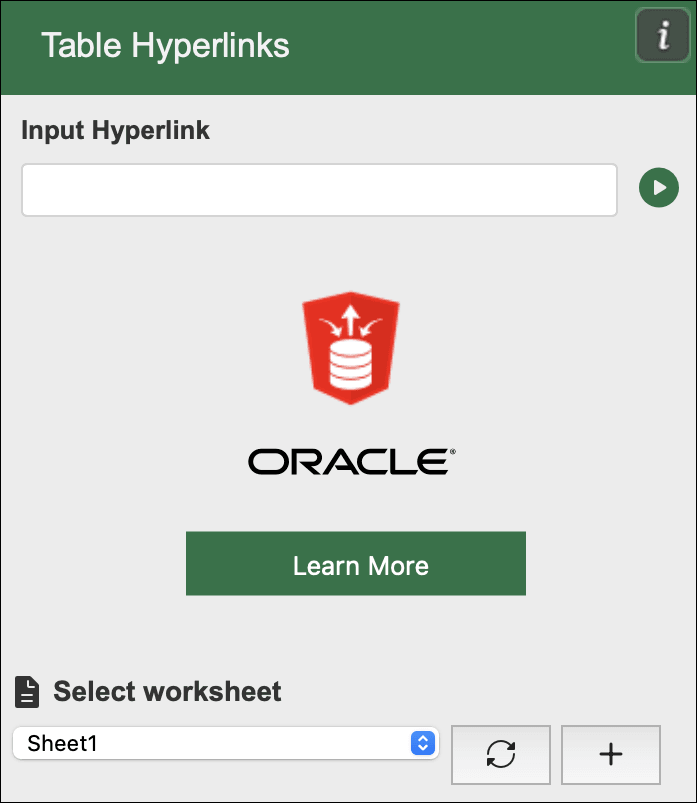
In the Input Hyperlink field, enter the Table Hyperlink shared by the Producer.
-
In the Select worksheet option, select the sheet where you want to retrieve and display the query results.
-
The button after Input Hyperlink, a circle with a triangle in it, is the Run button. Click this button to run the query using the hyperlink.
The add-in displays data from your query result in the selected sheet.
More Options in Table Hyperlinks
Table Hyperlinks also provide the following options for additional control.
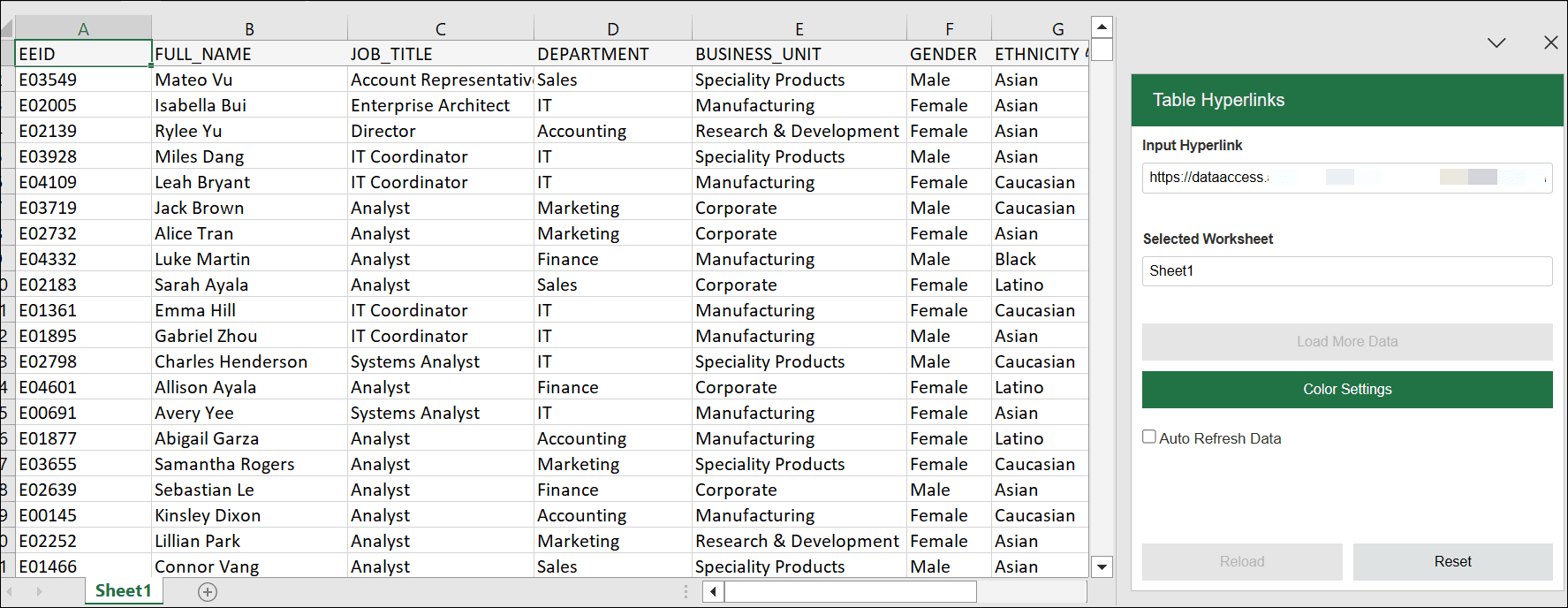
Load More Data
When you run a query using a Table Hyperlink, the worksheet displays the first 10,000 records from the database in your query result. You can use this button to retrieve the next set of 10,000 records from the database.
Note:
The Load More Data button is enabled only when the database has additional rows to display.
Color Settings
-
Click this button to manage the color settings.
-
Select the columns for coloring and click Enable Color to apply colors to columns in the query result. The option Reset Color removes the colors from the query result.
This option applies colors to the data for the selected columns.


Auto Refresh Data
This option updates the worksheet automatically at regular intervals with the latest data from the source database. You can select the checkbox for autorefresh and set the frequency using the slider option. The autorefresh frequency ranges from 5 minutes to 1 day.
Reload
Use this option to manually refresh the worksheet with data retrieved from the Table Hyperlink.
Note:
This button displays a maximum of 50,000 records.
Reset
This option clears all data from the worksheet. It resets your current selections and goes back to the previous window with the Input hyperlink option.
Select Reset to clear all data from the sheet, reset your selection of all the current options and enter the Input Hyperlink again.