19.13.10 Troubleshoot Scenarios with Spreadsheet Add-ins
Describes scenarios for identifying issues while using Spreadsheet Add-ins and suggests corrective steps.
Spreadsheet Add-ins support the latest versions of Apple Safari, Google Chrome, Microsoft Edge, and Mozilla Firefox.
Note:
The steps or options in these scenarios might vary depending on the operating system and Microsoft Excel version. Contact your IT or system administrator for assistance.
When contacting Oracle Support for an issue, export logs from Settings and share them with the support team. Review the log file and secure any personal information or sensitive data before sharing it. See Manage Settings.
Scenario
The Add-ins icon on the Home tab is grayed out or disabled.
Suggestion
-
In an Excel workbook, go to File > Account. Under Account Privacy click Manage Settings.
-
Verify that the Turn on optional connected experiences option is selected. Close the Privacy Settings window.
-
From the File menu select Options > Trust Center. Click Trust Center Settings and go to Add-ins tab.
-
Verify that Disable all Application Add-ins is not selected. Deselect this option if already selected.
Do not close the Trust Center window.
-
Go to the Trusted Add-in Catalogs tab in the Trust Center window.
- Deselect the option Don't allow any web add-ins to start if already selected.
Verify that the Add-ins option is enabled.
Scenario
Why does the sign-in page in Add-in for Excel fail to load or is inaccessible?
Suggestion
-
Check the compatibility version of Excel and the operating system.
-
Check for any pending updates for Windows, Microsoft Office, or the web browser.
-
Open Windows Settings from the Start menu or press Windows + I on the keyboard.
-
On the Windows Update tab check for updates. If updates are available, review and install as required.
Scenario
The add-in does not work correctly after reinstalling.
Suggestion
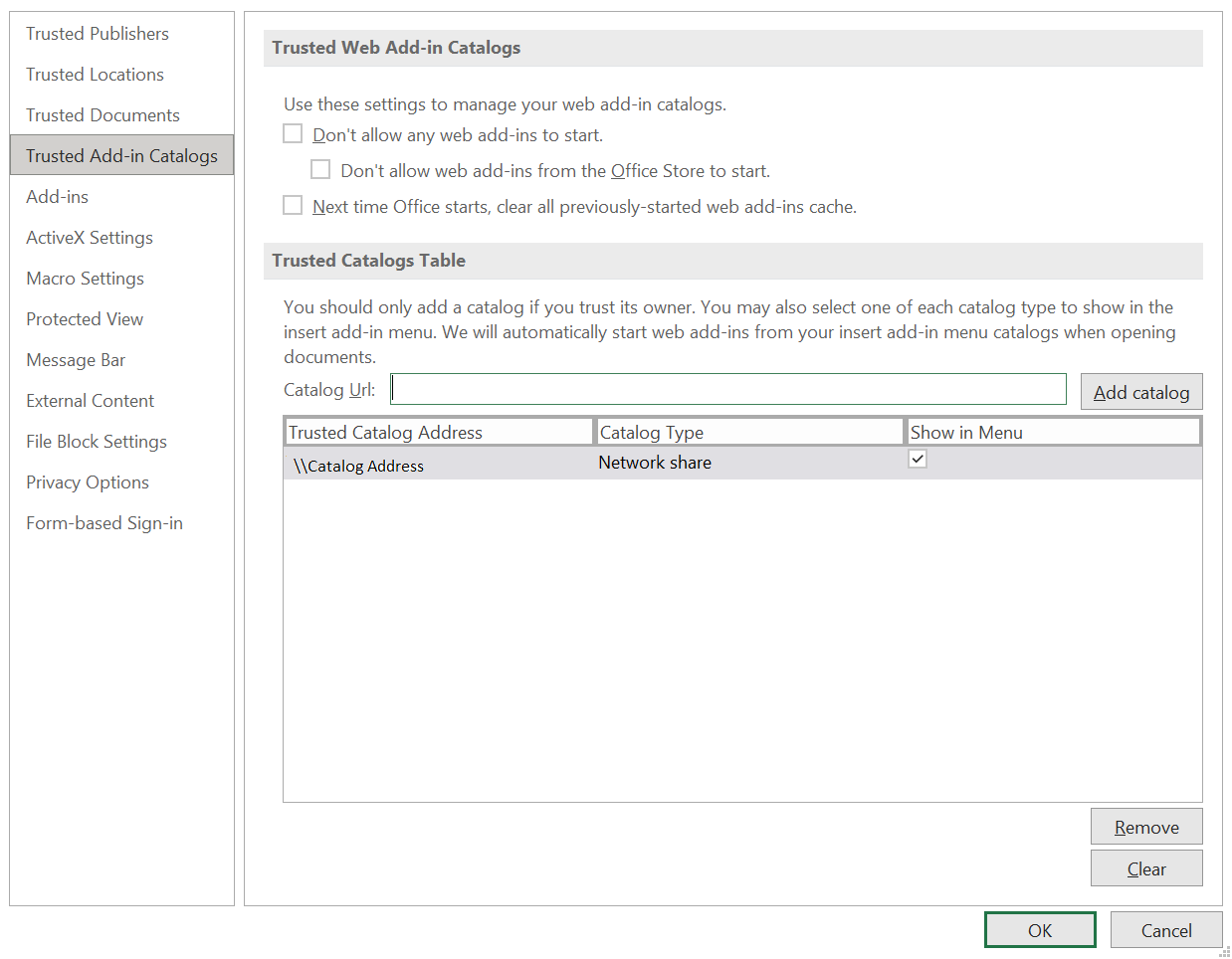
Verify the configuration under Trusted Add-in Catalogs.
-
In an Excel workbook, from the File menu select Options > Trust Center.
-
Click Trust Center Settings and go to Trusted Add-in Catalogs tab.
-
Verify that the shared manifest folder path shows the correct location.
Note:
This set up is required only one time when you run the add-in installer or if the shared manifest folder is changed. The catalog address might change after the add-in removal and reinstallation for pointing to a new database.
To remove the existing catalog and add a new catalog:-
From the Trusted Catalog Table select the catalog you want to remove and click Remove.
-
Enter the new path of the shared manifest folder in the Catalog URL field and click Add catalog to add the shared folder to Trusted Catalog.
-
Restart the Excel application to apply the changes and to access Spreadsheet Add-ins.
Scenario
The add-in does not work even after configuring Trusted Add-in Catalogs in Excel.
Suggestion
Sometimes the database server changes are not reflected in Excel even after you set the correct path of the shared manifest folder in Trusted Add-in Catalogs.
To fix this:
-
Clear the Microsoft Office cache to unload Add-in for Excel
-
Reinstall the add-in and verify the configuration under Trusted Add-in Catalogs.
Scenario
The Add-ins icon is missing in Excel. What to do?
Suggestion
Follow these instructions to manually insert the add-in icon in Excel.
-
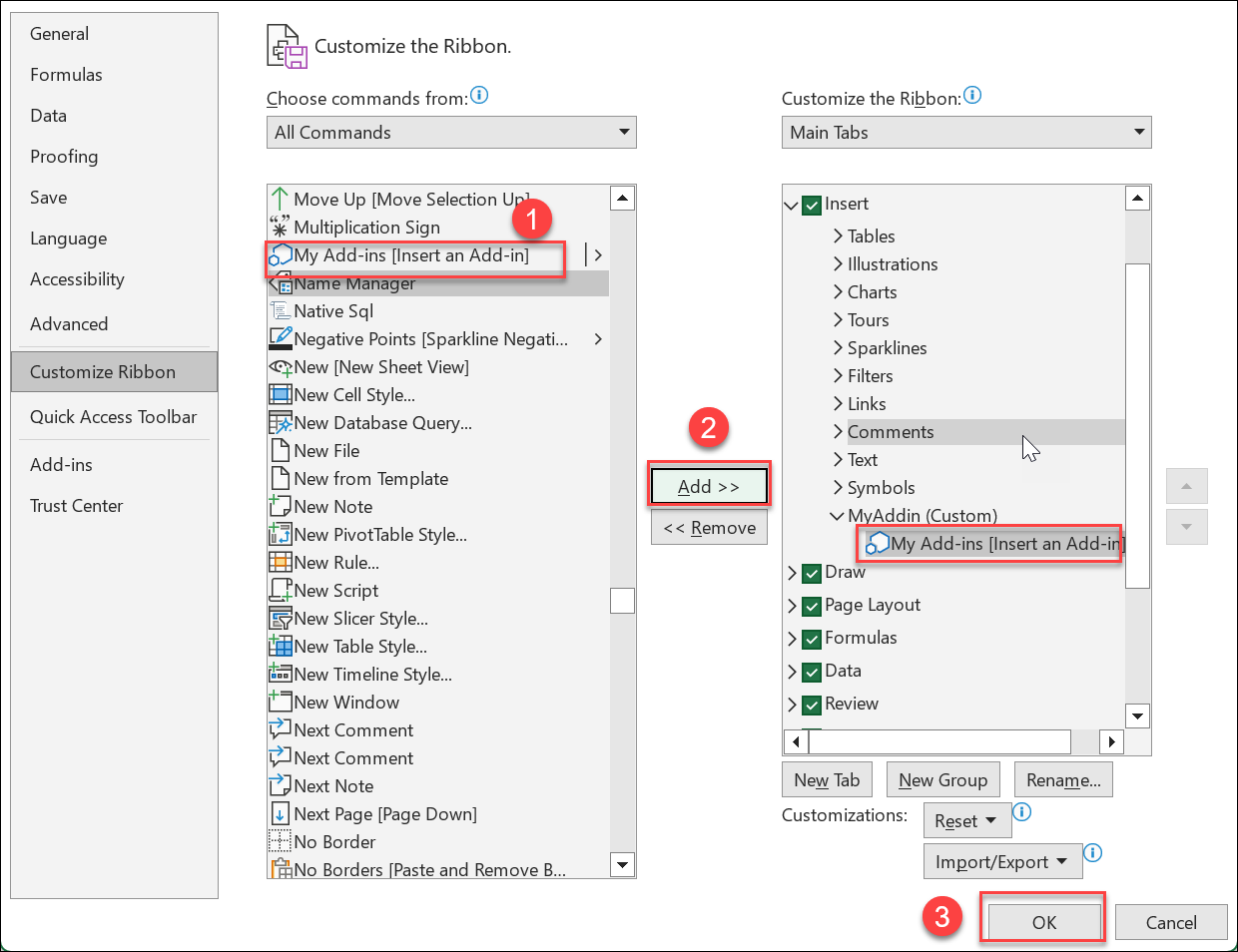
From the File menu select Options > Customize Ribbon.
-
Click New Group to add a new menu item under the Insert menu. You can click Rename and specify a name for the newly created menu, for example, My Addin.
-
In Choose commands from select All Commands.
-
Select My Add-ins [Insert an Add-in] from the All Commands list and click Add >> or Insert to add it to the newly created menu My Addin.
Click OK to apply the changes.
-
From the Insert menu click My Add-ins to view Oracle Database Add-in for Microsoft Excel.
Scenario
You cannot view the changes updated in the latest version of the add-in.
Suggestion
-
On the Home tab select Add-ins and click Get Add-ins or More Add-ins depending on the Microsoft Office version.
-
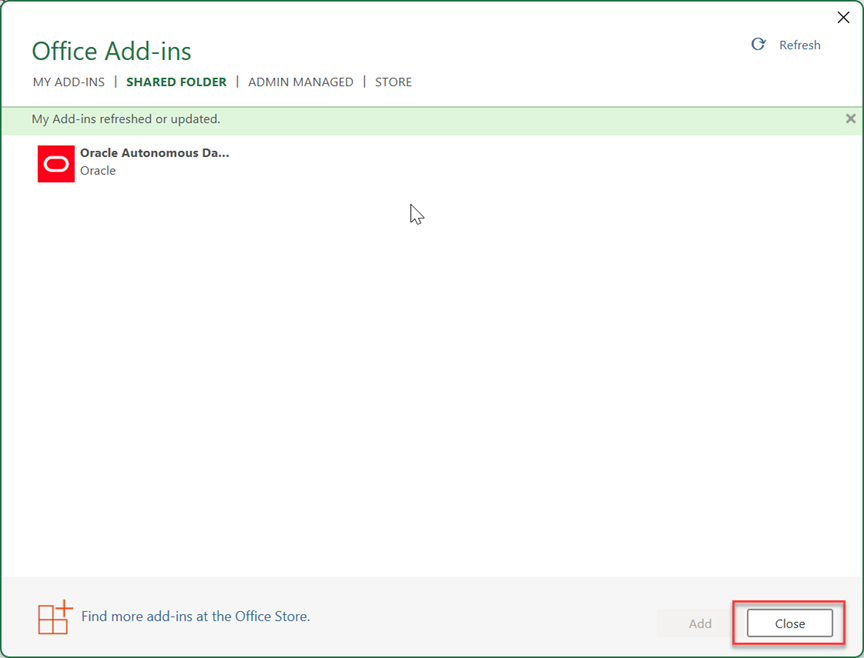
On the Office Add-ins window go to the SHARED FOLDER tab.
-
Click Refresh.
The window displays a message - My Add-ins refreshed or updated.
Scenario
OCI IAM login fails even though the connection configuration is correct.
Suggestion
Verify that the required ORDS role is enabled. Starting with ORDS 26.1.1, ORDS roles are disabled by default. Configure the required role before logging in using OCI IAM authentication. See Set up Role-Based Access Control Automatically using a Script.