3.2.1 Access the Task Tab in Workflow Builder
You can add a task to a workflow in the Workflow Builder.
To access the Task tab in Workflow Builder:
- Click
 .The Workflow Builder is displayed. On the right pane, the Workflow tab displays all the details of the workflow as shown in the following figure. On the left pane, the components of the workflow are depicted visually.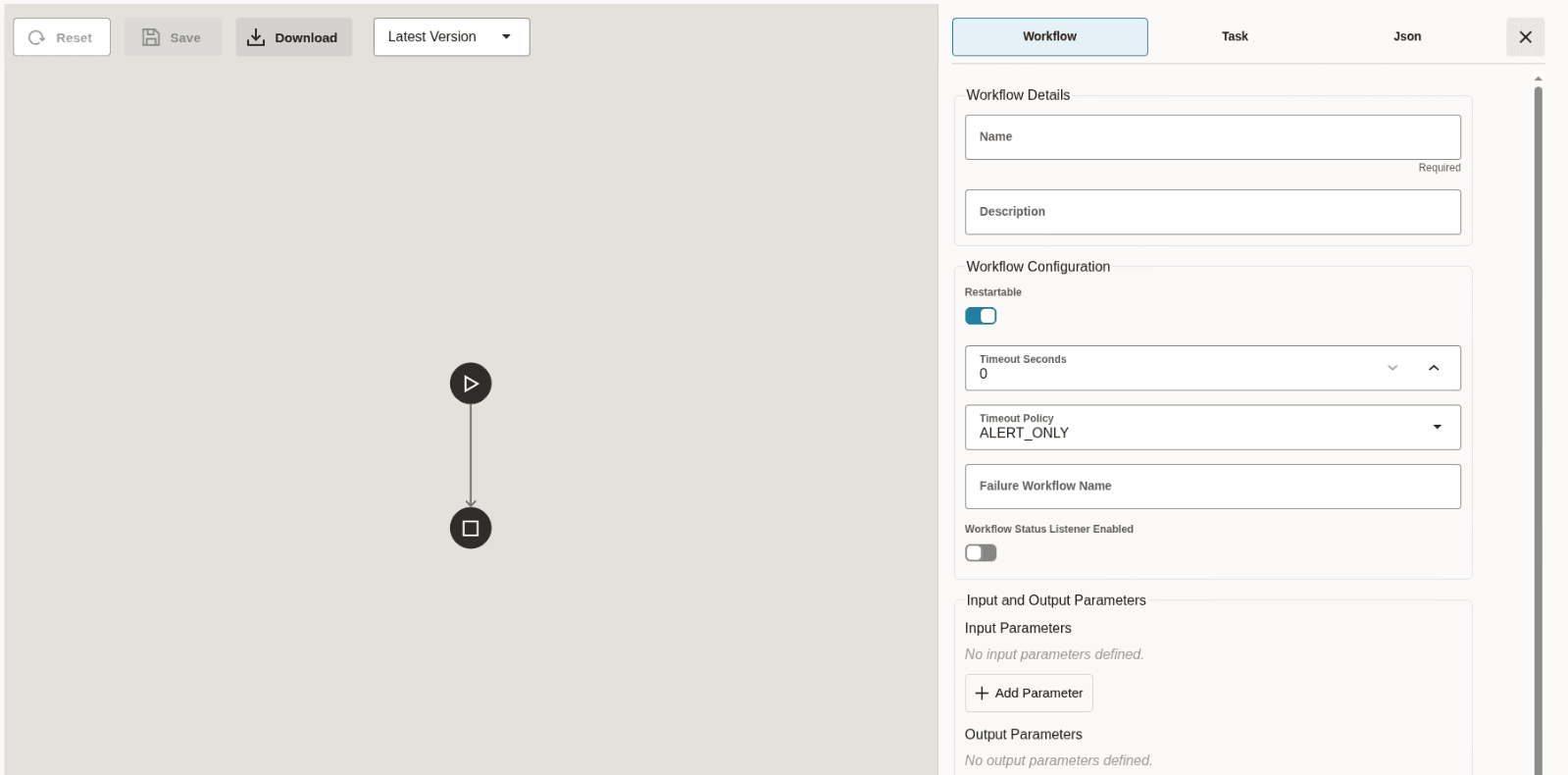
- To add a task in your workflow using the builder, place your cursor on the
arrow mark. A plus sign appears as shown in the following image.
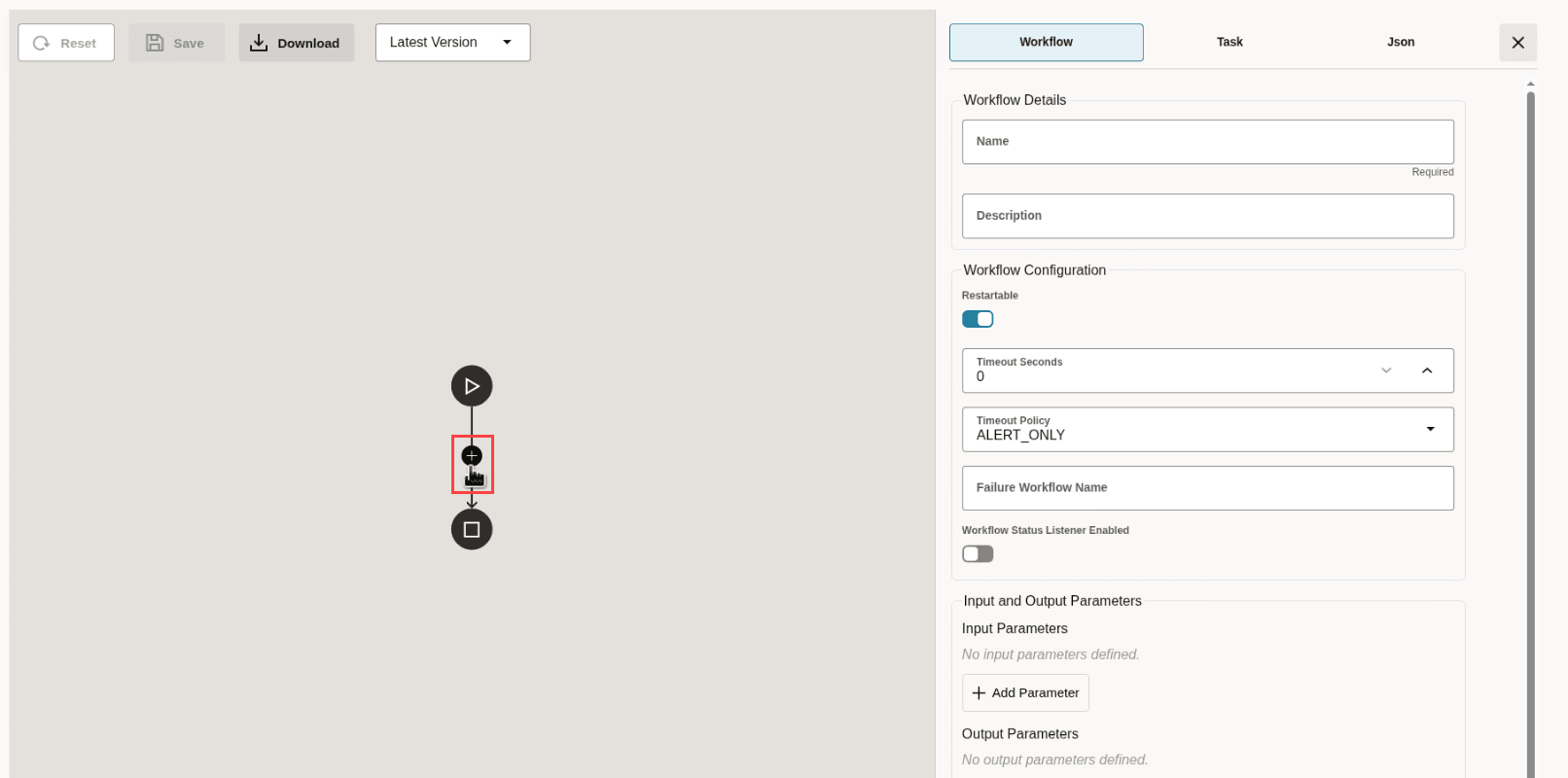
- Click the plus icon. Many tasks are displayed.
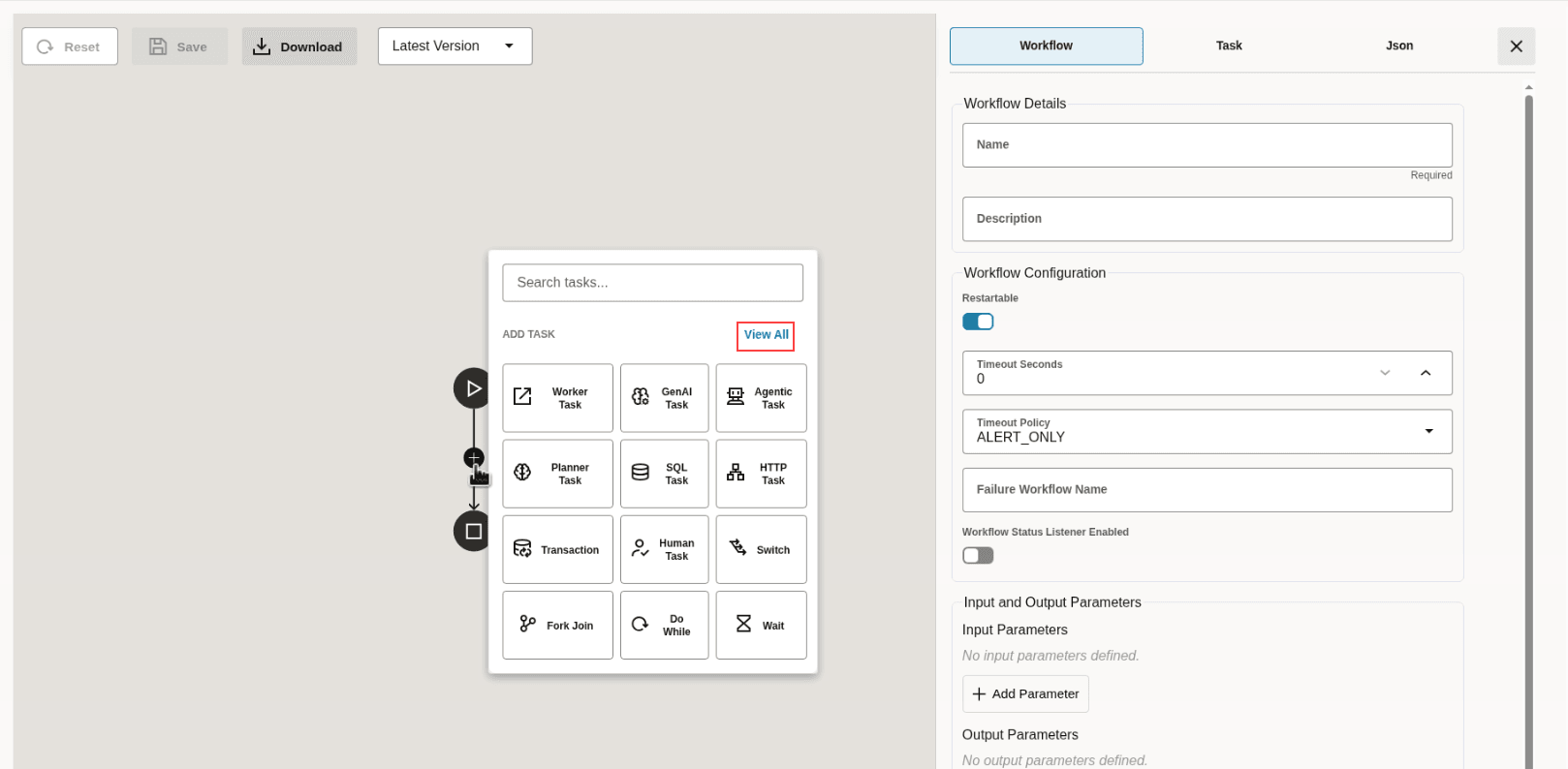
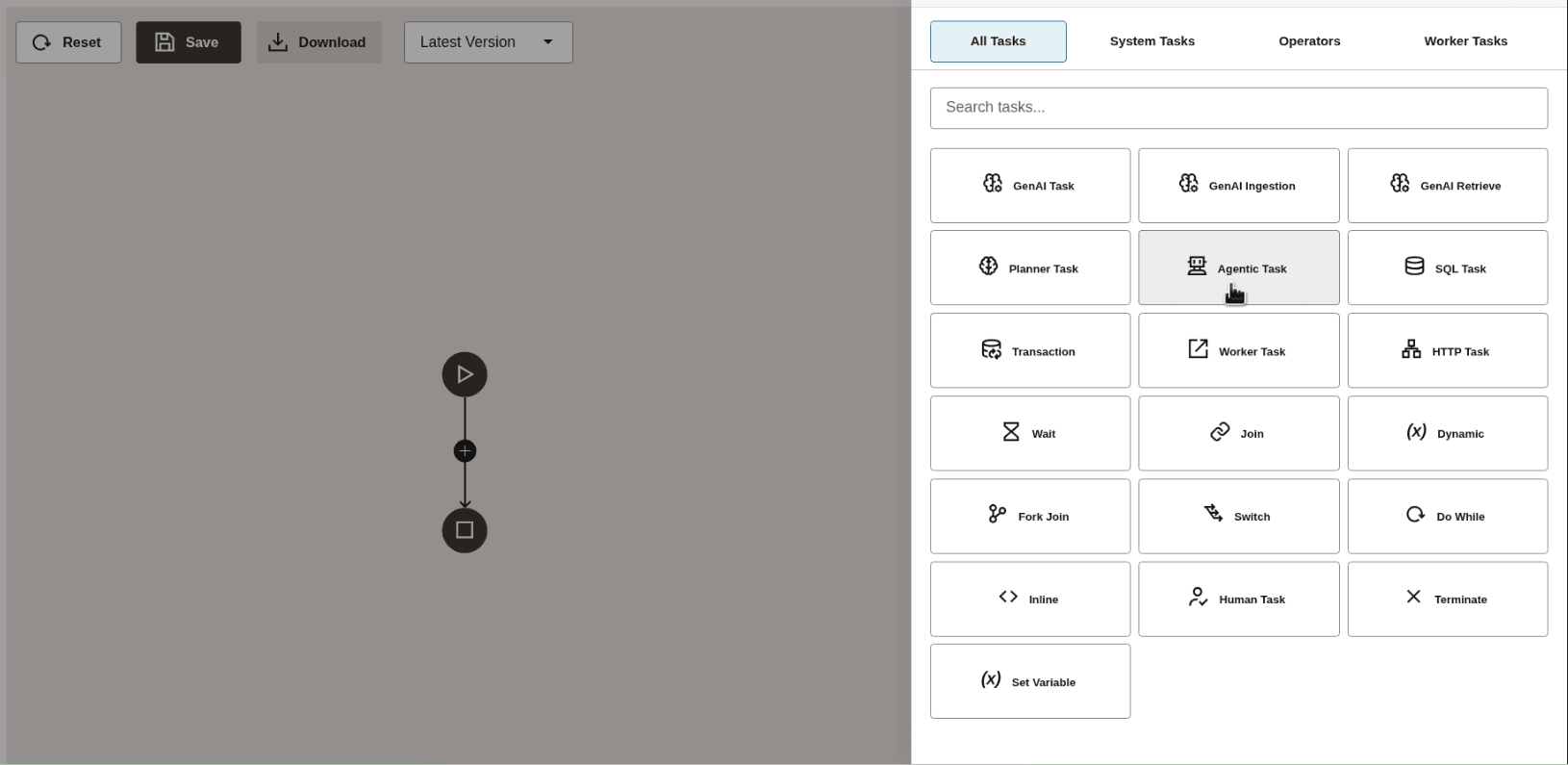
- Click View All to view all the tasks that you can add
using the Workflow Builder.
Parent topic: Create System Tasks and Operator Tasks