3.3.3 Add a Task Definition to a Workflow
After importing or creating a new task definition, you can add the task
definition to a workflow using the Workflow Builder. Let's understand by adding an
example worker task or simple task, called loan_processing_agent_task, to a new
workflow.
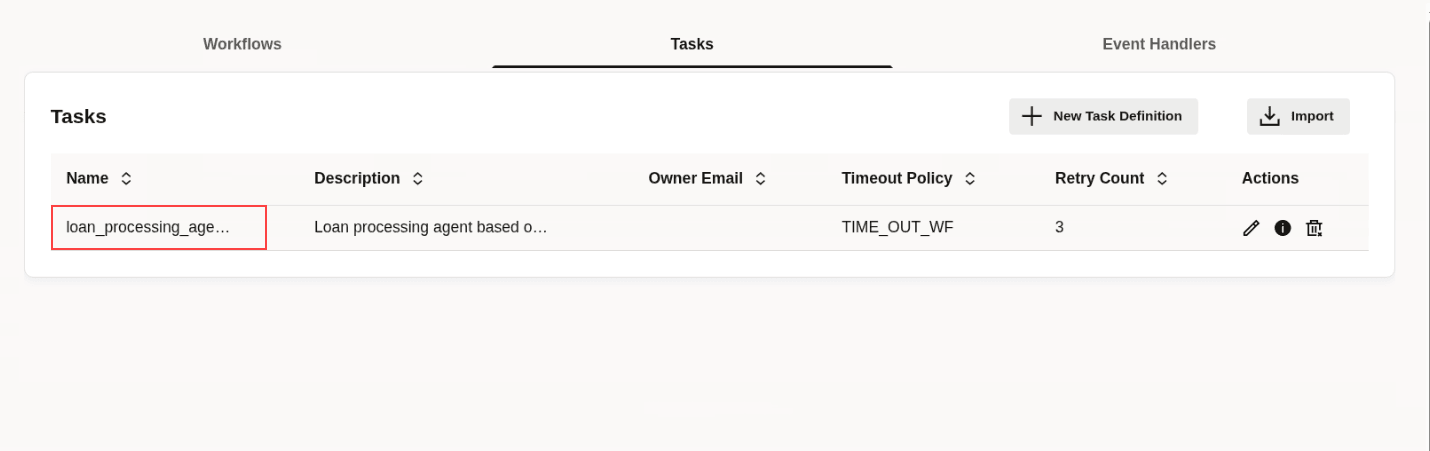
Before you begin, ensure that you have created or imported the task definition
and it is visible in the Tasks list page as shown in the
following image.
- Click New Workflow. The Workflow Builder is displayed. On the right pane, the Workflow tab displays all the details of the workflow as shown in the following figure. On the left pane, the components of the workflow are depicted visually.
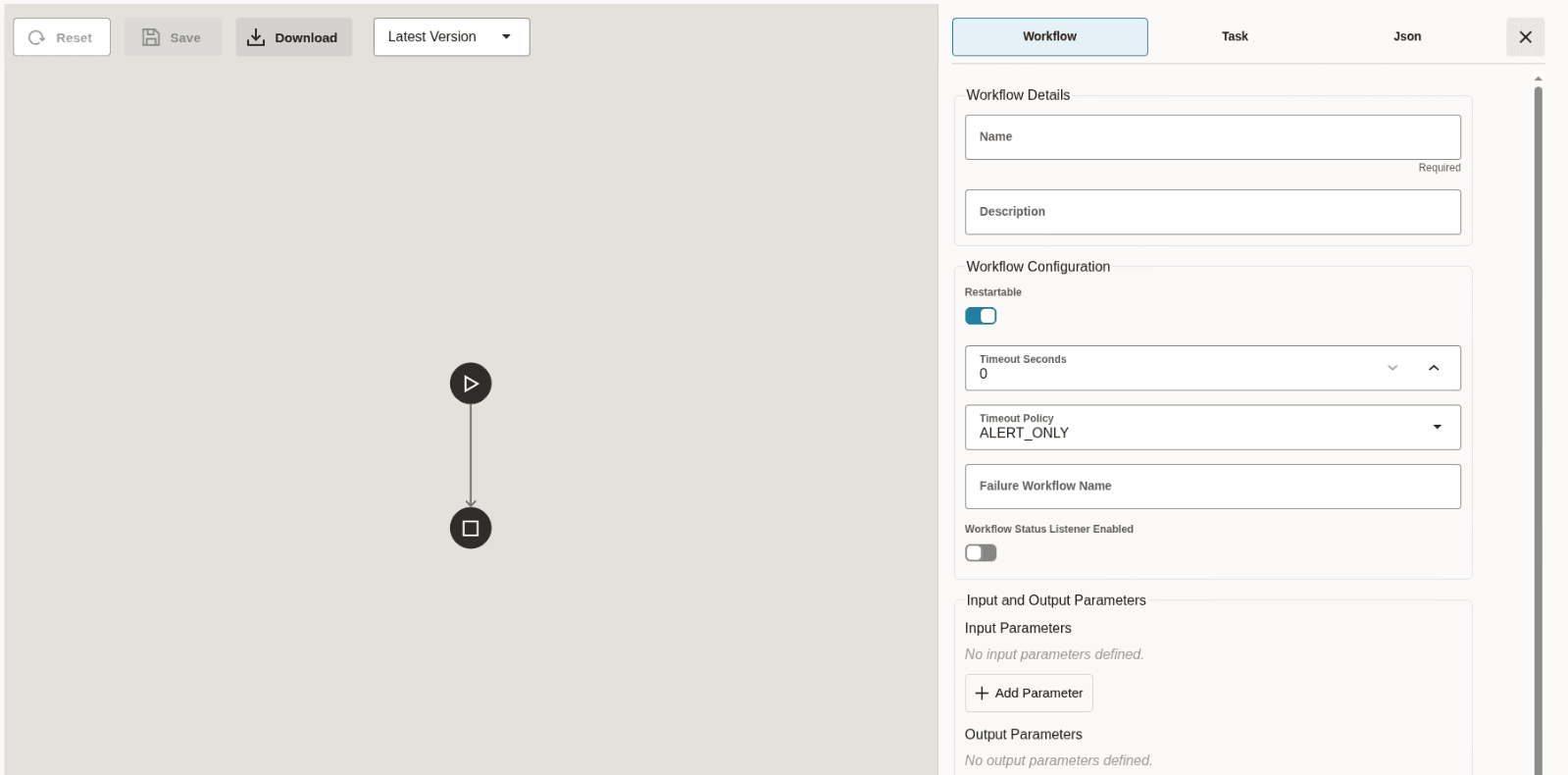
- Place the cursor on the arrow mark. A plus sign appears.
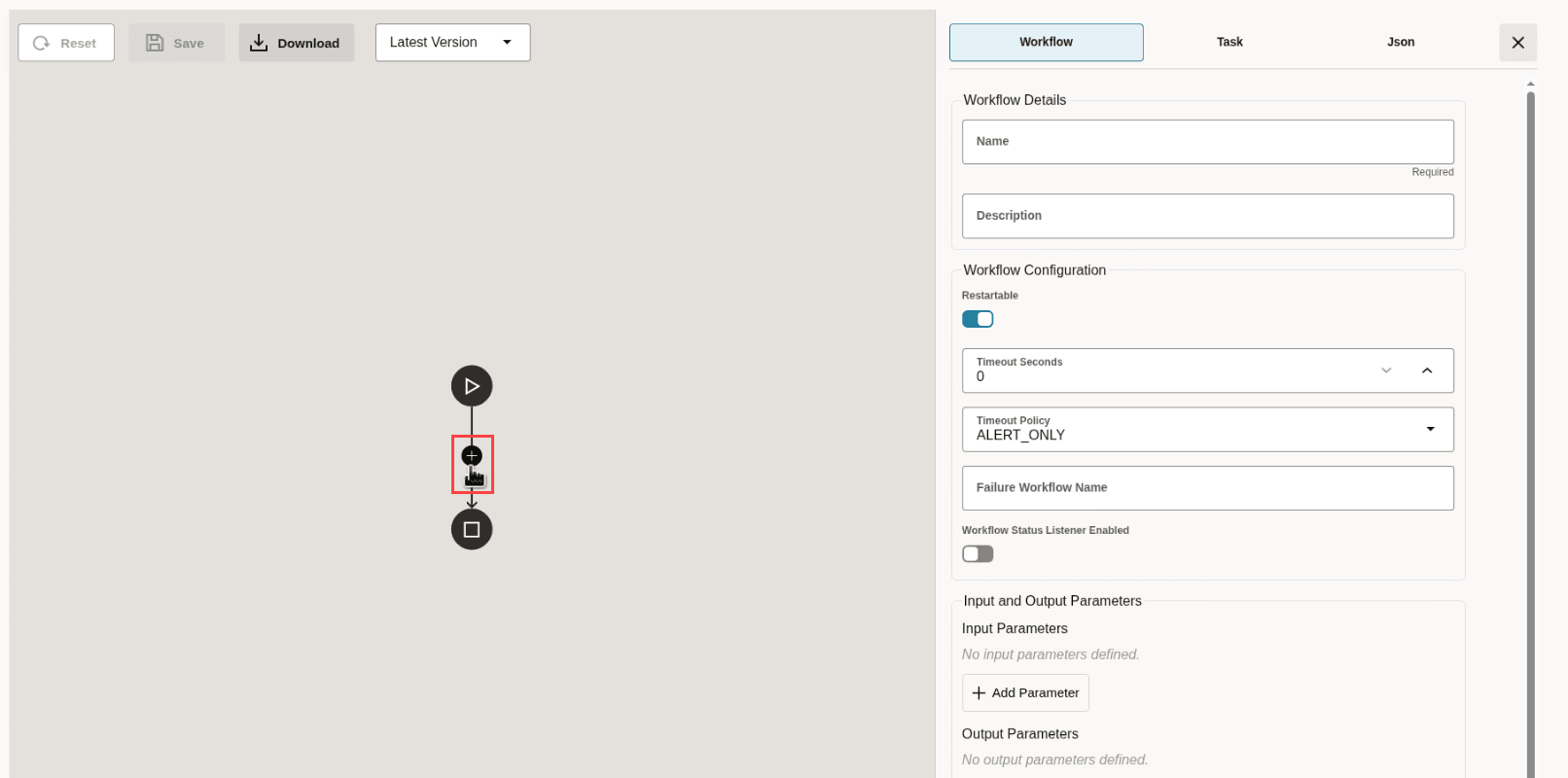
- Click the plus icon. Many tasks are displayed.
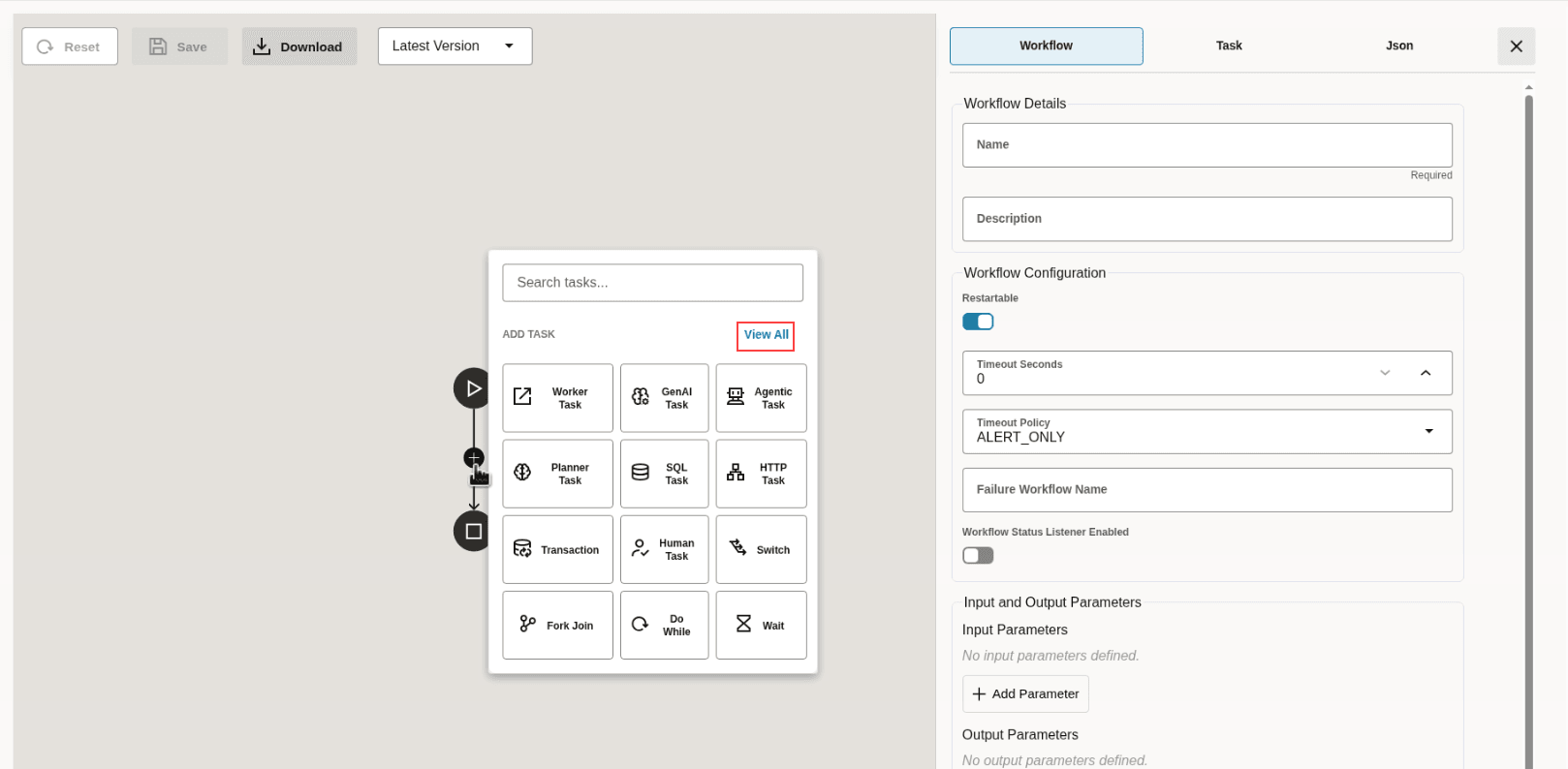
- Click View All to view all the tasks that you can add
using the Workflow Builder.
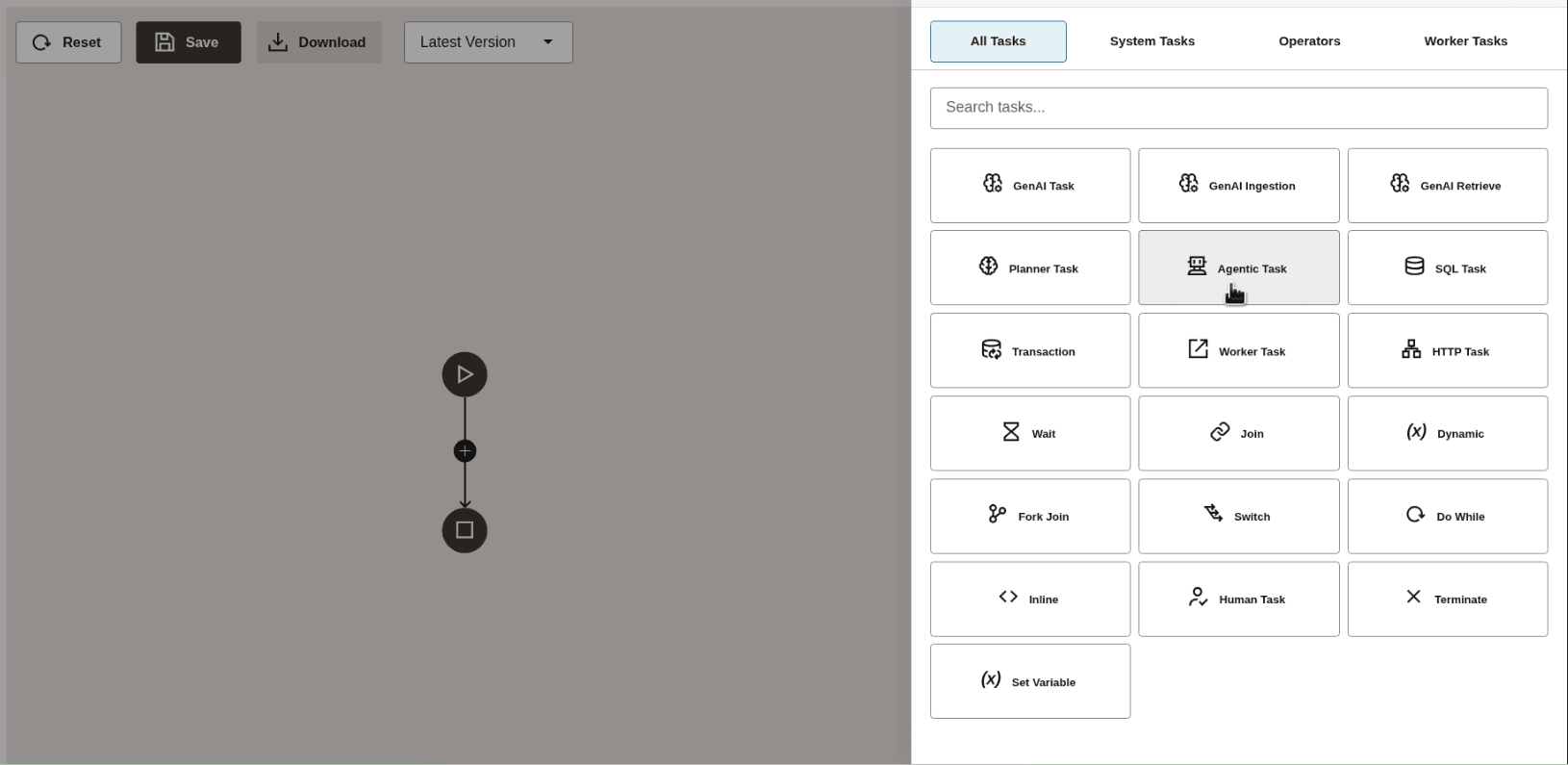
- You can search for a task using the search pane or navigate through the tabs to
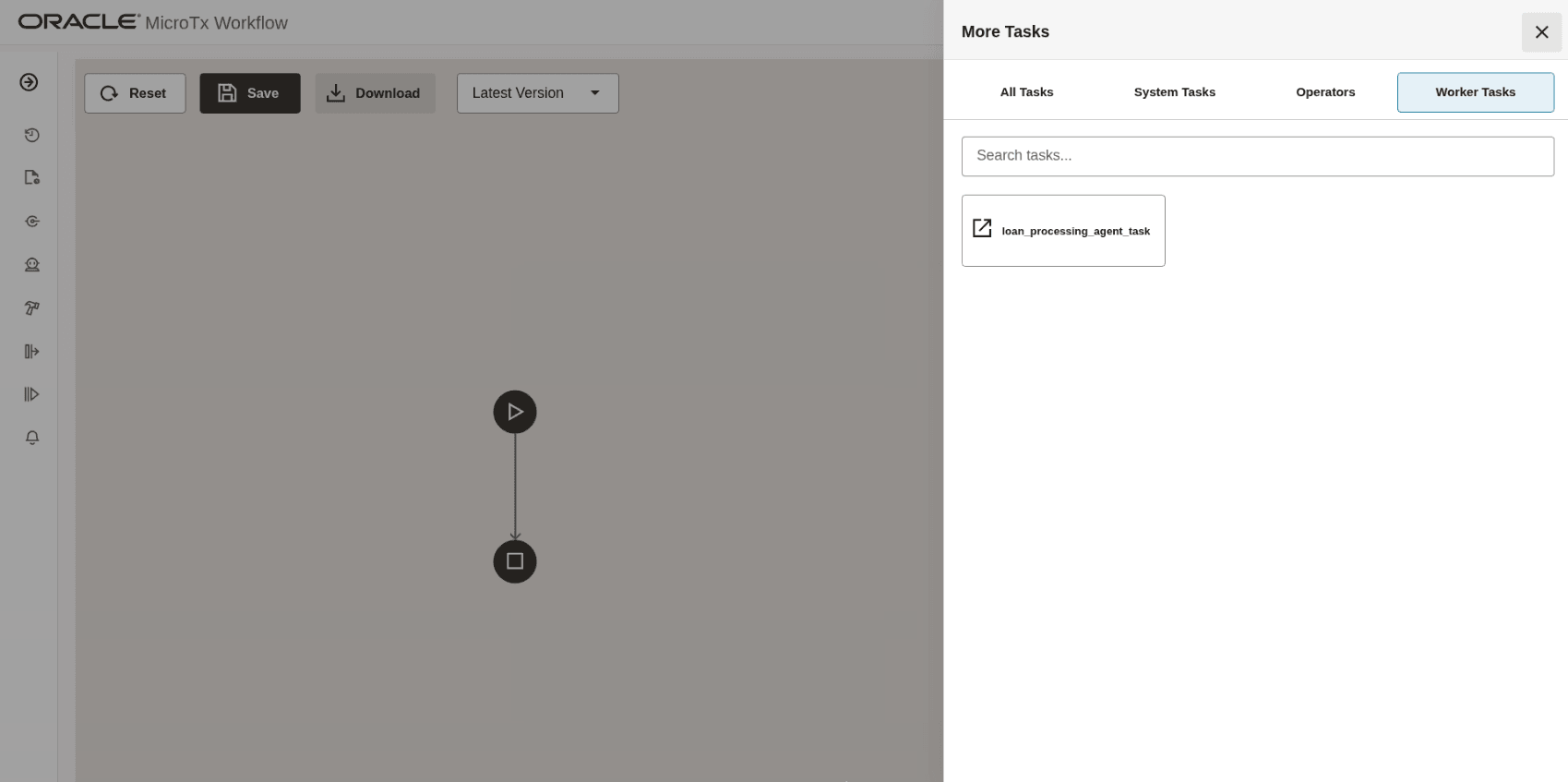
identify a task that you want to add to the workflow. Click Worker
Tasks to view simple tasks that you have defined.As shown in the following image, the simple task that you have defined earlier is displayed.
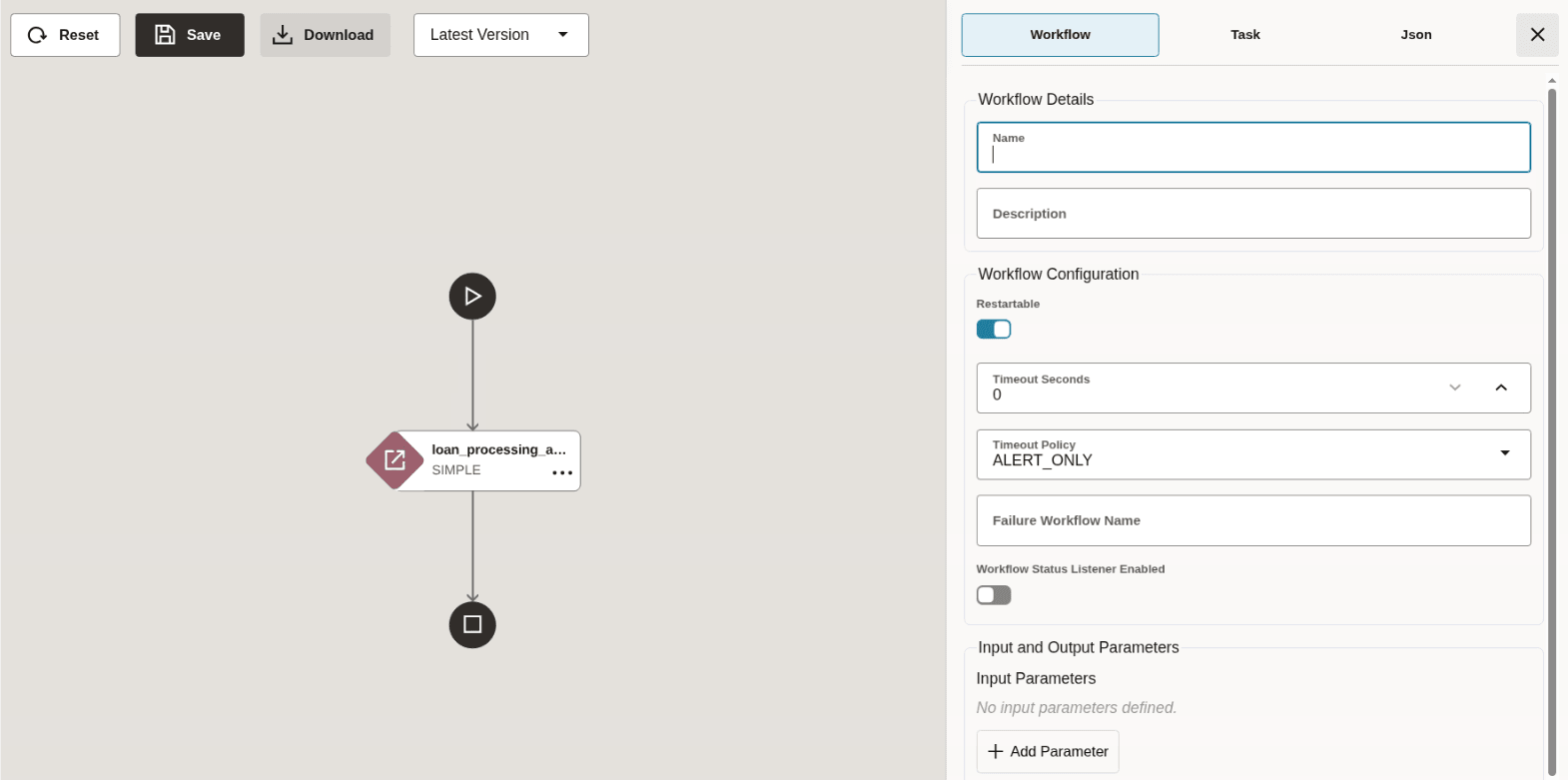
- Click the task name in the right pane.MicroTx Workflows adds the task to the workflow as shown in the following image.
Parent topic: Manage Task Definitions for Simple Tasks