2.2.7 Perform Actions on Multiple Executed Workflows
You can perform the same action on multiple workflow executions at the same time. Bulk actions are applied independently to each selected workflow. If an action succeeds for some workflows and fails for others, MicroTx Workflows displays the successful workflow IDs and the reason for each failure.
- Click Bulk Actions, and then click one of the following actions.
- Pause: Pauses the selected workflow executions that are not in a terminal state. A paused workflow stops further processing until it is resumed. You cannot pause a workflow that is the completed, failed, timed out, or terminated state.
- Resume: Resumes selected workflow executions that are in the paused state. The workflow status changes back to running and processing continues from the point where the workflow was paused.
- Terminate: Stops selected workflow executions that are still active. The workflow status changes to terminated, and pending tasks are removed from processing queues. A terminated workflow cannot be resumed, but it can be retried or restarted.
- Terminate With Reason: Stops selected workflow executions and records the reason that you enter. The reason is stored with the workflow execution and can be used for auditing and troubleshooting.
-
Delete: Permanently removes the selected workflow executions and their associated task records from the active workflow store. Deleted workflows cannot be recovered.
Caution:
Use Delete only when the workflow execution history is no longer required. If you need to retain execution history for troubleshooting or audit purposes, use Archive instead. -
Archive: Removes the selected workflow executions from the active workflow store but retains an archived execution record for historical reference. Only workflows in a terminal state, such as completed, failed, terminated, or timed out can be archived.
- Retry: Retries selected workflows that are in a terminal state. MicroTx Workflows identifies the last unsuccessful task instances, such as failed, timed out, or canceled tasks, and reschedules those tasks. The workflow status changes back to running. If there are no retryable tasks, use restart instead.
-
Restart with current def: Restarts selected workflows from the beginning by using the workflow definition associated with the original execution. Existing task execution state is cleared, the workflow status changes to running, and the workflow starts again.
-
Restart with latest def: Restarts selected workflows from the beginning by using the latest available version of the workflow definition. Use this option when you want the restarted execution to pick up changes made after the original workflow execution.
The selected action is performed on the workflows based on the current state of the workflow. If an action cannot be performed on a selected workflow, the reason is displayed as shown in the following figure.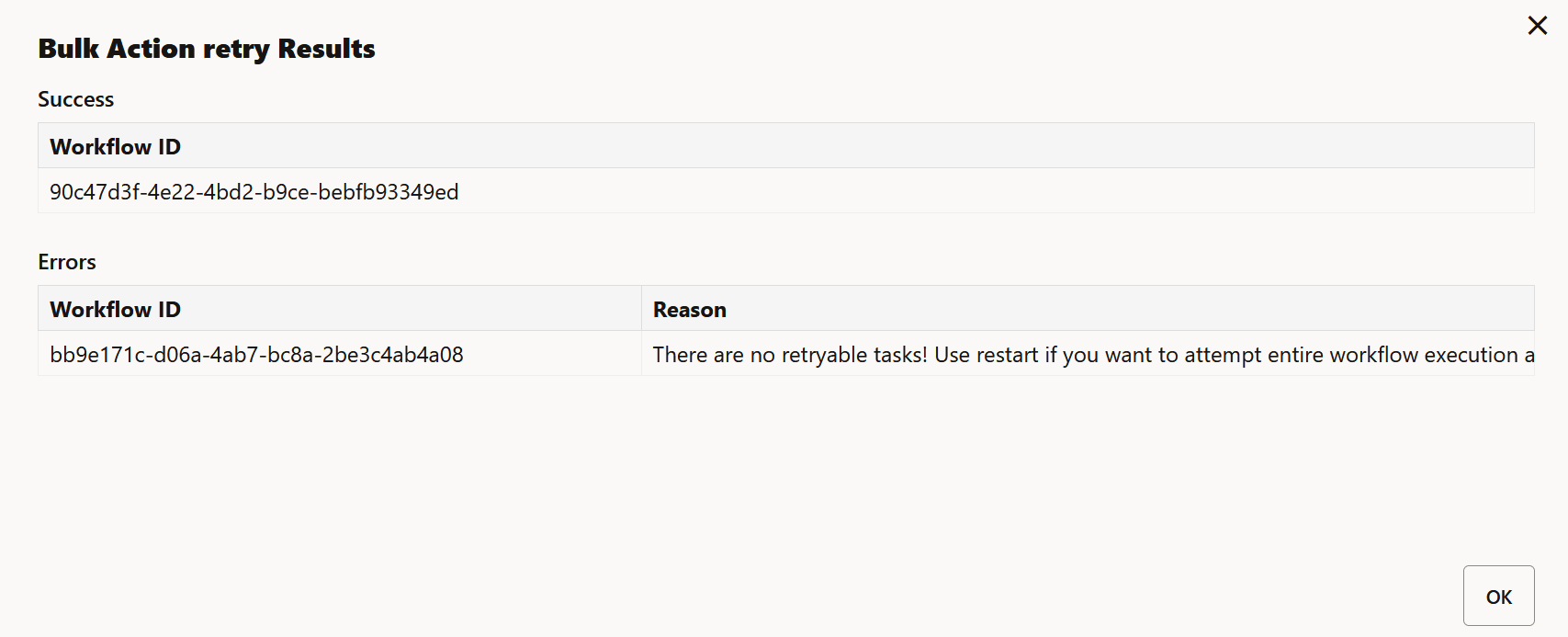
Parent topic: Manage Workflow Executions