Create a Federated Partition
Create a federated partition between Essbase and Autonomous AI Lakehouse Serverless if you want to use Essbase to make the most of your data warehouse.
Note:
An Essbase database with a federated partition is called a federated cube.
This topic assumes you have completed the prerequisites and reviewed the information detailed in the preceding topics.
To create federated partition you must be a Service Administrator or Application Manager.
To build a federated cube using Cube Designer, refer to Create a Federated Partition using Cube Designer.
-
Log in to the Essbase web interface.
-
On the Home page, click the name of the application you will use to create a federated cube.
-
Click Settings, and expand Startup.
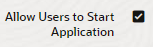
Ensure that Allow Users to Start Application is enabled.
-
Click General, click the Database name, and click Partitions.
-
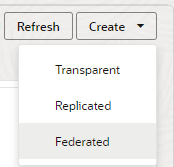
Click Create >Federated.
-
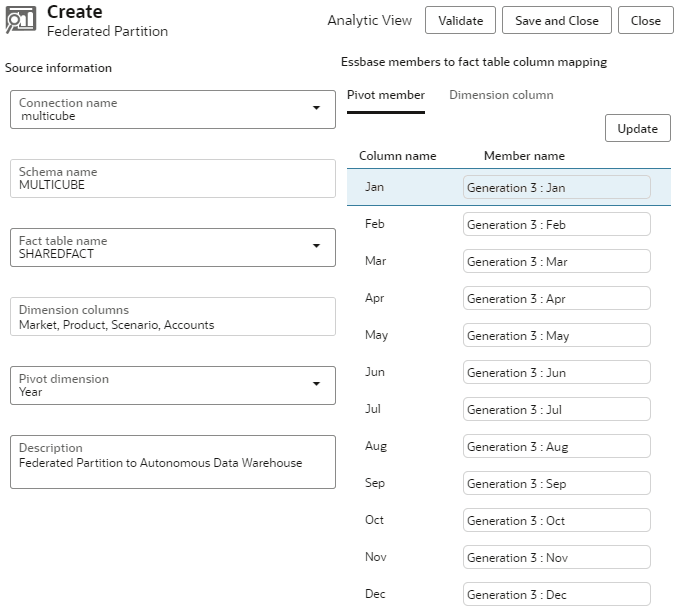
For Connection name, enter the connection to Autonomous AI Lakehouse that was previously created, as shown in Create a Connection for Federated Cubes.
-
For Schema name, ensure that it matches the name of the database schema (user name that you entered when you created the connection).
-
For Fact table name, select the name of the fact table in Autonomous AI Lakehouse that stores numeric values and keys.If Essbase recognizes dimension names from the fact table, the values in the Dimension columns field may autocomplete with Essbase dimension names. Similarly, the values in the Pivot member columns field may autocomplete with members of the presumed pivot dimension.
Note:
Not required for federated partitions with Essbase managed data storage.
-
For Pivot dimension, select the name of the pivot dimension you decided to use from the Essbase outline, during the Identify the Pivot Dimension process.
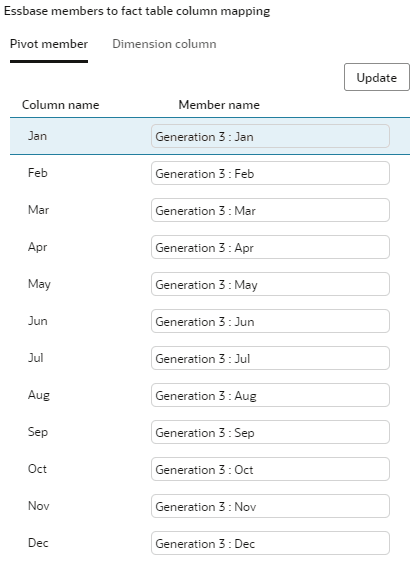
If the column names in the fact table are the same as the dimensions and pivot member names in the outline, then the mapping is automatically populated in in the Pivot member tab of the Essbase members to fact table column mapping. If any dimensions or members cannot be automatically mapped to a column in the fact table, you will need to map them manually.
Use the Update button if you need to manually map stored pivot dimension members to fact table columns.
If a member of the pivot dimension (or a non-measures dimension name) includes a special character, such as
&, Oracle recommends renaming it.Essbase automatically maps member names with spaces to corresponding column names in the fact table with the space replaced by an underscore. For example, Essbase automatically makes the following mapping:
Pivot dimension member name Fact table column name "Initial Inventory" INITIAL_INVENTORY -
Click Dimension column to map the non-pivot dimensions to columns in the fact table. They may map automatically if the fact table column names match the dimension names in the outline. If needed, you can map them manually.
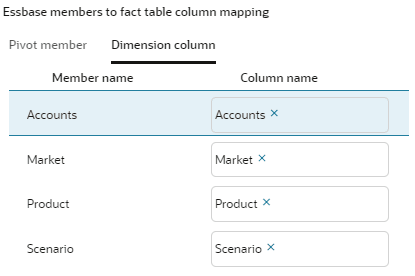
-
Validate and save the partition, then restart the application.
Saving or validating your federated partition may take a while to complete. Check the job status.
The federated partition is created, and your Essbase database is now a federated cube. This process also creates dimension helper tables (and other artifacts) in Autonomous AI Lakehouse, which are linked (by keys) to the fact table.