Connect to Database Using Oracle NoSQL IntelliJ Plugin
This section describes how you can connect to KVLite in container using Oracle NoSQL IntelliJ plugin.
Oracle NoSQL Database IntelliJ Plugin provides multiple ways to connect to an Oracle NoSQL Database. You can connect to Oracle NoSQL Database cloud service, cloud simulation, or an on-premise installation. For more details, see About IntelliJ Plugin. In the below case, we will connect to the KVLite instance that we are running inside a container by creating an on-premise connection.
-
Choose the task
 icon in the Schema Explorer window to open the Settings dialog.
 -
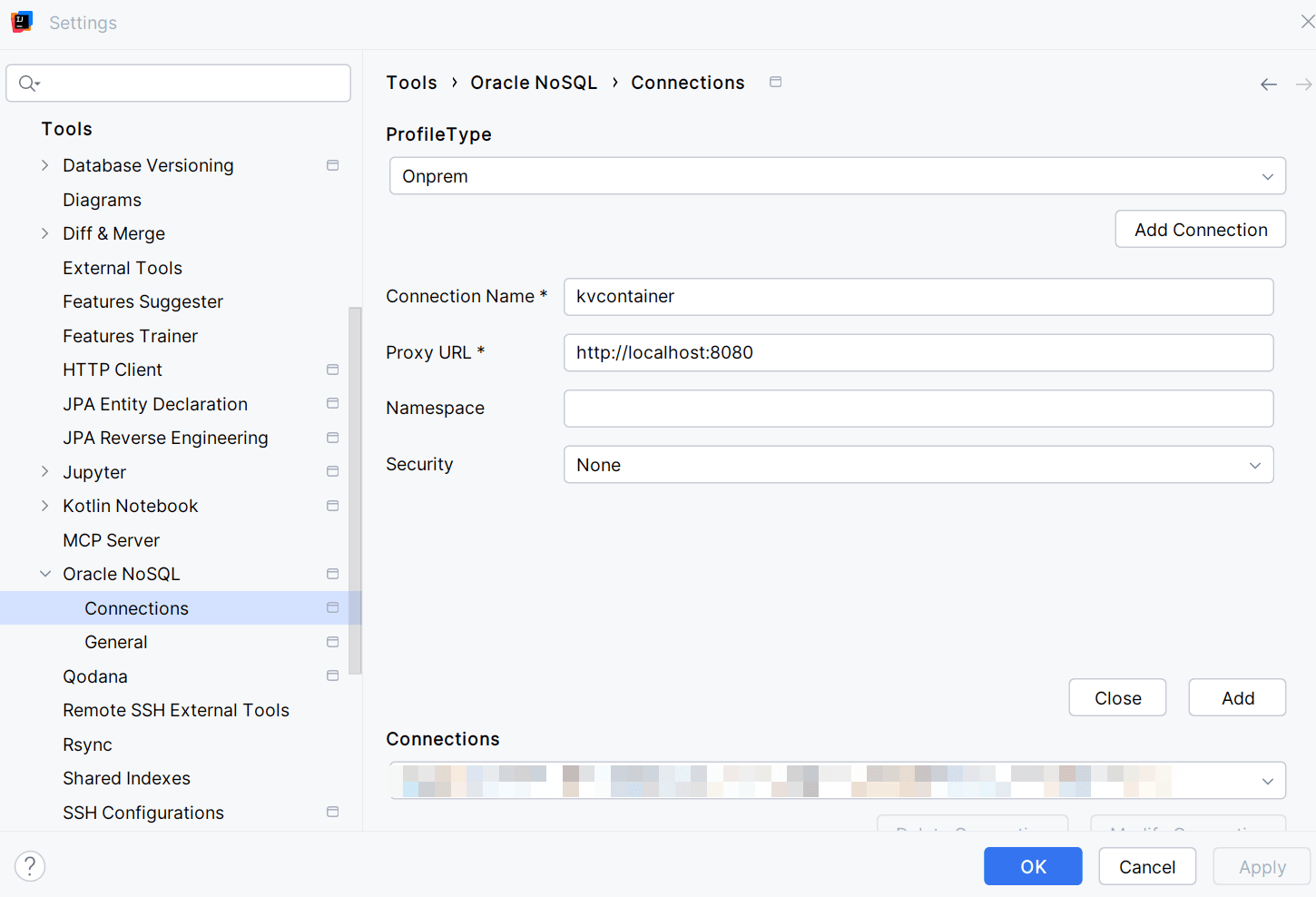
Expand Tools> Oracle NoSQL in the Settings dialog, and choose Connections.
-
Select Onprem from the drop-down menu.
-
Choose Add Connection. Enter the connection parameters and select OK. Enter the proxy URL as
http://localhost:8080(if you are using an external host - provide the name of the host machine).
-
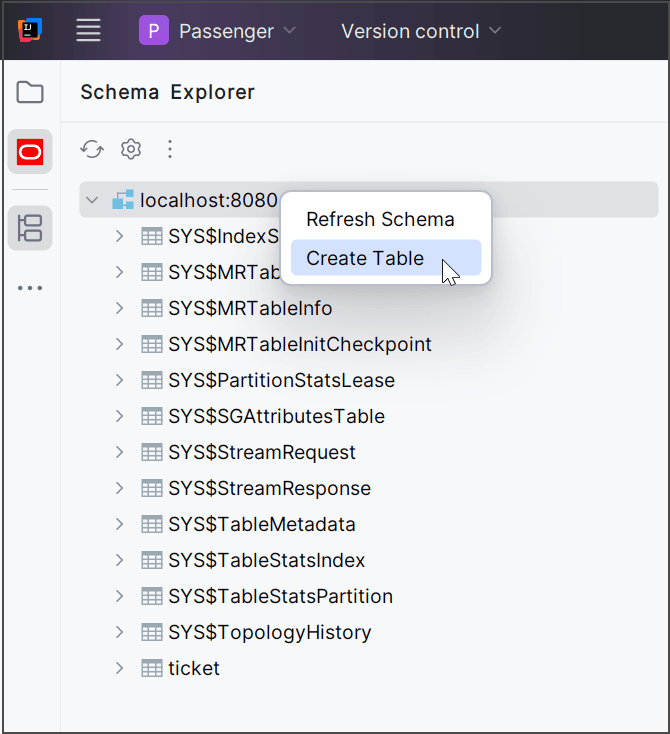
Go to Schema Explorer and view the connection. You can right-click on the connection and choose Create Table and perform various table operations. For more details on this, see Managing Tables Using the IntelliJ Plugin.