Clone Step Conditions
OGL Full Editor adds a new Clone function to the Create/Edit condition panel, which allows content developers to duplicate an existing step condition and all its field values and settings. This adds convenience and efficiency for content developers who may wish to create multiple step conditions, each with similar settings or field values.
Use Cases:
- When applying validation rules to a guide step, developers can create multiple step conditions, each with similar settings or field values. Cloning a step condition saves time as it duplicates all of the field values from the original condition, allowing the user to adjust just one value, as needed.
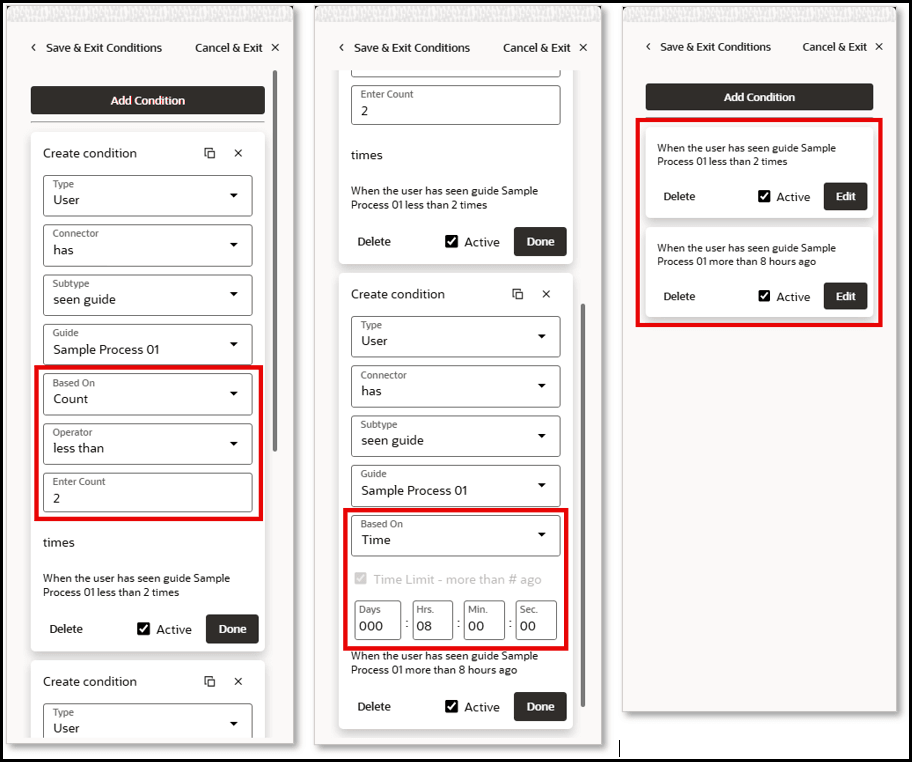
- When setting a condition in which a user has seen a particular guide ‘x’ number of times, several hours apart, based on both time and count.
How to use the Clone Step Condition:
In the following example, we will set 2 step conditions using form field validation that will trigger when the page has a form field – drop down value of ‘High’ or ‘Urgent’.
- Create/Open a guide in the Full Editor.
- Create/Edit a step and open the Step Settings.
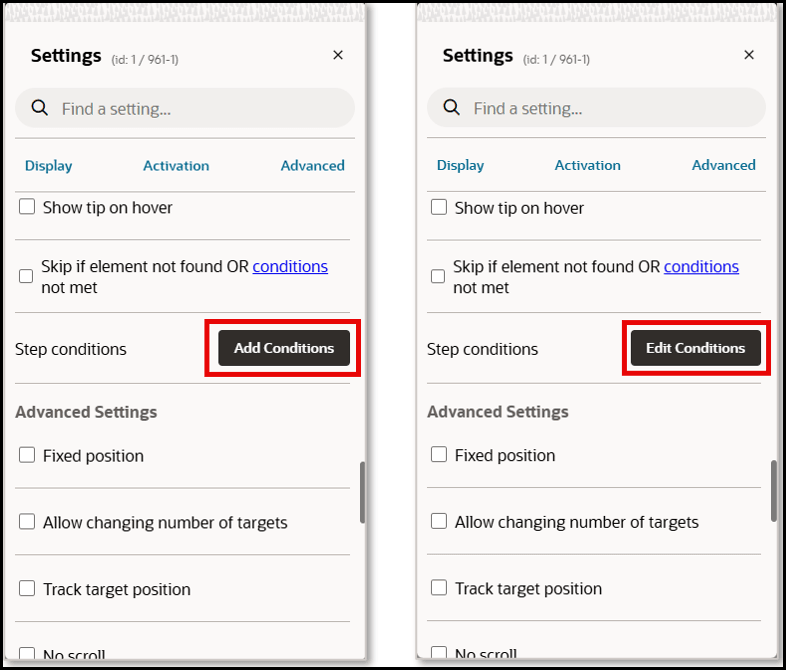
- In the Step conditions section, select Add Conditions (or Edit
Conditions)
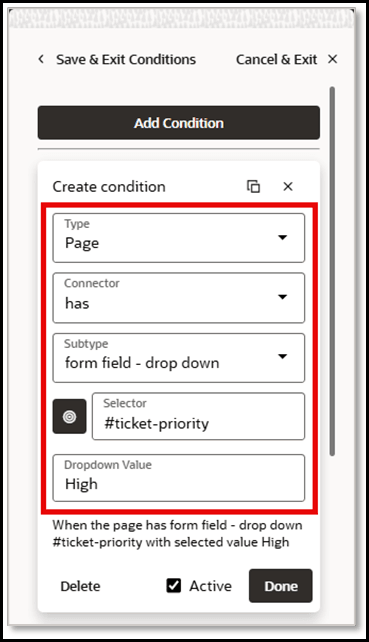
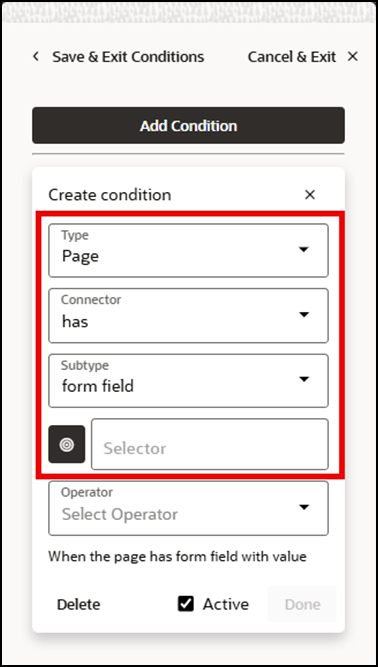
- Here we have set a step condition in which the Page has a ‘form field – drop down’
value of ‘High’:
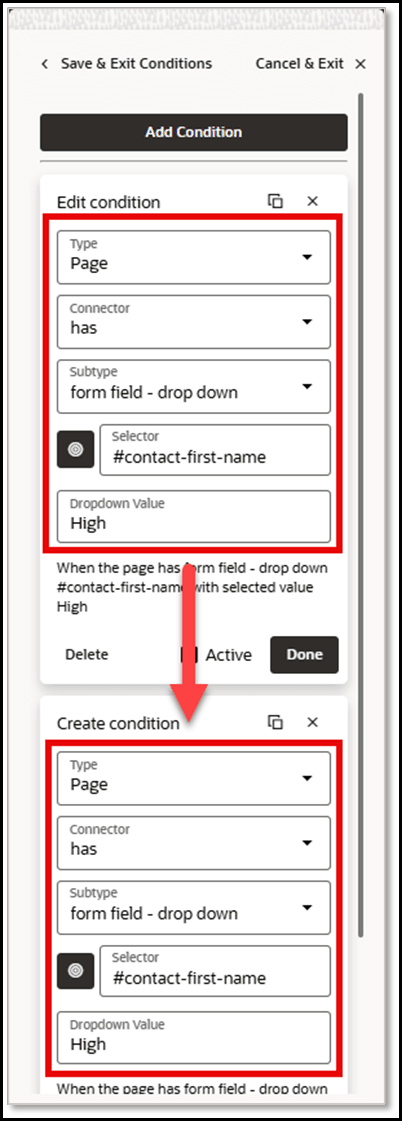
- Select the Copy condition button to duplicate the step condition, preserving
all of the current settings.
- In the second step condition, change the Dropdown value to ‘Urgent’.
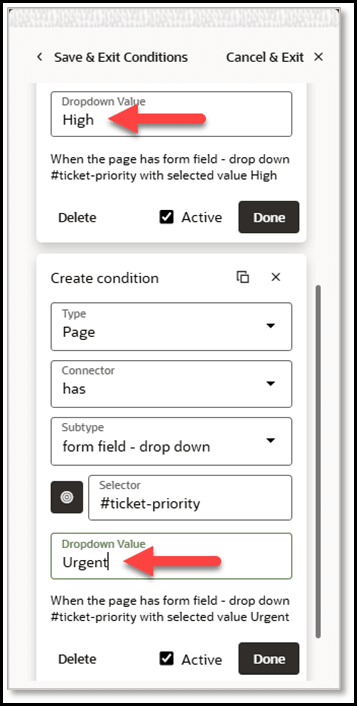
- Select Done for each condition.
- You have now created 2 step conditions, each with similar settings.
Below is another example of a cloned step condition that will trigger when a User has seen a particular guide based on Count (less than 2 times) and Time (8 hours apart):