Content Security Policy (CSP) Error Correction
What is a CSP Error?
In simple terms, the OGL Help Widget will not load/display in the application due to a security policy.
Instead of blindly trusting everything that a server delivers, CSP defines the Content-Security-Policy HTTP header, which allows you to create an allowlist of trusted content sources and instructs the browser to only execute or render resources from those sources. The web's security model is rooted in the same-origin policy. For example, code from https://mybank.com should only have access to https://mybank.com's data, and https://evil.example.com should certainly never be allowed access. With this policy defined, the browser throws an error instead of loading scripts from outside sources (Source: Content Security Policy). This includes data from Oracle Guided Learning.
How to Troubleshoot
- Right-click (Control-click on a Mac) on the application Homepage, then select Inspect from the menu.
- Switch to the Console tab. Note the error in the
Console relating to the Content Security Policy. It will read
"Refused to load the script..." followed by the OGL
URLs.

How to Correct a CSP Error
- On the Fusion application Homepage, select the
Settings and Actions icon (
 ) and then select Setup and Maintenance.

Alternatively, select the Navigator icon (
 ) → Others → Setup and
Maintenance.
- Select the Tasks icon (
 ) on the Setup and Maintenance screen to view the
slide menu. Then select Search from the options in the slide
menu.

- In the search field, enter "Manage Administrator
Profile Values" and then select the
Search icon (
 ).
- From the search result, select Manage Administrator
Profile Values.
A new window opens now, where you can manage Administrator Profile Values.
- Enter ORACLE.ADF.VIEW.ALLOWED_ORIGINS in the
Profile Option Code field and then select
Search.

Note:
More information on this profile option can be found on Cross-Origin Resource Sharing. - Scroll down to view the Profile Value results
displayed.
The field value may appear as "‘self’" or "‘self’ https://xyz.com" (with your organization-specific domain).
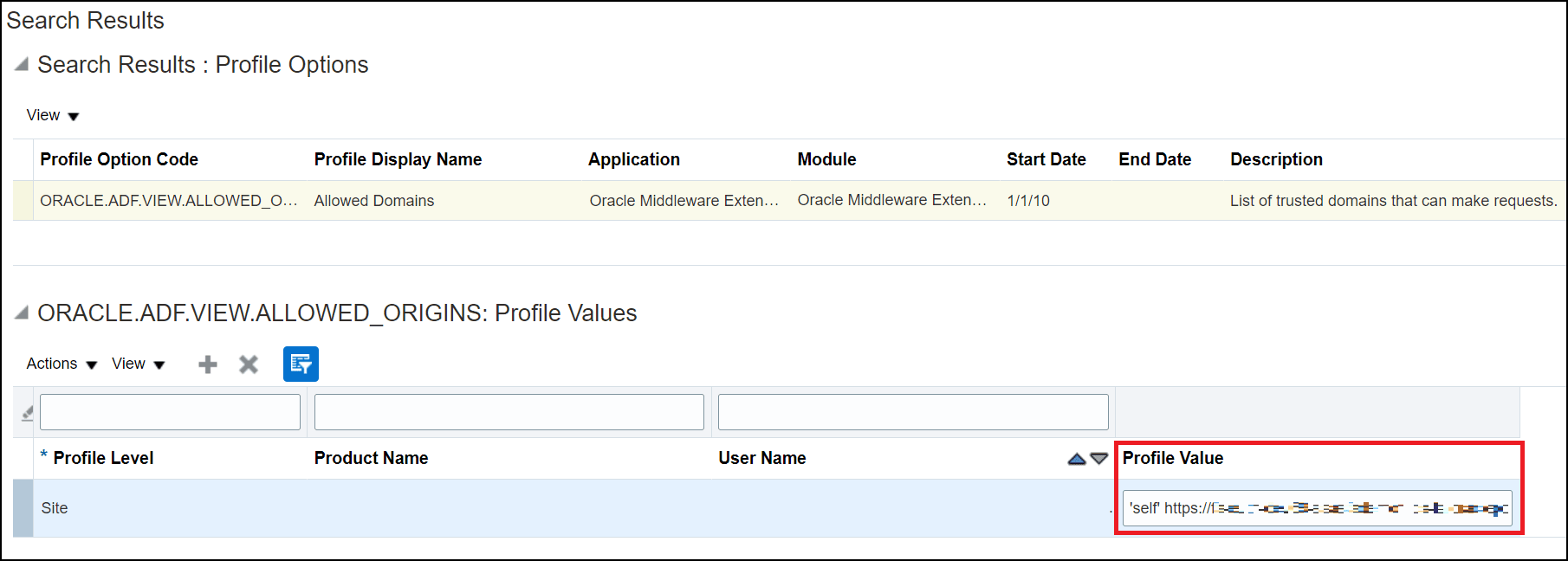
- Depending on your data centre region, enter the Profile
Value as provided below:
- NA Tenancy: 'self' https://guidedlearning.oracle.com
- EMEA Tenancy: 'self' https://guidedlearning.oracle.com https://guidedlearning-emea.oracle.com
- APAC Tenancy: ‘self’ https://guidedlearning.oracle.com https://guidedlearning-apac.oracle.com
- OC4 Tenancy (UKGOV): 'self' https://prod.oc4.guidedlearning.ocs.oraclegovcloud.uk
- OC19 Tenancy (EUSC): 'self' https://prod.oc19.guidedlearning.ocs.oraclecloud.eu
- OC29 Tenancy (DRCC): 'self' https://prod.oc29.guidedlearning.ocs.oraclecloud29.com
Note:
- You may find the field value appears as ‘self’ <third party URL> or ‘self’ with your organization-specific URLs. Do NOT overwrite any URLs that are already defined, add the OGL URLs to the existing URLs.
- Use the whitespace separator (single space) between the URLs (i.e. 'self'<white_space><url_1><white_space><url_2><white_space><url_3>).
- You can find more details on this profile value in this Oracle article.
- This applies for Fusion version 21.04.0 or later.
- Select Save and Close to save your changes and exit the Manage Administrator Profile Values task.
- Log out of the application and log in again.
- Go to the Homepage to verify that the OGL Help Widget is visible.

You have now successfully resolved the CSP error.
Check Player Authentication Setting
In some cases, the widget may still not load even after completing the CSP error correction instructions and adding the URL to the profile value as outlined above. This can occur if you have enabled Player Authentication without having properly setting up your organization's federated Single Sign On (SSO) with OGL. To resolve this issue, go to Settings > Application > Player Authentication. Ensure that Set to Enable Player Authentication is disabled (i.e., unchecked). If your organization has already integrated its federated SSO with OGL, please keep the Player Authentication setting enabled. See the note below for more information about integrating your organization's SSO with OGL.
Note:
OGL SSO Integration- Federated Single Sign-On (SSO) lets users log in once with one set of credentials, like their work account, to securely access applications and services across different, independent organizations or security domains, using established trust and standards (e.g., SAML) to exchange identity information. It works by having a user's home Identity Provider (IdP) (e.g., Google, Azure AD) verify their identity and send a trusted token to the Service Provider (SP) (e.g., OGL, Oracle Cloud Fusion), allowing seamless access without new logins. Oracle Guided Learning supports Federated Single Sign-On. If you wish to integrate your organization's SSO with OGL, please reach out to your OGL Enablement Lead or contact OGL Support to request SSO integration.